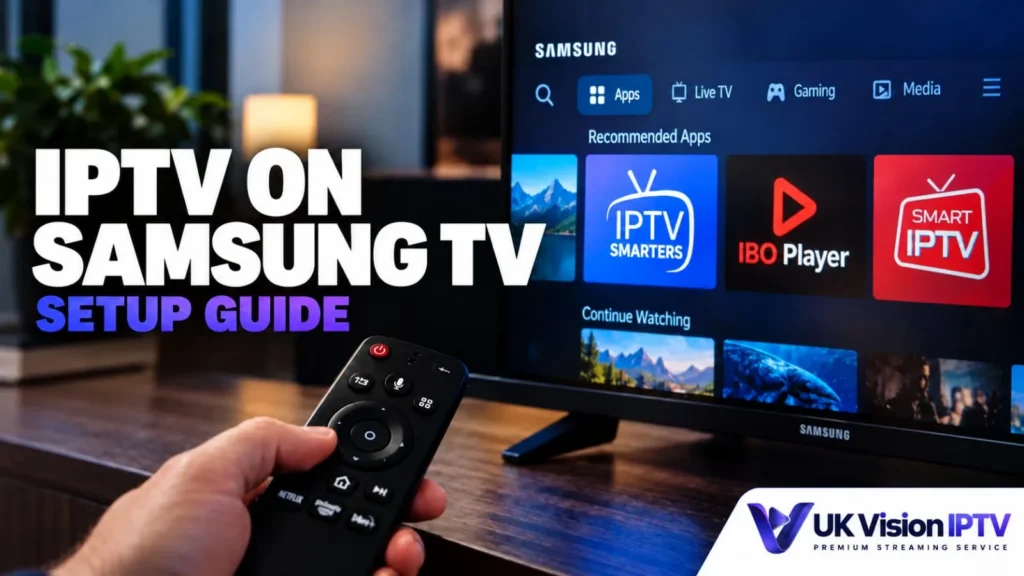
This Samsung Smart TV IPTV setup guide for viewers in the UK explains how to install a compatible player from Samsung’s own app store, then enter the account details or playlist method supplied for your subscription. It keeps model, region and app availability checks in view rather than assuming one setup works on every TV.
Samsung Smart TV IPTV setup can vary by model, software version and region. The local IPTV compatible devices guide and wider setup tutorials can help you compare routes, but this article does not confirm that any named player works with UK Vision IPTV on every Samsung television.
Key takeaways
- Check the exact Samsung model, software version and regional app catalogue before choosing a player.
- Install only a player listed for your television, then use the login or playlist method supplied with your subscription.
- EPG data depends on the player, account details and guide source, so test live playback and the programme guide separately.
- If no suitable Samsung app appears, use an external supported device rather than forcing an unsupported installation.
Before you start: check your Samsung TV
Record the television model, software version and country or region before you install anything. A Samsung TV normally uses Tizen and Smart Hub. Exact menu names change by model and software version, and an app visible on one TV may be unavailable on another. These checks make the rest of your Samsung Smart TV IPTV setup more predictable.
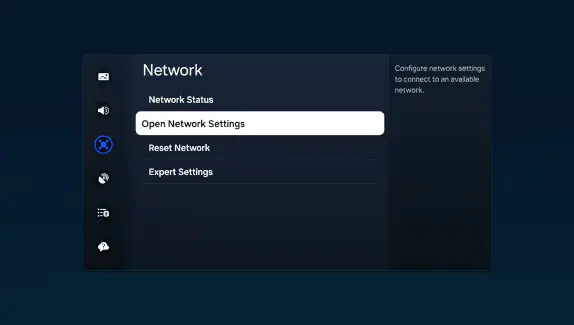
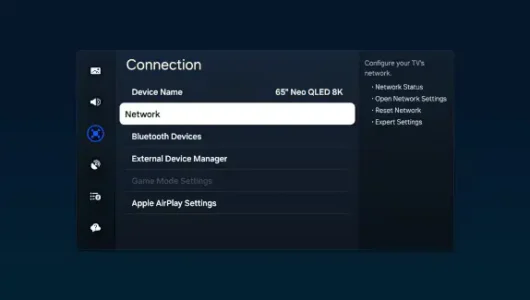
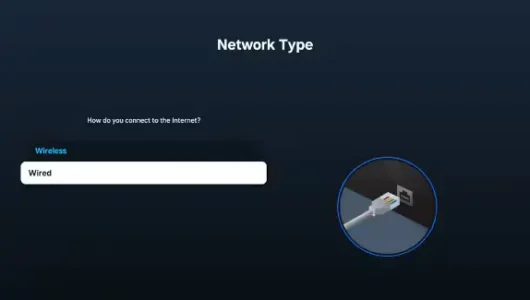
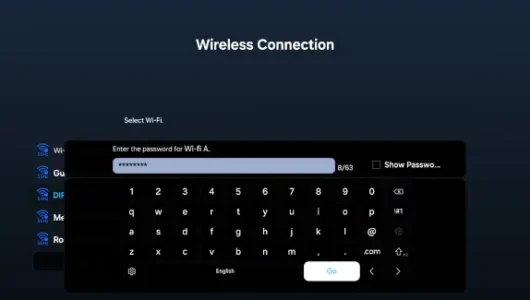
- Connect the TV to your home network using Wi-Fi or Ethernet.
- Keep the subscription email or account area open so you can copy the server address, username, password, M3U playlist or other supplied details accurately.
- Check the television’s app store for a compatible player before choosing a long subscription.
- Keep the TV software current and leave enough storage for the app and normal updates.
UK Vision IPTV’s local device guidance lists Samsung Smart TV among supported categories, but model-level and player-level compatibility still needs checking. Use the device guide for the broader compatibility list and contact support if the intended model or login method is unclear.
Samsung Smart TV IPTV setup
For a Samsung Smart TV IPTV setup, start with Smart Hub and the Apps area. Samsung’s own store is the safest starting point because available players depend on the model and region.


Check Samsung Apps and model availability
Samsung’s official guidance says that app installation steps can vary between TV models and that a Samsung Account is needed to download apps. Press Home or Smart Hub, open Apps and use Search to look for a player listed for your exact TV. Samsung also notes that available apps can vary by country or region.
For current menu guidance, see Samsung’s Smart Hub instructions and its app installation and troubleshooting guidance. If the app is not in the store, treat that as a compatibility question rather than a prompt to install an unofficial package.

Install a compatible Samsung TV player
- Press Home and select Apps or Smart Hub.
- Search for the player you intend to use and read the publisher, model requirements and region availability.
- Select the app and choose Install, then open it after the installation completes.
- Read the player’s first-run instructions before entering account details.
The Tutorials page names IBO Player Pro as a Smart TV option, but that page is not proof that IBO Player Pro works with every Samsung model or with every UK Vision IPTV account. Use it only if the current store listing and the player’s own setup flow match your television and supplied account method.
Add account details and load the guide
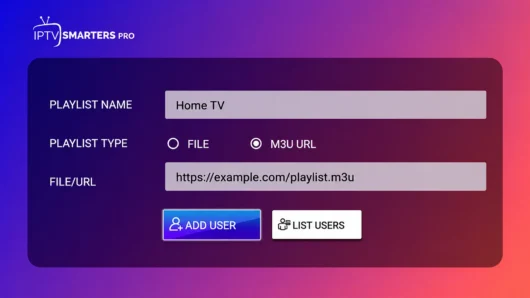
Open the player’s add-account, login or playlist screen. If it offers Xtream Codes API, enter the server URL, username and password supplied for your subscription. If it offers M3U, paste the complete playlist URL exactly as supplied. Some players use a portal, device key or account registration flow instead; follow the method shown by that player and do not substitute credentials from another method.
Save the profile and allow the player to load the channel list. Then open the guide or EPG area and refresh it if the player provides that option. Test one live channel and the programme guide independently before changing other settings.
Choose the login method your player supports
There is no universal IPTV login screen. A Samsung player may offer Xtream Codes API fields, an M3U playlist URL, a portal address or device registration using a key or identifier. Use only the method explicitly supplied for your account and supported by the player installed on your TV.
- Xtream-style login: usually a server URL, username and password.
- M3U playlist: a complete playlist URL, sometimes with a separate EPG URL.
- Portal or device registration: an app-specific address, device ID or key, often entered through the player’s own activation flow.
Do not combine fields from different methods, remove part of a URL, or copy details from a public guide. If your welcome message does not state which method to use, contact UK IPTV support before repeatedly reinstalling apps.
IPTV Smarters on Samsung TV
If IPTV Smarters appears in Samsung Apps for your exact TV and region, open the installed player and select the login or playlist route it offers. The screenshots below show one example flow; app labels and available features can change, so they do not confirm compatibility with every Samsung model or UK Vision IPTV account.
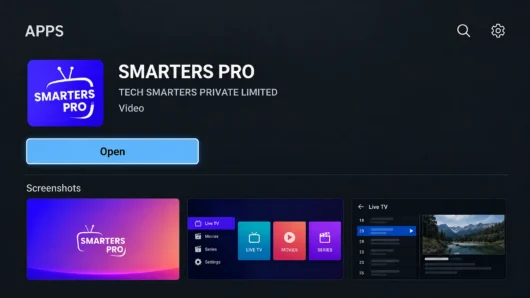
- Open the player and choose the account method supplied with your subscription.
- For an M3U route, enter the complete playlist URL exactly as supplied; for another route, use only the fields named in your account instructions.
- Save the profile and wait for the player to load its categories before testing live playback and the guide separately.
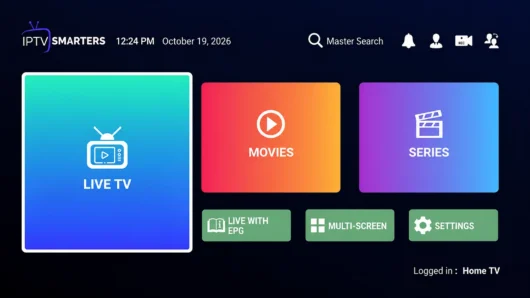
An M3U example is shown for illustration only. Do not copy example values from a screenshot, and do not assume that a player’s displayed categories mean every category or channel is available on your account.
IBO Player activation when available
Some Samsung televisions may list IBO Player or a similarly named player, while others may not. If the current Samsung Apps listing is available for your model, follow the app’s own activation instructions. This route may use a device identifier, key and playlist rather than the Xtream fields shown earlier.

- Open the installed player and record the device identifier or key shown on your own TV without sharing it publicly.
- Use the activation or playlist-management address presented by the app, checking the domain before entering any device information.
- Add the playlist details supplied for your account, save the entry and return to the TV app.
- Reload the player and test a live channel and the EPG independently.


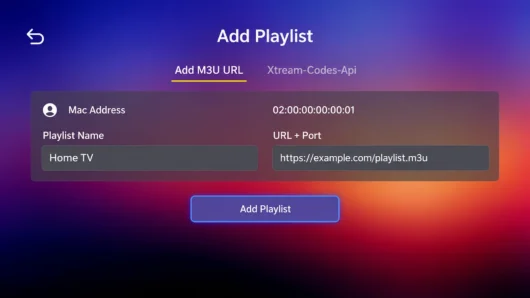

The screenshots show an example activation flow and do not establish the app’s current availability, fee or compatibility with a particular Samsung model or account. Confirm those details before paying for any player licence or changing a subscription.
Smart IPTV playlist setup when available
Smart IPTV may be available on some Samsung models and regions, but the store listing and app instructions are the source of truth. If it is listed for your TV, the app may show a MAC address and direct you to an upload page rather than providing the same login form as another player.

- Open Smart IPTV and record the MAC address shown on your own television.
- Open the playlist-upload address shown by the app and check that it is the expected app website before continuing.
- Enter the TV MAC address and the complete M3U URL supplied for your account, then submit the form.
- Restart or reload Smart IPTV and confirm that the playlist and guide load before troubleshooting playback.
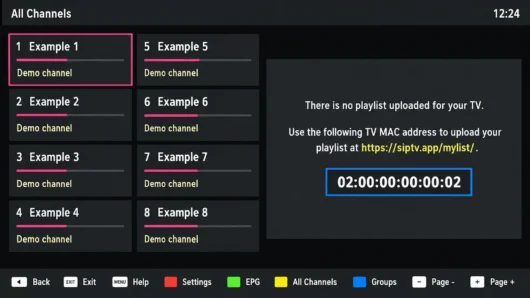


This example uses a MAC-and-playlist workflow. Do not infer that the route, activation fee or playlist format applies to every Samsung model, app version or subscription.
Load and check EPG data
EPG means electronic programme guide. Depending on the service and player, guide data may load automatically with the account or require a separate XMLTV or EPG URL. The menu label varies by app, so follow the player’s own instructions.
- Open the player’s Guide, EPG, XMLTV or programme guide settings.
- Use only the guide URL supplied for your account if a separate URL is required.
- Save, refresh or reload the guide, then check the TV’s time zone and channel mapping.
- Test a live channel separately so you can tell a guide problem from a playback problem.
Guide availability is not proof that every channel or programme is authorised for every location. Check the service terms and the content rights that apply to your use.
Troubleshoot Samsung Smart TV IPTV setup
If the app is missing from the store
Check the Samsung model, software version, Samsung Account status, network connection and regional service setting. Samsung notes that app availability depends on the model and region. Do not sideload an unknown package or change the region through an unsupported method just to force an installation.
If login fails or the list is empty
Recheck the server address, username, password or M3U URL character by character. Confirm that you selected the same login method named in your account instructions. Remove spaces added by copy and paste, then try the player’s refresh option. If the account details are correct but the issue continues, record the TV model, player name and error message for support.
If playback buffers or the TV app stops responding
Check the TV’s network status, restart the router and TV, install available software updates and close unused apps. Samsung support guidance includes network testing, software updates and reinstalling an app as troubleshooting steps. Test one live channel again before changing account settings.
If no suitable app appears
If the television’s official store does not list a suitable player for your model and region, an external supported device may be the simpler route. Check the compatible devices page and the Firestick setup guide before buying extra hardware. Do not treat an external device as a guarantee that every app or account method will work; confirm the exact route first.
Frequently asked questions
Can I use any IPTV app on a Samsung TV?
No. Use a player listed for your exact Samsung TV model, software version and region. App availability and login methods can differ between Samsung TV models and individual players.
Can I use the same IPTV login on two devices?
Only if the player on each device supports the same account method and your subscription terms allow that use. Confirm the method and device limits before entering the credentials on a second device.
Why is the EPG missing or showing the wrong times?
Check whether the player needs a separate guide URL, refresh the EPG, confirm the TV time zone and review channel mapping. If live playback works but the guide does not, contact the provider or app support with the TV model and player name.
Do IPTV player apps charge separately?
Some third-party players may have their own licence, activation or subscription terms. That is separate from an IPTV service subscription unless the seller clearly states otherwise. Check the app publisher’s current terms before paying.
Final checks before you watch
- The app is listed for your Samsung model and region.
- The player opens without an unsupported installation route.
- The account or playlist method matches the details supplied for your subscription.
- At least one live channel loads and the EPG has been refreshed and checked separately.
- You have recorded the model, player and error message if support is needed.
This guide is published by UK Vision IPTV and is intended to explain Samsung device setup, not to guarantee app availability or service compatibility on every television. For the wider UK IPTV setup guide, current channel information and subscription plans, use the linked site pages for model-specific questions and contact support before choosing a longer plan.