This Roku IPTV setup guide explains the practical routes available to UK viewers: using a compatible player from the Roku Store or casting playback from a supported iPhone, iPad or Android phone. Roku uses a closed platform, so the exact player, casting feature and account login method depend on the Roku model, software version, region, phone, app and subscription details.
Before you start with Roku
Have your Roku connected to the internet, the remote available and the account details supplied with your IPTV subscription. You may also need a phone or computer with a keyboard if a player uses a web portal to add a playlist. UK Vision IPTV does not require one universal Roku app for every model, so check the chosen player and login method with support before committing to a long plan.
- Check the Roku model and current software under Settings > System > About.
- Connect the Roku and the phone or computer you will use for setup to a reliable network.
- Keep the username, password, server address, portal address or M3U URL supplied for your own account private.
- Use the compatible devices guide and contact support if the supplied login format is unclear.
Choose a Roku IPTV setup method
For everyday viewing, start with a Roku Store player if one is available for your model and region, or use casting when your phone, Roku and player support it. Developer Mode is a separate testing feature for app developers; it is not a normal way to install an IPTV service and is covered only to explain its limits.
Method 1: Roku Store player
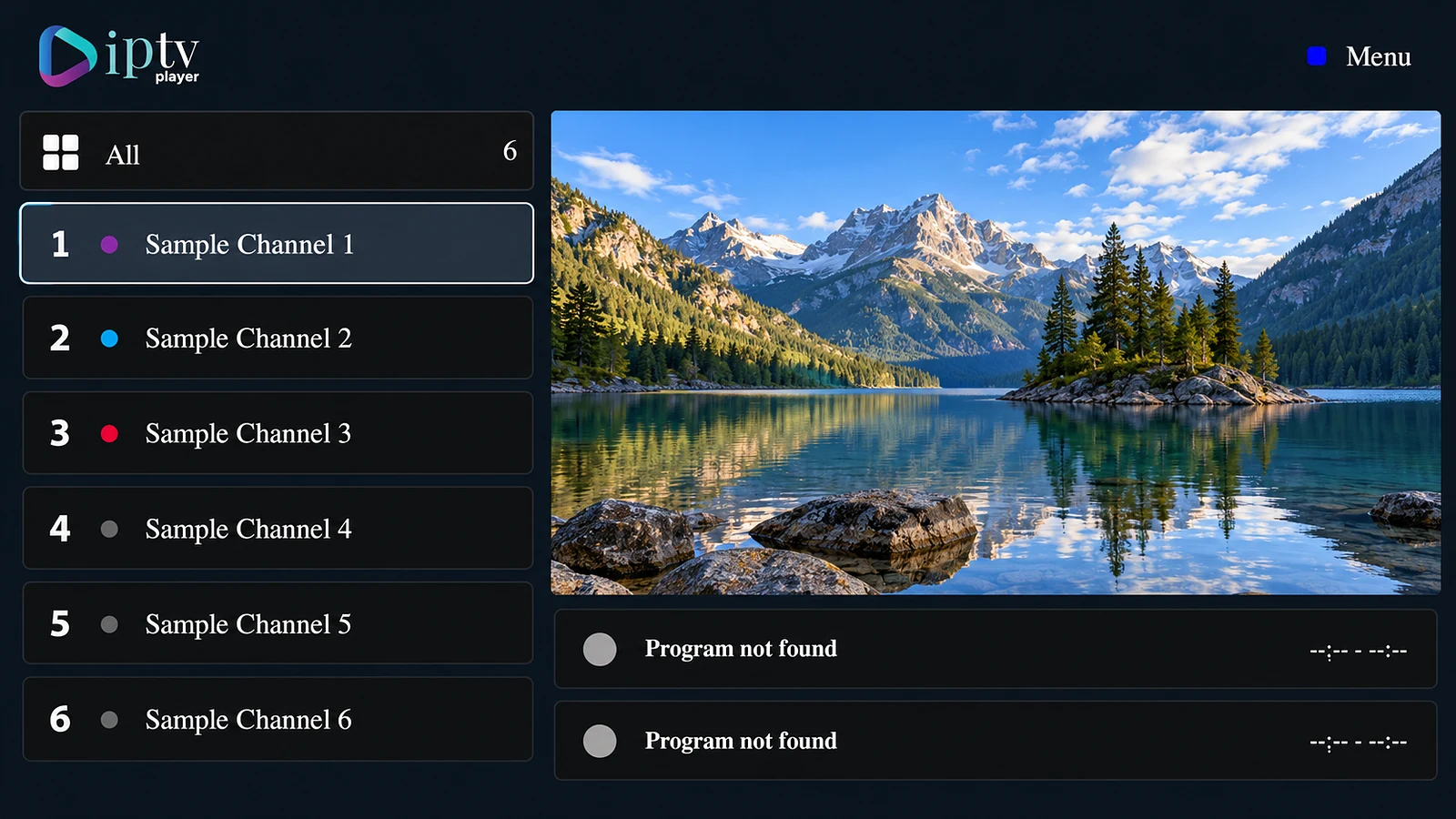
A Roku Store player may accept a playlist through its own website, an app-specific account or another input method. The Roku Channel Store listing is the authority for current availability, publisher, pricing and supported models. Do not assume that an app name used on Fire TV, Android TV or Apple TV has a Roku version.
Open the Roku Store
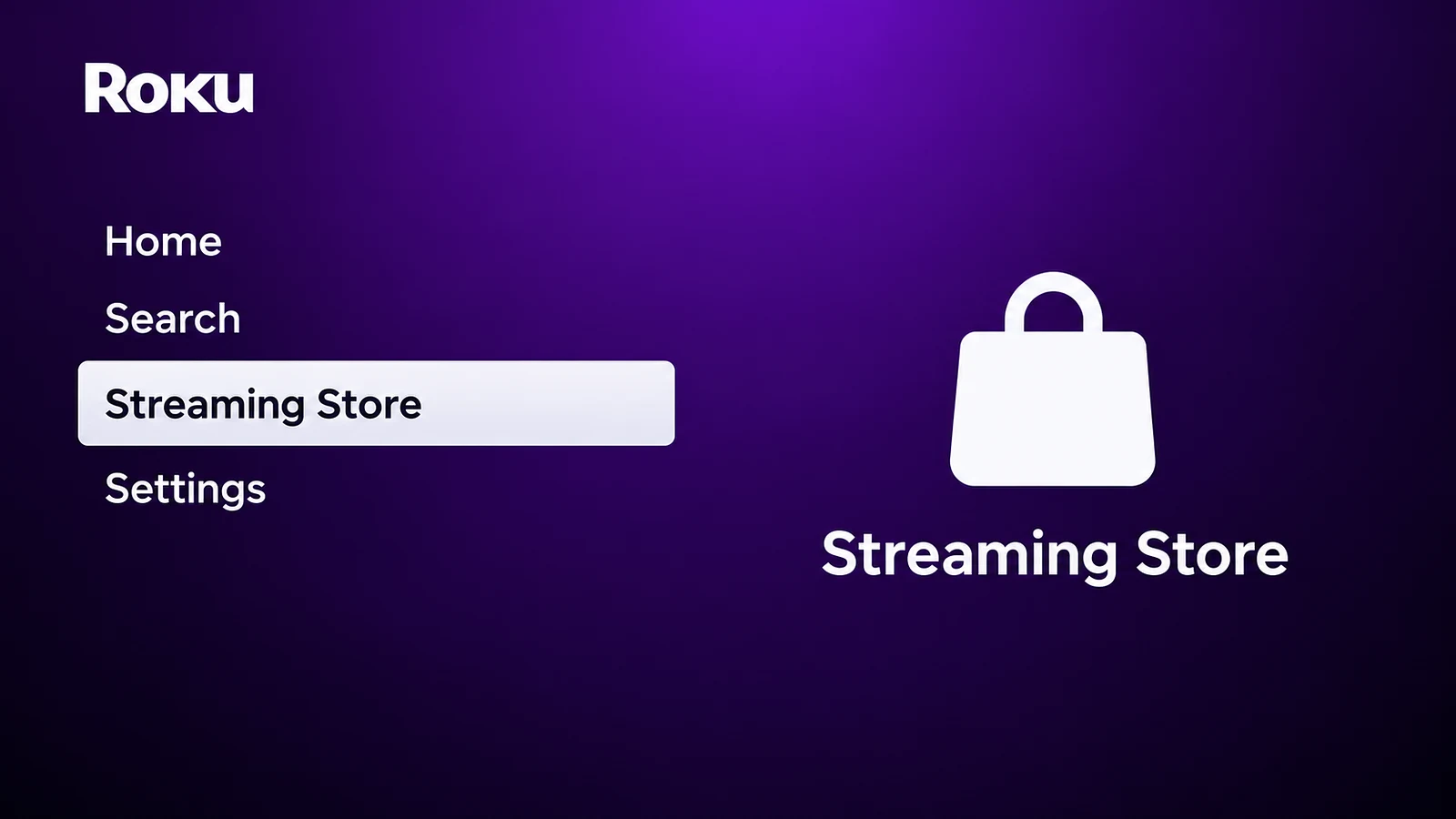
Press Home on the Roku remote and open Streaming Store. On some older Roku software the menu may be labelled Streaming Channels. Menu names can vary after a software update.
Find a compatible player
Search for a player that is currently listed in your Roku Store and check the publisher, supported region and app description. Availability can differ between Roku accounts and countries. If the listing is missing, do not install a lookalike app or assume that a private channel code will work.
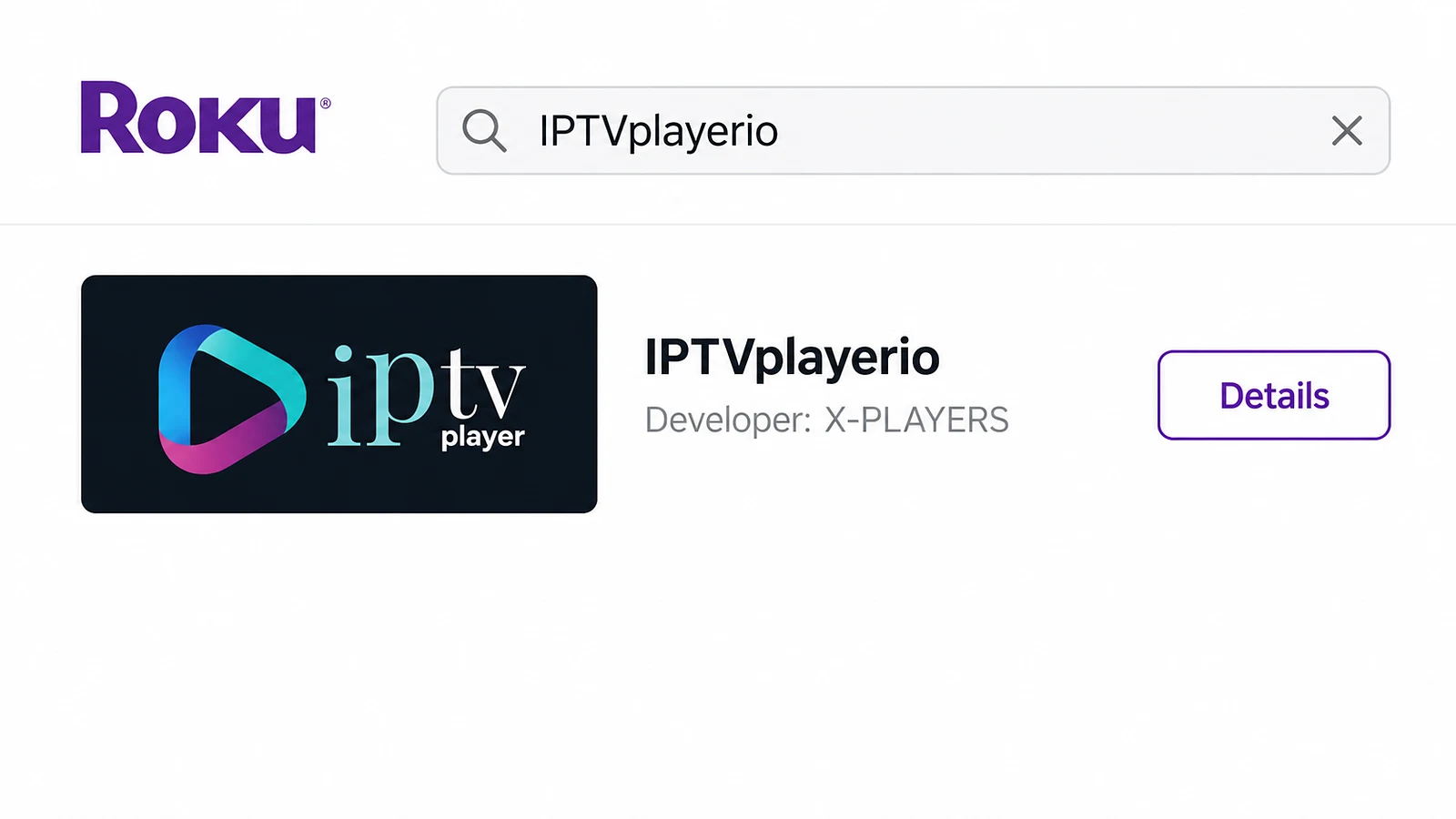
Add and open the player
Select Add app or the equivalent store action, wait for the installation to finish and open the player from the Roku home screen. Any app activation fee or in-app purchase is separate from an IPTV subscription, so review the current player terms before paying.
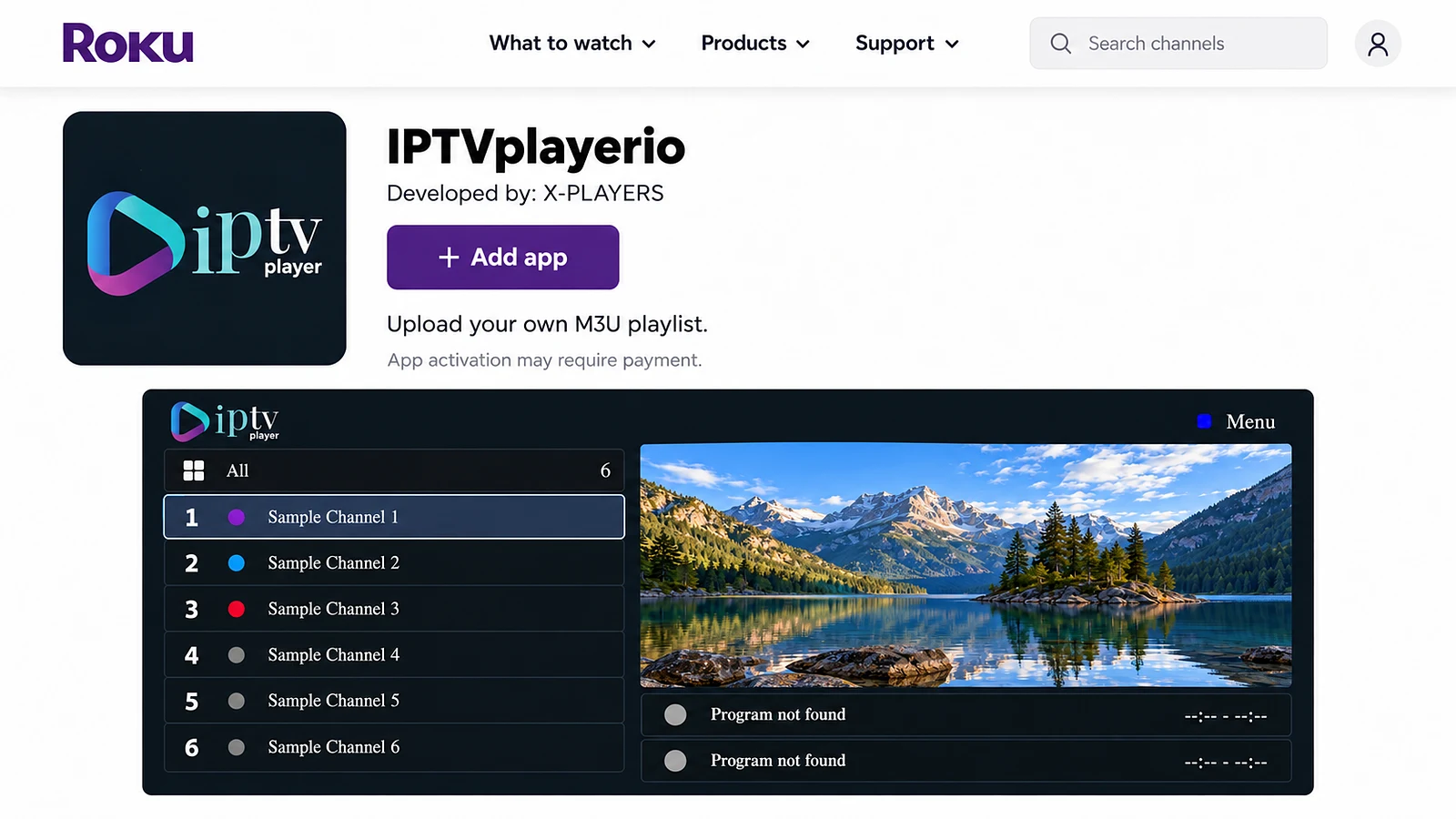
Check the player input method
Read the first-run screen carefully. A player may ask for an M3U playlist URL, a server address with username and password, a portal address or a device-registration value. Use only the format supplied for your account. If the fields do not match, ask support for the correct method rather than guessing.
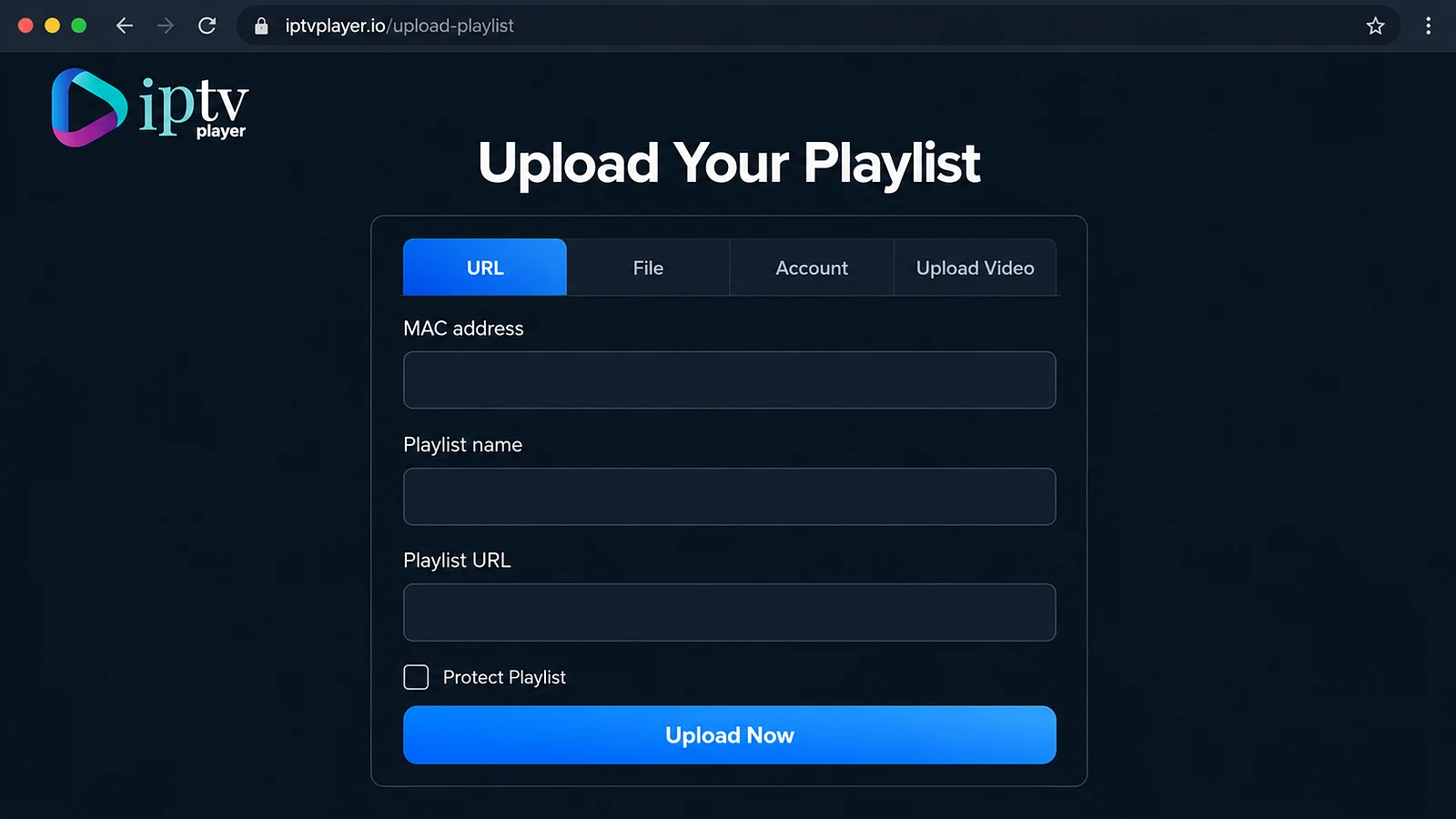
Enter your account details
If the player provides a web portal, use a phone or computer to enter the device value and the playlist or account details. Keep the full URL and credentials private. Do not copy values from an online screenshot, and do not publish a working playlist link in a comment, support request or article.
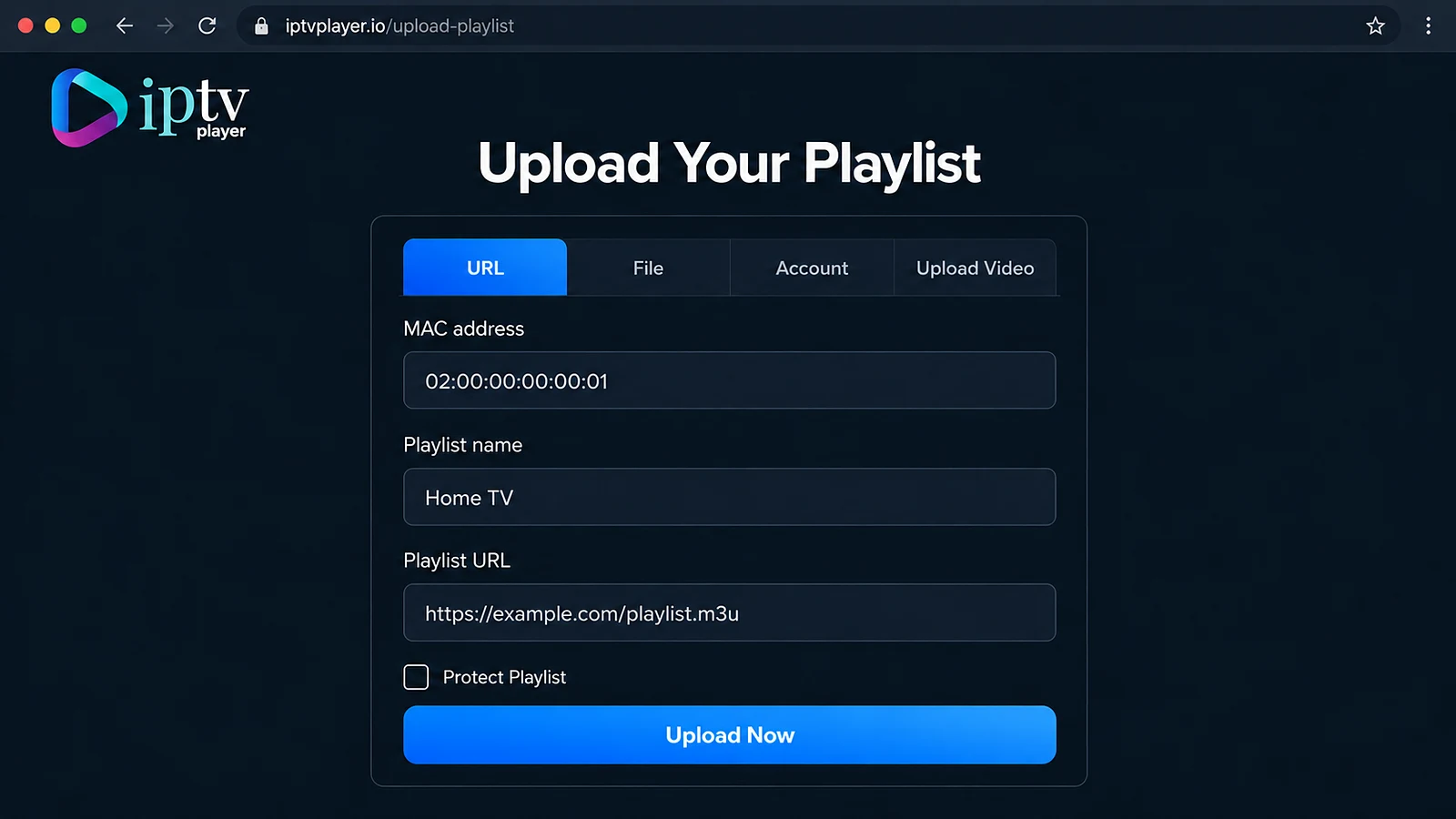
Load the playlist and EPG
Return to the Roku player and wait for it to validate the account and load the channel groups. An electronic programme guide (EPG) may load automatically or require a separate guide source when the player and account support it. If the list is empty, refresh once, check the supplied details and ask support whether guide data is included; an empty EPG does not prove that every channel is unavailable.
Method 2: Cast from iPhone or Android
Casting keeps the IPTV player on your phone while the Roku displays the picture. It can be useful for testing, but it adds dependencies: the phone, Roku, player and stream must all support the chosen method. Roku compatibility and casting options vary by model and software.
Use AirPlay from iPhone or iPad
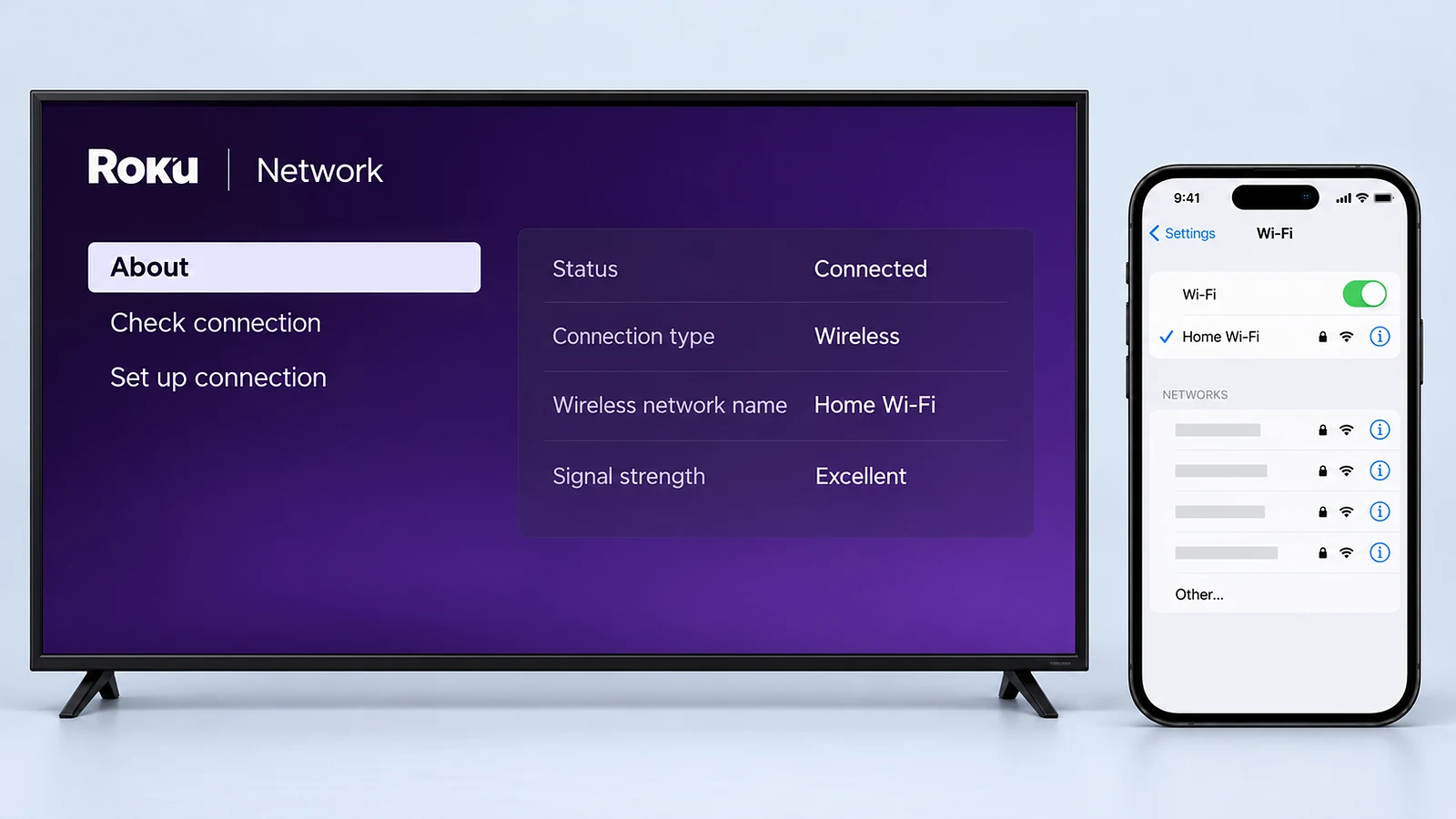
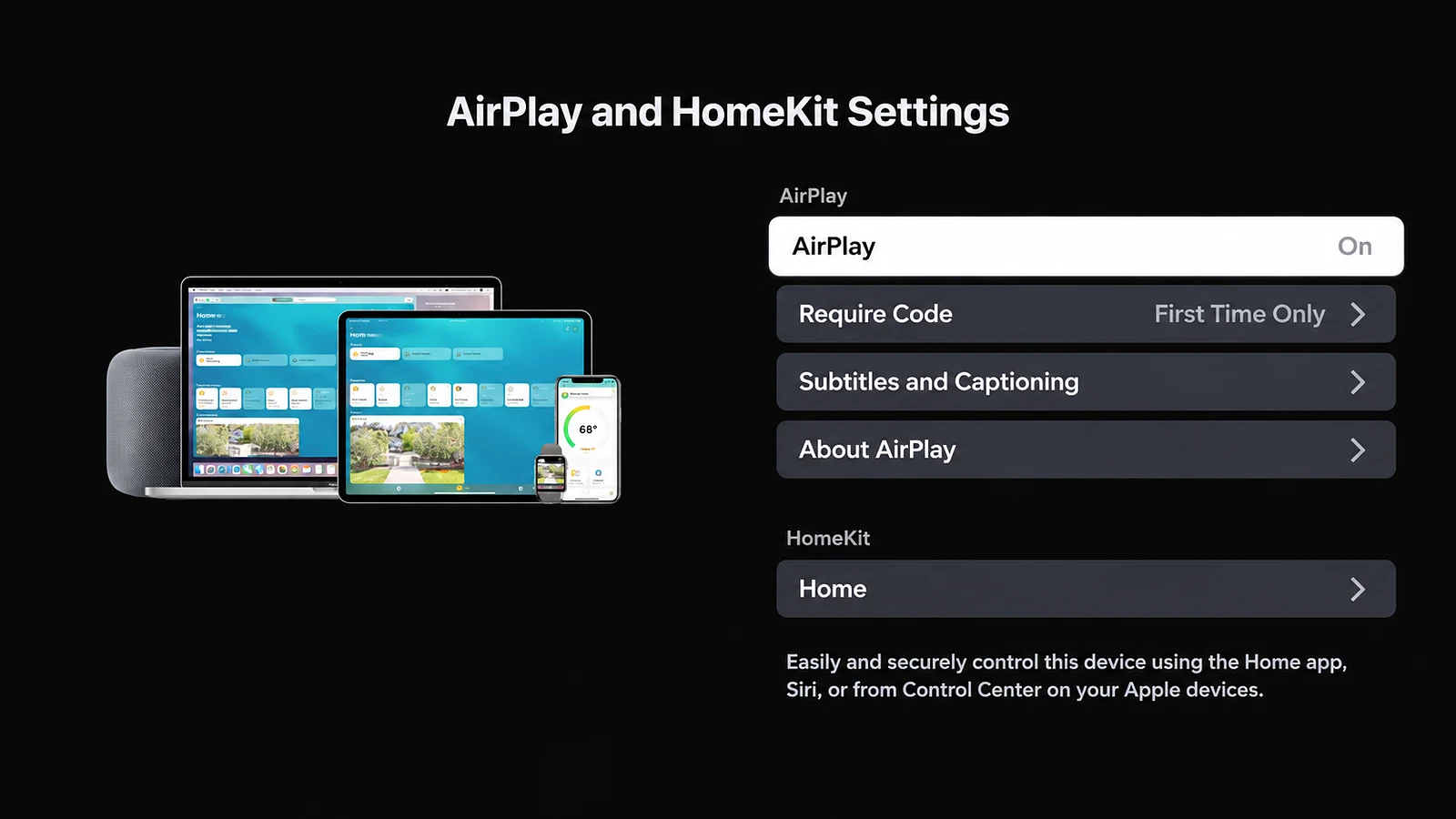
For a Roku model that supports AirPlay, connect the iPhone or iPad and Roku to the same Wi-Fi network. On the Roku, check Settings > Apple AirPlay and HomeKit. Play content in a player that exposes an AirPlay control, select the Roku and enter the displayed code if requested. Roku’s AirPlay guidance lists the current requirements; test the exact player and stream before relying on it.
Use Android screen mirroring
On a supported Roku, enable screen mirroring under Settings > System > Screen mirroring. Android manufacturers use different names, such as Smart View or Cast, and not every Android phone supports Roku mirroring. Roku’s screen-mirroring guidance should be checked for the phone and Roku model you intend to use.

Open the IPTV player on the phone, start a short test and select the Roku only when the phone’s cast or mirror control shows it. Keep the phone powered during longer sessions and remember that mirroring adds another wireless step, so a busy network may show as stutter on the television.
Developer Mode is for app testing
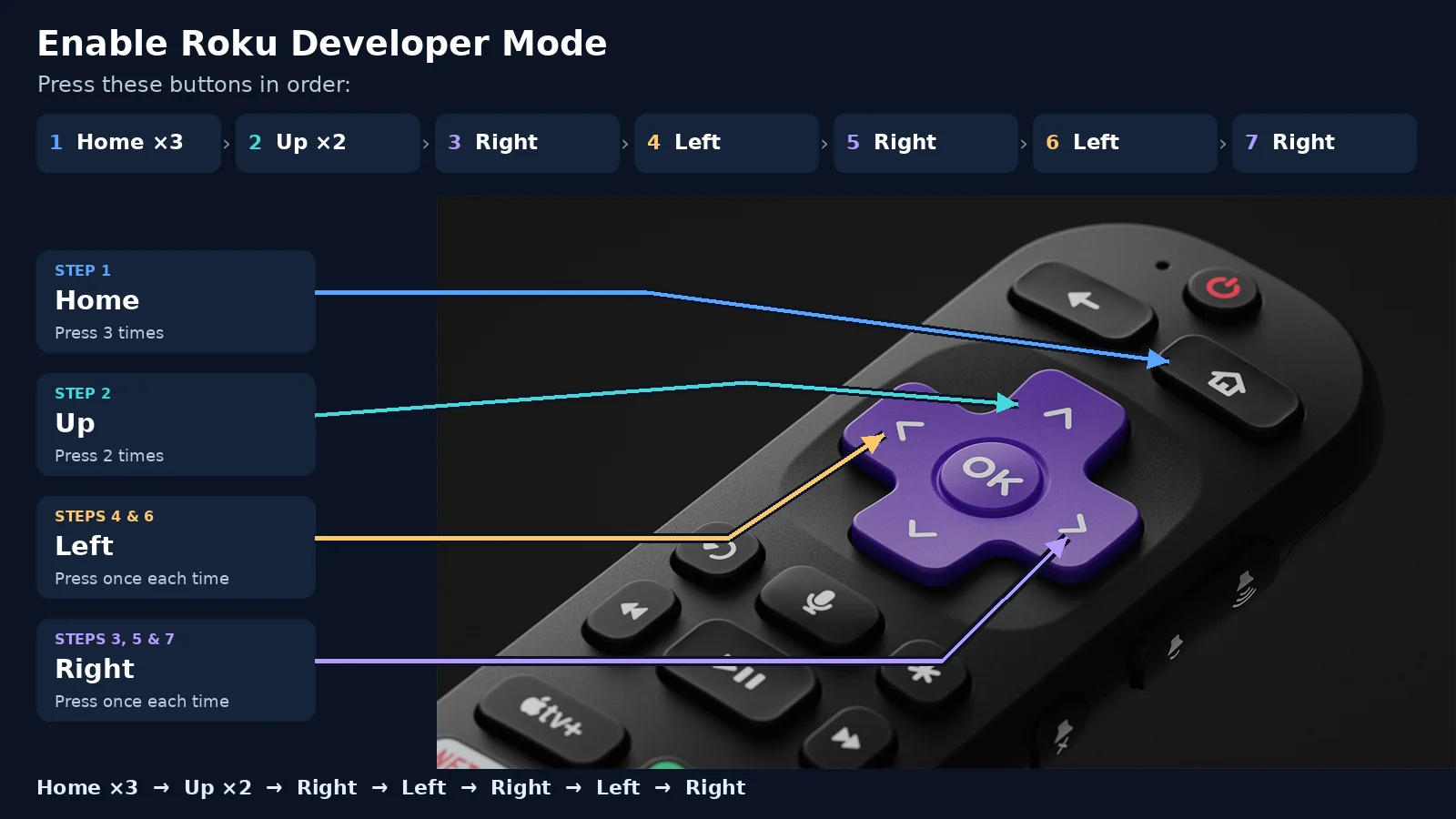
Roku Developer Mode is intended for developers testing their own Roku app packages. It does not add IPTV by itself, it is not a normal installation method and a newly sideloaded package can replace the previously installed development app. Use it only if you understand the risks, trust the package and are following Roku’s current developer documentation.
Unlock Developer Mode
If you are developing for Roku, enrol through the official developer programme and follow Roku’s current remote-button sequence to open the developer settings. Do not rely on an old sequence copied from an unverified guide, because Roku can change the process.
Enable the installer
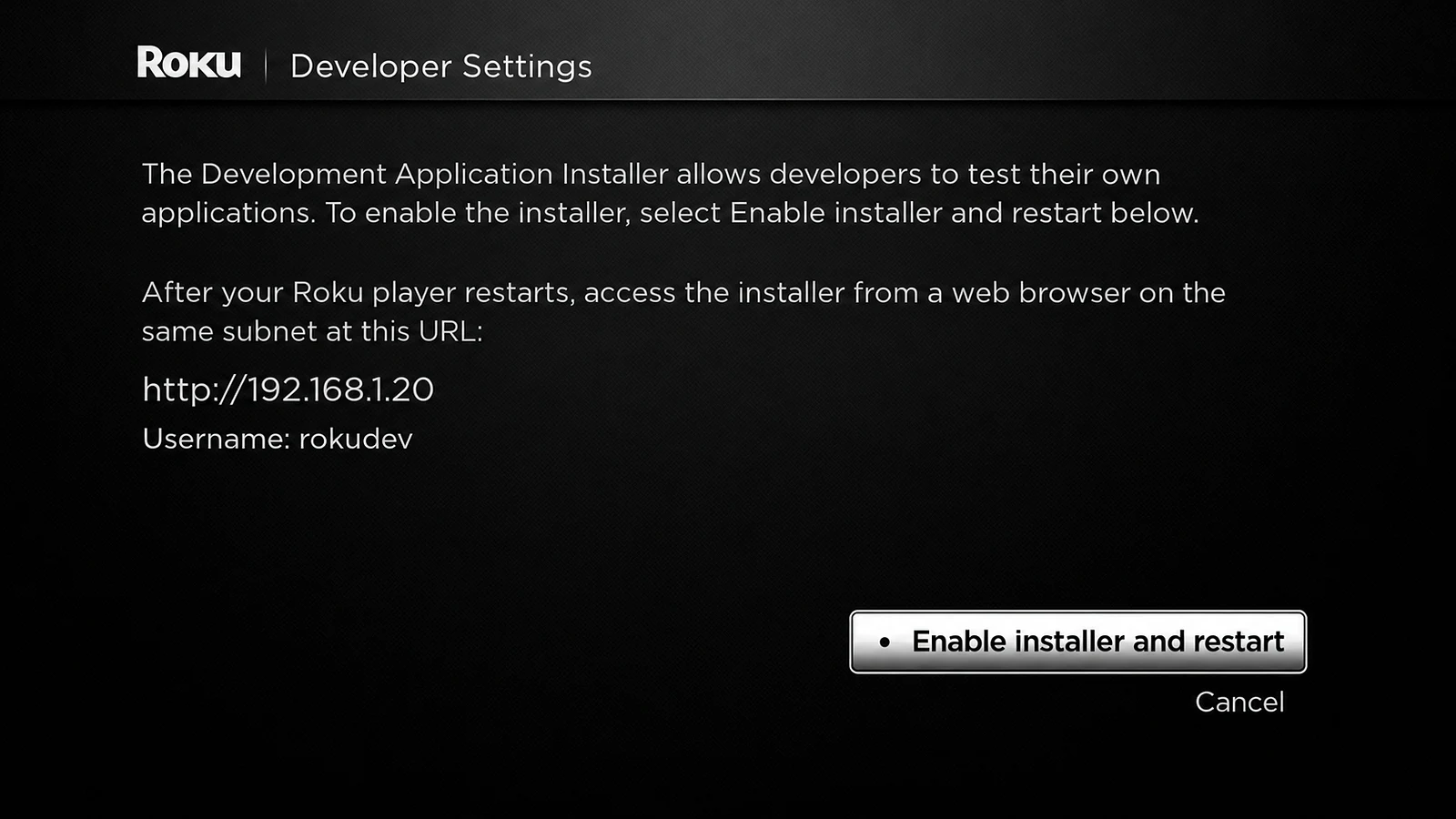
Read the on-screen licence, create a developer password and note the device address shown by the Roku. Keep that address and password private. The developer installer is a testing tool, not a way to add an IPTV subscription or bypass the Roku Store.
Upload a test package
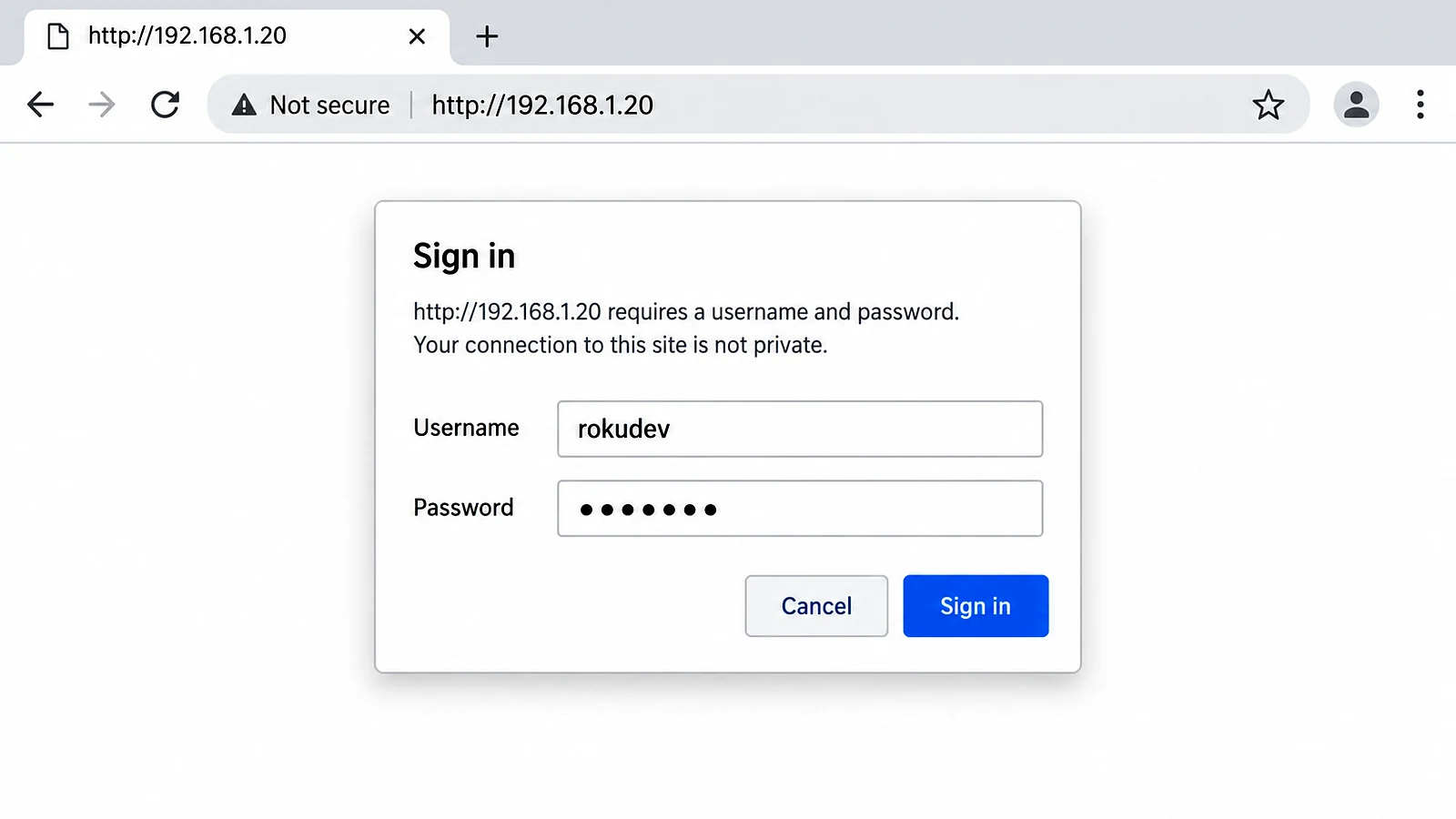
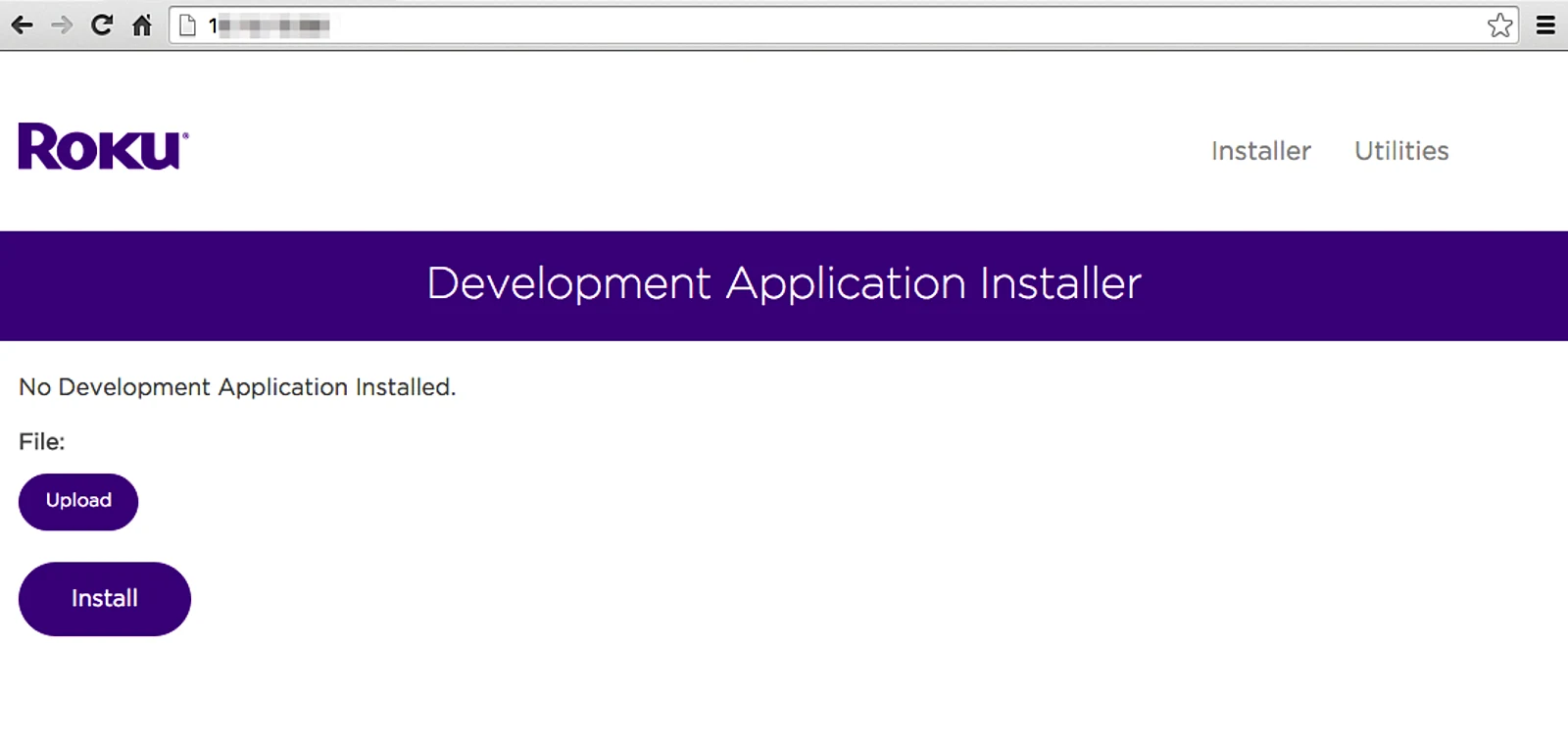
From a computer on the same network, open the Roku device address in a browser and sign in with the developer account shown by the device. The installer expects a Roku app package, not an Android APK. Roku’s official developer setup documentation is the source of truth for current package and testing requirements. This guide does not present a sideloaded package as a completed IPTV route.

Troubleshoot Roku IPTV playback
The player or channel list does not load
Check that the Roku is online, the app is current and the account details match the format requested by the player. Remove accidental spaces from a URL, refresh the list once and confirm the subscription is active. If the player is not listed in your region, do not substitute an unrelated app; contact support with the Roku model and the exact error.
Casting is unavailable
Confirm that the phone and Roku are on the same Wi-Fi, that AirPlay or screen mirroring is enabled where applicable and that the player exposes a compatible control. Restart both devices and test a short stream. If the phone or Roku model is not supported, use a player from the Roku Store when available or choose a different supported device.
Playback buffers or stops
Test another channel, move closer to the router and pause other large downloads. Restart the Roku under Settings > System > Power > System restart when that path is available. If one channel fails while others play, record the channel and time for support rather than repeatedly changing account details.
Roku IPTV setup FAQs
Can I use IPTV on a Roku?
Sometimes, through a compatible Roku Store player or a supported casting route. Roku does not provide one built-in IPTV application for every model, and app availability and account input methods can change.
Does Roku have built-in IPTV support?
Roku is a closed platform. Use only the player options currently listed for your model and region, or a supported casting method. Do not assume that an app made for Fire TV or Android TV can be installed on Roku.
Is Developer Mode a normal IPTV installation method?
No. Developer Mode is for testing Roku app packages. It does not create an IPTV subscription, supply channels or guarantee playback, so everyday viewing should use a supported Store or casting route instead.
Why cannot I find a player in the Roku Store?
The listing may be unavailable for your country, Roku model, account or current software. Check the publisher and region in the live Store, then ask support which compatible route applies to your setup. Avoid lookalike listings and old private-channel instructions.
Summary
A Roku IPTV setup can use a compatible Store player or supported casting from a phone, but neither route should be treated as universal. Match the player to your Roku model, region and account method, load EPG data only when the app and subscription support it, and test playback on the device you plan to use. For wider setup guidance, see the UK Vision IPTV tutorials, compare IPTV subscription plans and contact support if the supplied details do not match the player.