Learn how to set up IPTV on Firestick in the UK with a compatible Fire TV device, a stable internet connection and account details from an authorised provider. This guide explains the process in a practical order, from preparing your Firestick to choosing a compatible player, adding provider details, loading electronic programme guide (EPG) data and troubleshooting common playback problems.
The exact menu names can vary slightly between Fire TV Stick generations and software versions. The safest approach is to use the Amazon Appstore or another official source for your player, then enter only the playlist or login information supplied by your provider.
Key takeaways
- Use a Fire TV device that is connected to your television, internet and Amazon account.
- Choose a compatible IPTV player from an official, trusted source and check its current requirements.
- Use the server address, username, password, M3U playlist or EPG URL supplied by your provider.
- Keep Fire TV software and the chosen player up to date, and troubleshoot the home network before changing account settings.
What you need before starting
Before opening the app store, check that you have everything needed for a clean setup. A Fire TV Stick or compatible Fire TV device should be connected to the television by HDMI, powered from a suitable adapter and connected to your home Wi-Fi or Ethernet network. You will also need access to the Amazon account used on the device.
Check the Fire TV model and software before following any player-specific instructions. Open Settings > My Fire TV (or Device & Software) > About; on some software versions, selecting the device name and pressing the centre button seven times reveals Developer Options. The exact labels vary, so confirm the path in Amazon’s Fire TV documentation for your model.
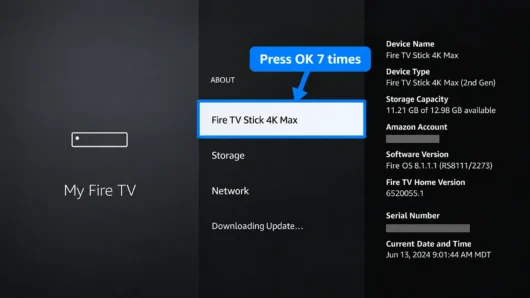
- A working Fire TV Stick and television HDMI input.
- A reliable broadband connection with enough capacity for the quality you plan to watch.
- Your provider’s current server address and login or playlist details.
- A compatible player installed from an official or authorised source.
- Optional EPG information if your provider supplies a separate guide URL.
For general device preparation, Amazon’s Fire TV setup guidance covers connecting the device, joining Wi-Fi and signing in. If your Firestick is already working normally, you can move directly to the player installation step.
Choose an IPTV player for Firestick
An IPTV player is the app that reads your provider’s service details and presents live channels, on-demand content and guide data. There is no single player that is right for every Firestick. Look for an app that supports your provider’s connection method, is compatible with your Fire TV version and has clear privacy and support information.
- Check whether your provider supplies an Xtream-style login, an M3U playlist, a portal address or a combination of these.
- Confirm that the player can load the type of EPG data your provider supplies.
- Prefer an app obtained from the Amazon Appstore or another source explicitly authorised by the app developer.
- Avoid relying on random APK links, download codes or unofficial mirrors that can change or become unsafe.
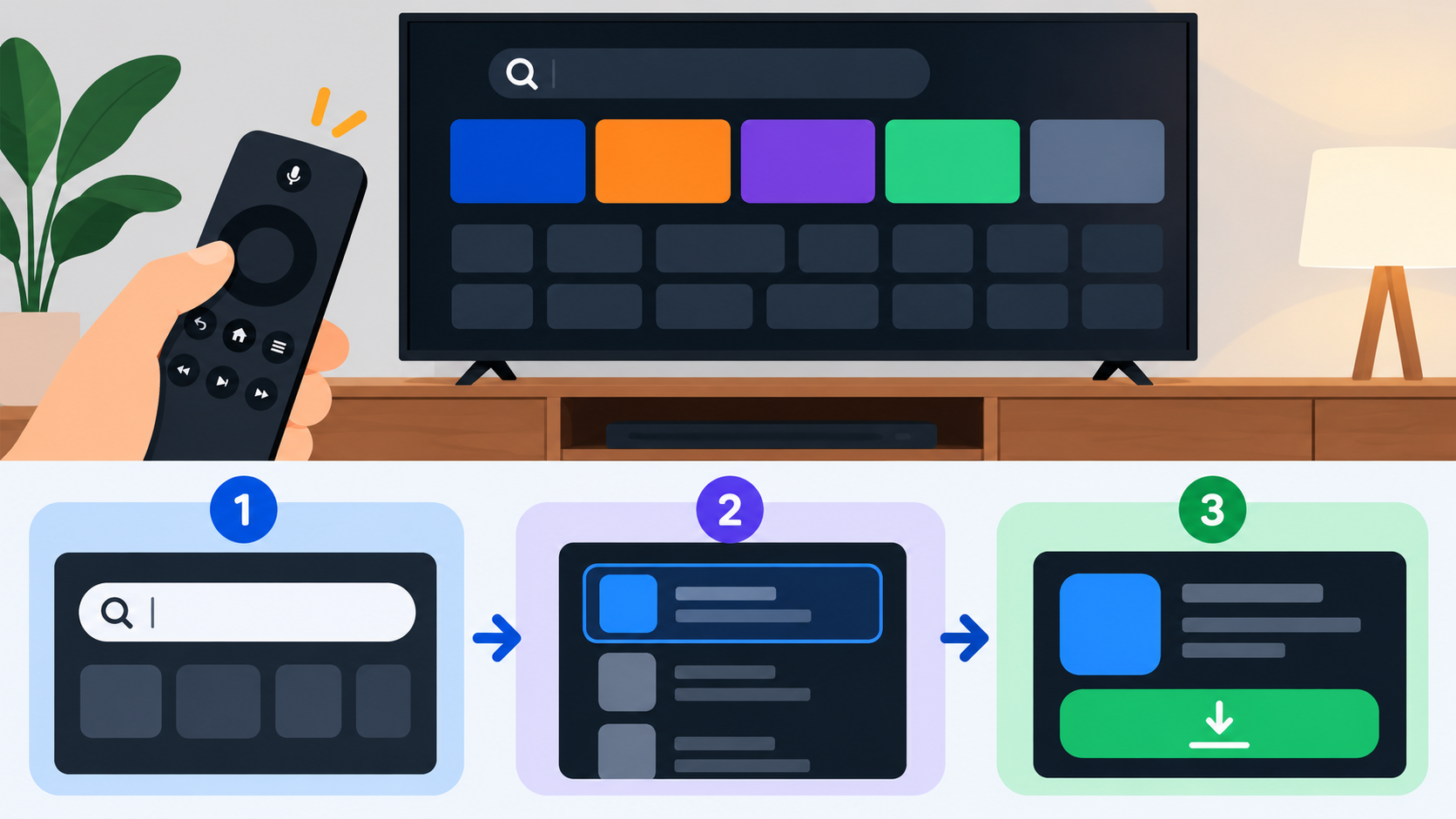
How to set up IPTV on Firestick: install a compatible player
On the Fire TV home screen, open the search or Appstore area and look for the compatible player you intend to use. Review the app name and publisher before installing it, because similarly named applications may not be related. Select the app, choose the install option and wait for it to finish before opening it.
Fire TV uses Amazon’s app distribution system rather than Google Play. That means an Android TV installation guide may not match the menus on a Firestick. If a player is not available for your device, use the provider’s current compatibility guidance or choose another authorised player rather than following an unverified download instruction.
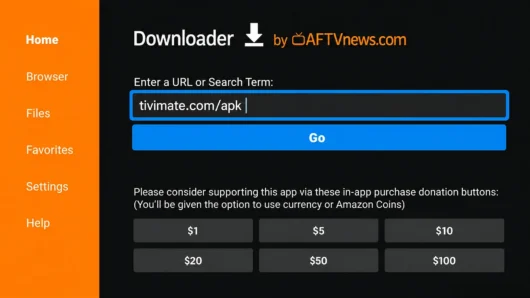
If your chosen player is not listed in the Amazon Appstore, use only a download address published by that app’s developer. The example below shows Downloader opening an official player address; a code or third-party mirror is not a universal instruction. Check the current publisher guidance for your app and Fire TV model before installing anything.
- Open the Fire TV search or Appstore screen.
- Search for the player by its exact name and check the publisher.
- Select the app, choose install and wait for the installation to complete.
- Open the player and follow its first-run prompts without sharing credentials with an untrusted app.
How to add your IPTV subscription
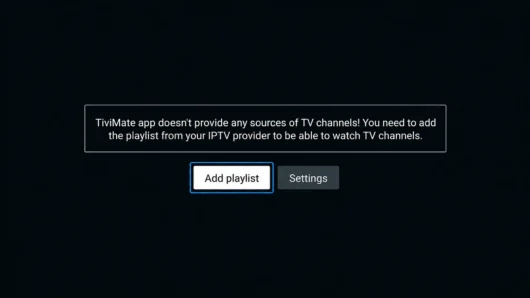
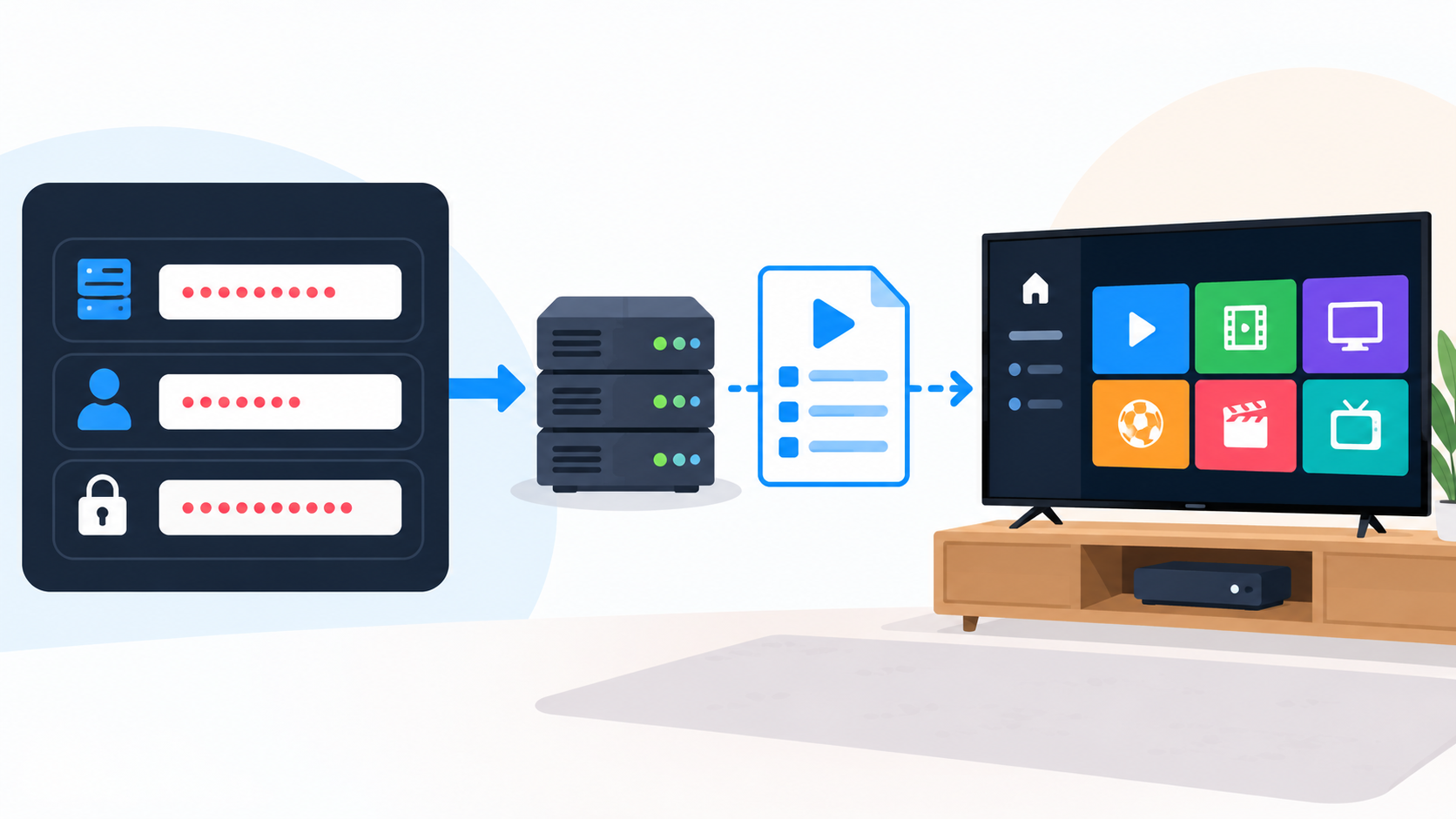
Once the player is installed, it will usually offer one or more connection methods. Use the method named in your provider’s setup email or customer area. Do not invent a server address and do not copy credentials from a public post; the details are unique to the service and subscription.
Xtream-style login
If the player asks for a server or portal URL, username and password, enter the values exactly as supplied. Check for spaces, upper- and lower-case characters, and the difference between a server address and a full playlist link. Give the connection a clear local name so that you can identify it later.
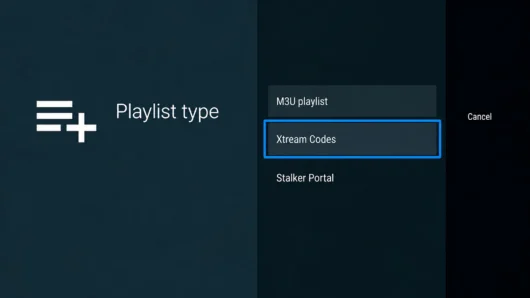
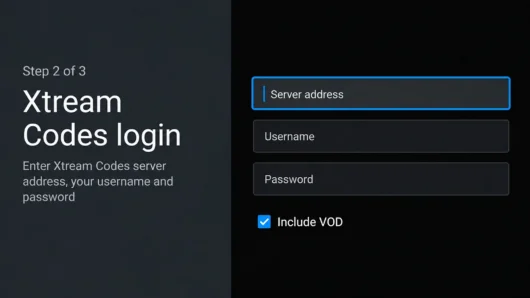
M3U playlist configuration
For an M3U setup, paste the complete playlist URL supplied by your provider into the player’s playlist field. Some apps also request a playlist name. Use a short descriptive name, then allow the player time to download the channel list. Large playlists may take longer to process on a streaming device.
Protect your account details
Keep provider credentials private, avoid saving them in screenshots or public support threads, and remove old playlists from apps you no longer use. If you think a password or playlist link has been exposed, contact the provider and request updated details.
Configure the electronic programme guide
EPG data adds programme names, schedules and descriptions to compatible channels. Some providers include guide data automatically with the login. Others supply a separate EPG URL that must be entered in the player’s guide or playlist settings.
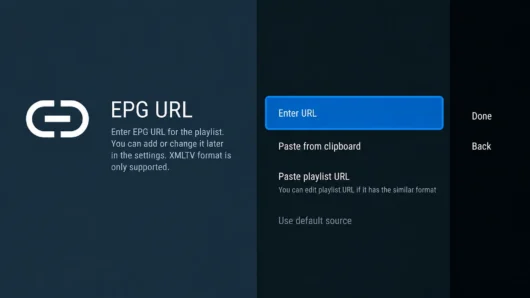
- Open the player settings and find Guide, EPG, XMLTV or programme guide options.
- Use the EPG URL supplied by your provider if a separate address is required.
- Refresh or reload the guide after saving the settings.
- If listings do not match channels, ask the provider whether a different mapping or guide address is required.
Guide data is separate from the video stream, so an EPG problem does not always mean that the channel service is offline. Test a live channel and the guide independently before changing all of the connection details.
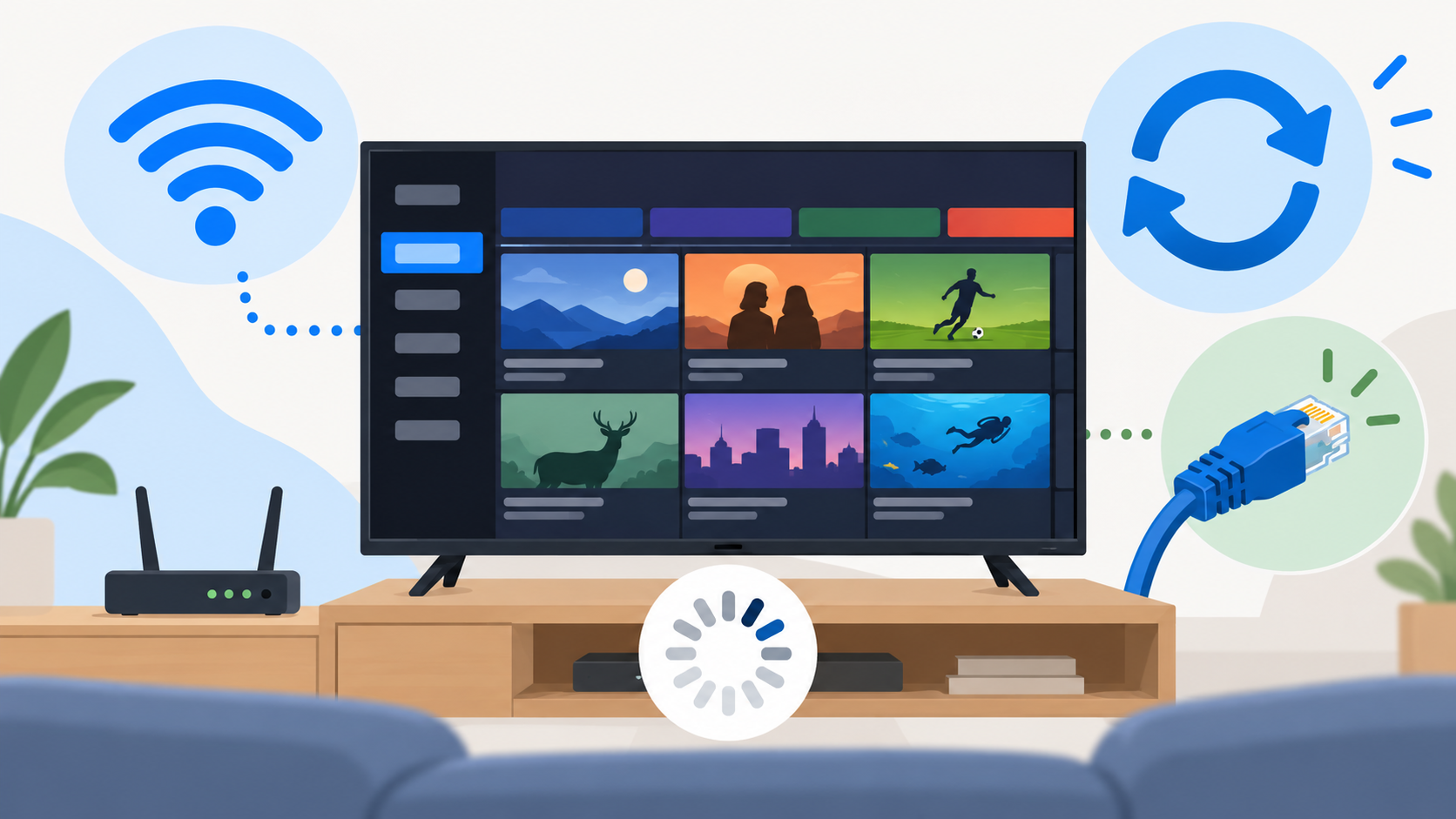
Firestick settings for smoother streaming
Playback quality depends on the complete path between the service and your television: the provider, the internet connection, the home network, the Firestick and the player. No single setting can guarantee perfect playback, but the following checks remove common local causes.
- Open Fire TV network settings and confirm that the device is connected to the intended Wi-Fi network.
- Where practical, use a strong 5 GHz Wi-Fi signal or a suitable Ethernet adapter instead of a weak distant connection.
- Restart the Firestick and router if the connection has become unstable.
- Install available Fire TV and player updates, then test the same channel again.
- Close unused apps and leave enough free device storage for normal updates and temporary data.
If the issue affects one channel or programme only, compare it with other streams before changing the whole installation. If every stream is affected on more than one device, contact the provider with the time, channel and error message.
Troubleshooting common IPTV problems
Buffering or repeated loading
Start with the connection: check Fire TV network status, restart the router and move the device away from sources of interference. Test a lower stream quality if the player offers that option. If other services work normally but the same IPTV stream continues to buffer, record the affected channel and contact the provider.
Missing channels or categories
Refresh the playlist or reload the account inside the player. Check that the playlist URL or login was entered completely and that the subscription is active. A missing category can also be a provider-side change, so ask for the current service details before reinstalling the app.
EPG not loading or showing the wrong times
Refresh the guide, check the EPG URL and confirm the device time zone. If the provider supplies a separate XMLTV or guide address, use the latest version from the provider rather than a copied public URL. Programme times can also be affected by incorrect channel mapping.
The player closes or stops responding
Restart the Firestick, check for player and Fire TV updates, and clear the app cache if that option is available. If the problem began after an app update, check the developer’s support information for a compatible version. Avoid downloading an unknown replacement from an unverified source.
Safety and legal considerations in the UK
Only use services and content that you are authorised to access. The legality of a channel or programme depends on the rights behind the service and the content being supplied; a Firestick, app or playlist format does not by itself make a service authorised. Review the provider’s terms, protect your account details and avoid services that ask you to install unsafe software or share sensitive information.
Amazon’s Fire TV documentation explains that official apps are distributed through the Amazon Appstore and that Fire TV network and software settings are managed on the device. Start with those supported settings before considering any advanced troubleshooting.
Frequently asked questions
Can I use any Firestick for IPTV?
Compatibility depends on the player, Fire TV software version and stream requirements. Check the current app and provider requirements for your device before relying on a specific setup.
Do I need a VPN?
A VPN is not a universal requirement for setting up a player. It can change how traffic reaches the internet and may affect speed or support, so ask the provider for compatibility advice and follow the VPN service’s terms if you choose to use one.
Why is the EPG empty after setup?
The provider may not have supplied guide data, the guide URL may be wrong or the player may need a refresh. Check the player’s EPG setting and request the current guide information from the provider.
Can I use both an M3U playlist and a login?
Some players support both methods, while others expect one connection type. Use the method recommended by your provider and avoid adding duplicate playlists unless you understand how the player will display them.
How do I reduce buffering on a Firestick?
Check the network connection, restart the router and Firestick, update the player and test a lower quality stream where available. If the problem is limited to one service or channel, ask the provider to investigate.
Where do I find Fire TV updates?
Open Fire TV Settings and look in the device or My Fire TV area for software information and update options. Fire TV devices can download updates when they are online; the exact menu wording can vary by model and software version.
Conclusion
The most dependable Firestick setup is methodical: prepare the device, install a compatible player from a trusted source, enter the provider’s current details, configure the EPG when supplied and test the network before changing account settings. Keep credentials private and use only services you are authorised to access.
For compatible devices, channel information and current service options, review the device guidance, channel information and pricing page on this local site.