
This Apple TV IPTV setup guide is for UK viewers who want to use a compatible player on an Apple TV. It explains how to check the hardware, install an app from the Apple TV App Store, add the account details supplied with your subscription, load channels and EPG data where the chosen player supports them, and work through common playback problems.
Published by UK Vision IPTV. The exact player, login method and catalogue shown on screen depend on the Apple TV model, tvOS version, App Store region, chosen app and the account details supplied with your subscription. This guide does not claim that every player is available in every region or that every app accepts every playlist format.
Before you start an Apple TV IPTV setup
Keep the Apple TV remote nearby and have the account details supplied for your own subscription ready. You may need a second device to read an email or type a long M3U URL, but do not share a username, password or playlist link publicly.
- Connect the Apple TV to the television with HDMI and complete the normal tvOS setup.
- Connect it to a stable Wi-Fi or Ethernet network where your model supports Ethernet.
- Check that the App Store is available on the device and that your Apple Account is signed in if the app requires it.
- Confirm the chosen player supports the input method supplied for your account before you pay for any optional app upgrade.
Check your Apple TV model and connection
Apple TV 4K and Apple TV HD models run tvOS and can install apps from the App Store. Apple TV (3rd generation) does not provide the modern tvOS App Store, so it cannot follow this app-based setup. Apple’s Apple TV User Guide and model information should be used to confirm the hardware and software on your device.
For live streaming, check the network before troubleshooting the player. A weak wireless signal, busy home network or an outdated tvOS build can affect playback even when the account details are correct. Keep the Apple TV and router within the normal range recommended for your home network.
Install a compatible player
Open the App Store
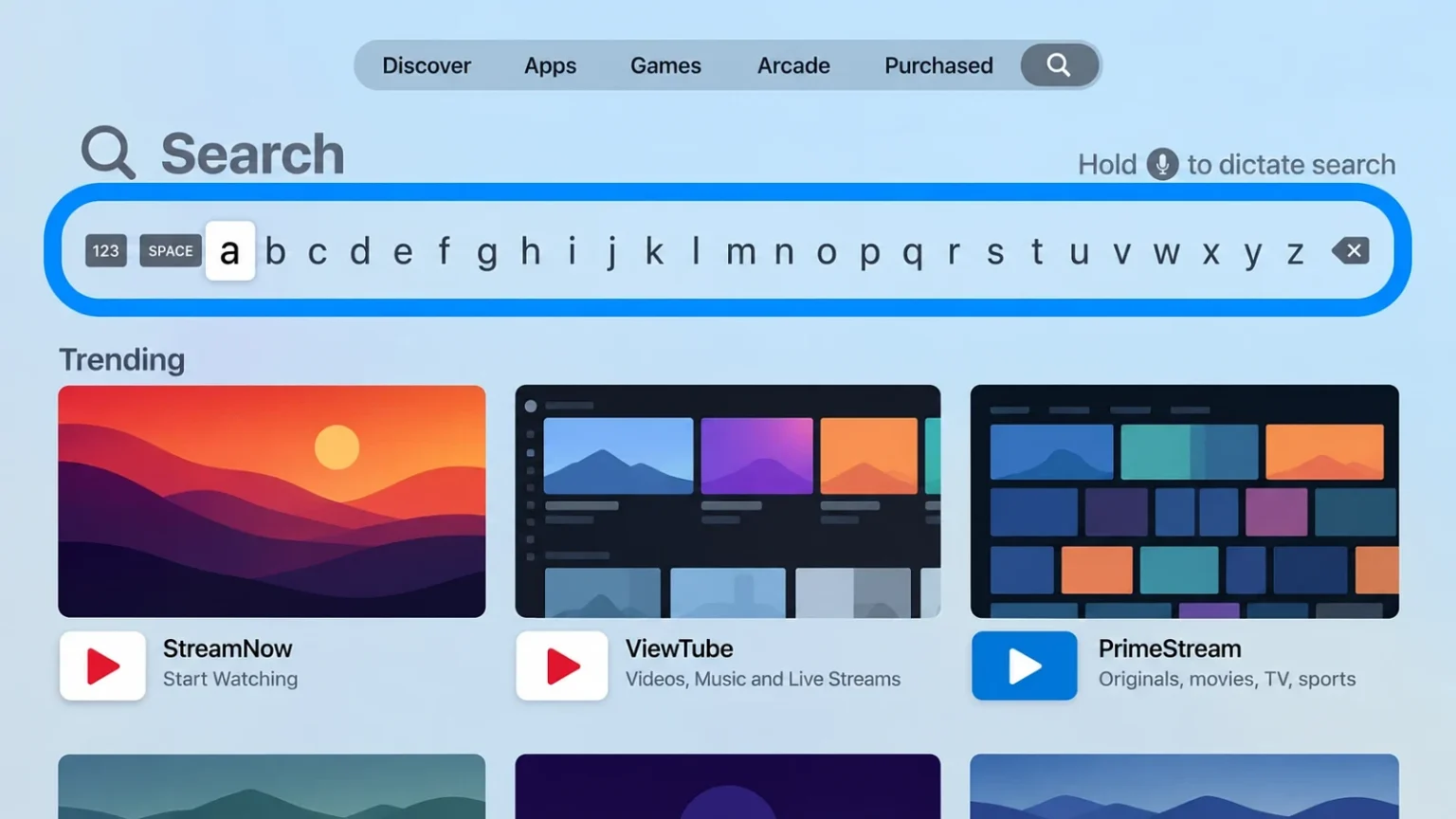
From the Apple TV Home Screen, open the App Store. Browse or search for a player that is available for your model and UK App Store region. Apple’s official install or delete apps guide explains the normal App Store flow: select an app, then choose Get, Buy or Install as shown on screen.
Check the app listing
Read the current app listing before installing. Check the publisher, supported Apple TV models, the region in which it is offered, its login fields and any separate licence or in-app purchase. App availability changes, so a player mentioned in another device guide may not be listed for Apple TV.
Install only the player you have checked. Do not use an unverified IPA, an unofficial download site or a private link as a substitute for the App Store route. If the player is not available for your model or region, contact the app publisher or UK Vision IPTV support before changing devices.
Add your provider-supplied details
Choose the supported login method
Open the installed player and follow its on-screen setup. Depending on the app and account, it may ask for an M3U URL, a server or portal address, Xtream-style username and password fields, or an app-specific activation code. Use only the method the player and your account both support; do not convert one format into another without instructions from the provider or app publisher.
Type the details carefully, including the full server address and any required URL path. Keep the original message available until the player has successfully loaded. If you receive a device registration or activation step, follow the account instructions and contact support if the device limit or activation status is unclear.
Load channels and EPG data
After saving the login details, let the player finish its first synchronisation. The time and menu labels vary by app. Look for actions such as Refresh, Reload playlist or Update guide only when they are present in the chosen player.
If the account supplies EPG data and the player supports it, the guide may load automatically or require a separate EPG URL. EPG coverage, programme names and update frequency depend on the source data and the player; a missing guide does not by itself prove that the subscription or Apple TV is faulty.
Troubleshoot Apple TV IPTV playback
The player or channel list is missing
First confirm that the player is installed for the correct Apple TV model and App Store region. Re-open the listing to check the publisher and sign-in requirements. Then check the account details for typing errors, refresh the playlist if the app offers that control and restart the app. If only one account fails, ask support to confirm its status without sending your password in a public message.
EPG data does not appear
Check whether the player has a separate guide setting and whether the account includes an EPG source. Refresh the playlist and guide from the app’s own controls, then allow the update to finish. If channels play but the guide stays empty, the issue may be the supplied EPG data or the app’s format support rather than the Apple TV hardware.
Playback buffers or stops
Test another channel and check whether other streaming apps are also affected. Restart the Apple TV and router, reduce competing network traffic and use a wired connection where your model and network support it. If the problem follows one stream or account, record the time and channel name for support instead of assuming that reinstalling the player will fix it.
Apple TV IPTV setup FAQs
Can an Apple TV 3rd generation install IPTV apps?
No. The app-based steps in this guide are for Apple TV HD and Apple TV 4K models that run tvOS and provide the App Store. Apple TV (3rd generation) does not offer the same App Store installation route, so check the model before buying an app or changing a subscription.
Does every player accept an M3U URL?
No. M3U, Xtream-style fields, portal addresses and app activation flows are not interchangeable. Use the input method displayed by the chosen player and the account details supplied to you. If the app does not show the expected fields, check its current documentation or ask support what formats are available for your account.
Is the player included with an IPTV subscription?
Not necessarily. A player may be free, paid or offer optional features through its own developer or App Store listing. The player cost is separate from an IPTV subscription. Review the current terms before paying and compare the available subscription plans separately.
Get help with your setup
If you need help, keep the Apple TV model, tvOS version, player name, exact error message and the login method visible on your private screen. Do not send account passwords or playlist URLs in a public message. You can review the wider IPTV setup tutorials, the compatible devices guide and the contact options. For an overview of plans, see UK Vision IPTV pricing.
Apple TV IPTV setup is most reliable when the hardware, App Store listing, player input method and account details all match. Check each of those points before changing the service or the device.