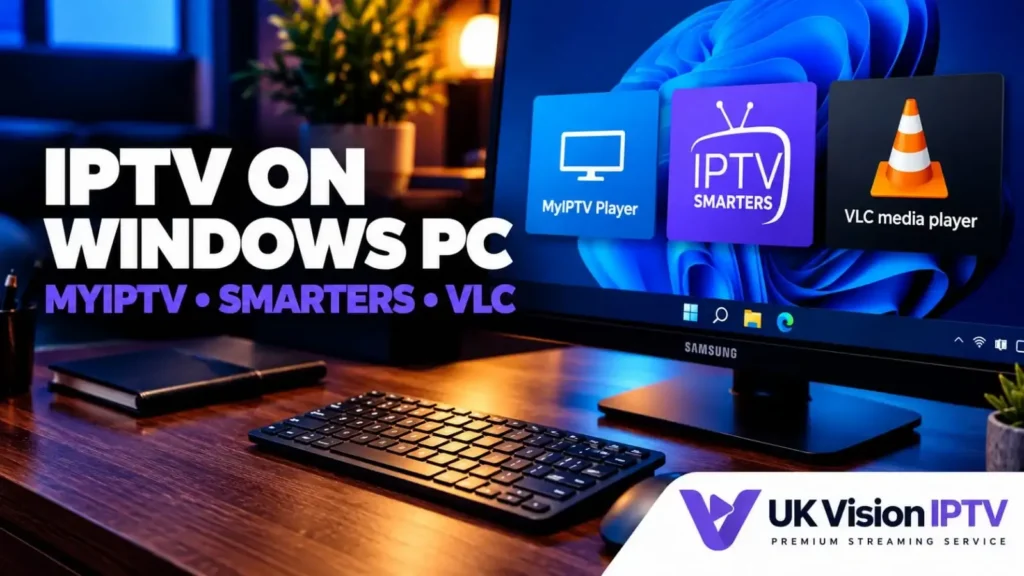
This UK Vision IPTV guide explains how to set up IPTV on a Windows PC using MyIPTV Player, Kodi with PVR IPTV Simple Client, VLC or a supported web player. Choose the method that suits your PC, then use only the account details supplied with your subscription. App menus and available features can vary by Windows version, player release and provider.
Before you start: what a Windows PC needs
Windows does not provide IPTV channels by itself. A compatible player reads a playlist or login supplied by your provider and displays the streams. Before you begin, check that your PC is connected to a reliable network, has enough free storage for the chosen app and is running a supported Windows version. If you use a managed or work PC, app installation may be restricted.
- Have the server address, username and password or M3U playlist details supplied with your account.
- Ask whether a separate XMLTV or EPG URL is provided; not every account includes guide data.
- Install players from the Microsoft Store or the developer’s official website.
- Keep your login details private and never paste real credentials into screenshots or public posts.
Microsoft explains that Store availability can depend on the device, account and administrator settings. For general device guidance, see our IPTV compatible devices and setup tutorials.
IPTV on a Windows PC: choose your player
There is no single best player for every Windows PC. MyIPTV Player is a simple Store-based option when it is available to your device. Kodi adds a PVR interface through an add-on. VLC is useful for testing an M3U stream but does not provide a full TV-guide experience. A web player can be convenient where the provider offers one and app installation is not possible.
- MyIPTV Player: a Microsoft Store app with playlist and EPG fields where supported.
- Kodi: a media centre that can use the official PVR IPTV Simple Client add-on.
- VLC: a general media player that can open a network playlist.
- Web player: a browser-based option only when your provider supplies a working web-player service.
MyIPTV Player on Windows
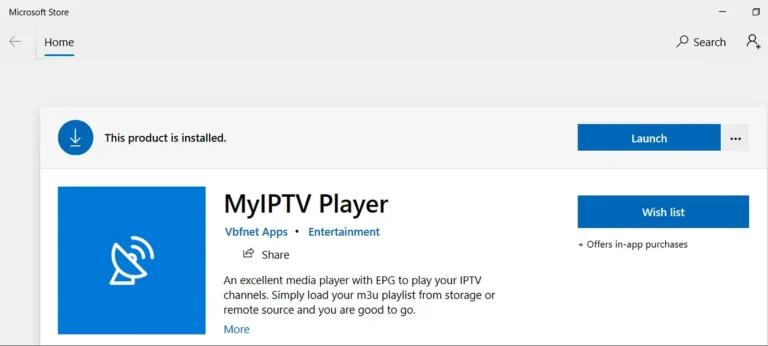
MyIPTV Player is available through the Microsoft Store listing for MyIPTV Player in supported regions and device configurations. The exact Store listing and available features can change, so confirm the current listing before installing. The steps below use the current playlist and guide labels shown in the app.
Install MyIPTV Player
- Open the Microsoft Store from the Windows Start menu.
- Search for MyIPTV Player and check the listing before selecting Get or Install.
- After installation, open the app from the Store or the Start menu.

Add an M3U playlist and optional EPG
- Open Settings and choose Add new playlist and EPG source.
- Under the remote channel list area, enter a label and paste the M3U URL supplied with your subscription, then select the control to add the remote list.
- If your provider supplies XMLTV data, enter a label and paste the EPG URL under Program guide (EPG), then add the EPG source.


Refresh sources and open Channels
Return to Settings, select the saved playlist and choose Refresh. Refresh the EPG source separately if you added one, then open Channels. If the account details use Xtream Codes rather than an M3U URL, ask the provider whether an equivalent M3U or supported login method is available; do not guess or alter the server address.

Kodi with PVR IPTV Simple Client
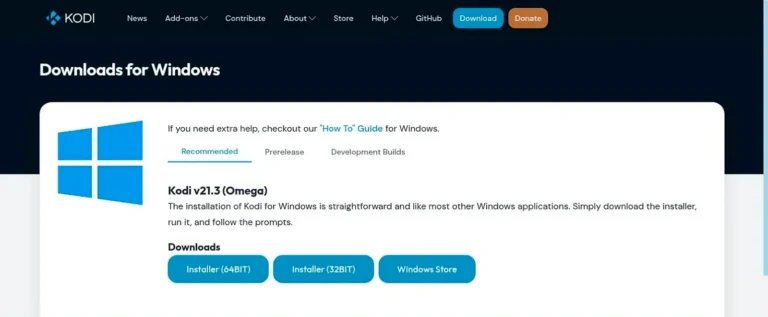
Kodi is a separate media player. Its IPTV functions depend on the PVR IPTV Simple Client add-on and on the playlist and guide formats accepted by that add-on. Kodi’s official Windows download page provides installer and Store options, while the official Kodi PVR IPTV Simple Client documentation documents the add-on path.
Install Kodi for Windows
- Download Kodi from the official Windows page or use its Microsoft Store listing.
- Run the installer and follow the normal Windows prompts.
- Open Kodi once installation has finished.
Install PVR IPTV Simple Client
In Kodi, open Settings > Add-ons > Install from repository > PVR clients. Select PVR IPTV Simple Client and choose Install. Menu wording may vary slightly between Kodi releases.

Add the M3U playlist
Open the add-on’s Configure screen. In the General or playlist settings, set the location to Remote path (Internet address) and paste the M3U URL supplied with your account. Save the setting.

Add an XMLTV guide link when supplied
In the add-on’s EPG settings, select the remote-path option and enter the XMLTV URL provided with the account. EPG support depends on the playlist, guide data and the player’s current version, so an empty guide does not necessarily mean the channel list is invalid.

Restart Kodi and check TV
Save the configuration and restart Kodi if prompted. When the add-on has loaded the playlist, open the TV section and check whether the groups and guide appear. The example screenshot uses sample channels; your available channels depend on the account and provider data.

VLC for a quick M3U test
VLC is a general-purpose player rather than a dedicated IPTV guide app. It can open network streams and playlists, but it may not provide the channel grouping, favourites or EPG controls you expect from a specialist player.
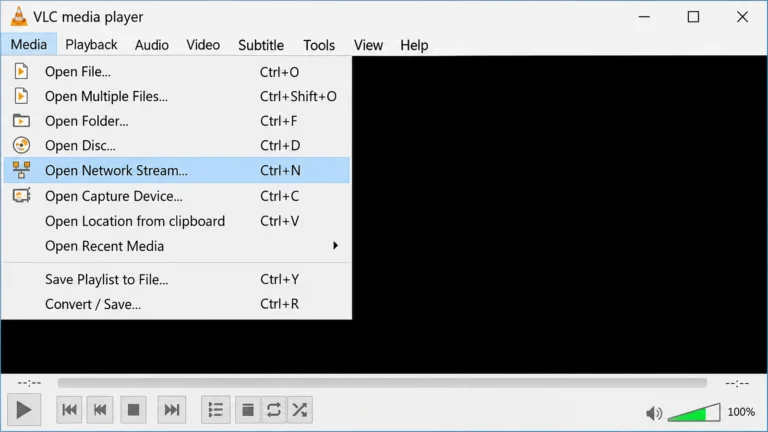
Open Open Network Stream
- Install VLC from VideoLAN’s official Windows download page.
- Open VLC and choose Media > Open Network Stream.
Paste the M3U URL
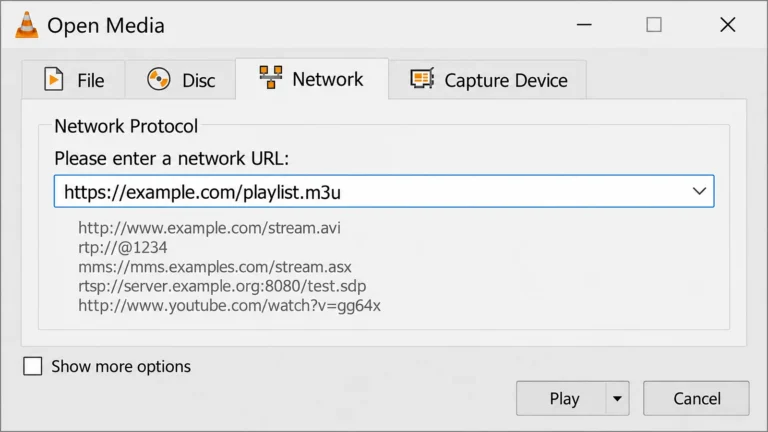
Paste the M3U playlist URL supplied with your subscription into the network address field and select Play. VLC will attempt to load the stream list.
Open the VLC playlist
Choose View > Playlist and select a channel from the list. If VLC cannot load the address, check the URL character by character and ask the provider whether the link is still active.

Use a web player when supported
A web player can be useful on a shared or managed PC where you cannot install apps, but it is available only if your provider supplies one. Open the provider’s official web-player address in a current browser, sign in with the account method they specify and avoid saving credentials on a shared computer. Browser support, EPG controls and playback features vary, so confirm the details with support before relying on this method.
EPG and Windows troubleshooting
The EPG is empty or the times are wrong
Check whether your account includes an XMLTV or other guide URL, add it in the player’s EPG settings and refresh the source. Also check the Windows date, time and time-zone settings. Some players expose their own time-offset option, while others rely on the guide data supplied by the provider.
Channels do not load
Re-enter the M3U URL or the login details supplied with the account, check for spaces or missing characters and confirm that the subscription is active. If the same details work in one supported player but not another, the issue may be player-specific rather than proof that every Windows method is compatible.
Playback buffers or stops
Test the connection near the PC, pause large downloads and try Ethernet where practical. Reduce the stream quality if the player offers that choice. If only one channel buffers, record the time and channel name and contact support rather than repeatedly changing the account URL.
A black screen appears
Check that the player is up to date, try another supported stream and update Windows graphics drivers through normal Windows Update channels. MyIPTV Player may expose more than one playback engine; any player-specific option should be tested only if it is present in your version.
Frequently asked questions
Can I watch IPTV on a Windows PC?
Yes, if you have a compatible player or a supported web player and valid account details from your provider. The player does not supply channels by itself.
Which Windows IPTV player should I use?
MyIPTV Player is a practical starting point when it is available in your Microsoft Store. Kodi suits people who already use its media-centre interface, while VLC is best treated as a simple playlist test. Availability and EPG behaviour can change between versions.
Can I use Xtream Codes on Windows?
That depends on the player and account. Some Windows players accept an M3U URL rather than separate Xtream-style fields. Ask your provider which login format and URL are supported for the player you intend to use.
Does VLC show an EPG?
VLC is designed as a general media player and does not provide the same dedicated EPG workflow as a player or add-on that supports XMLTV guide data.
Where can I get help with Windows IPTV setup?
Check the relevant UK Vision IPTV tutorials first. If the account details or supported login method are unclear, use the contact page and include the player name and Windows version without sending your password or full playlist publicly.
Summary
MyIPTV Player, Kodi, VLC and a supported web player each suit a different Windows setup. Start with the player whose installation method and login format match your PC and account, add EPG data only when it is supplied, and keep the official documentation for the chosen app nearby. For current plan information, visit IPTV subscription plans; for channel categories, see UK IPTV channels.