
This Android TV IPTV setup guide for viewers in the UK explains how to prepare an Android TV or Google TV device, install a compatible player and enter the account details supplied with a subscription. It keeps app availability, login methods and programme-guide support conditional because the exact model, software version, region and player all matter.
UK Vision IPTV publishes this guide as general setup information. It does not confirm that every named player, channel, login method or EPG feature works on every Android TV device or with every account. Check the compatible devices guide and the wider IPTV setup tutorials when you need a different platform.
Key takeaways
- Confirm whether your television or box uses Android TV or Google TV, then check its model, software version and region.
- Install a player from the Google Play Store when it is listed for your device and region; do not assume another platform’s app route will work.
- Use only the login method supplied for your account, such as Xtream Codes API, M3U or a conditional portal flow.
- Test one live channel and the electronic programme guide separately, because EPG support depends on the player and account.
Before you start: check your Android TV device
Write down the device brand, model and software version before you begin. Android TV and Google TV share an underlying platform, but the home screen, settings labels and available apps can differ. A television with Android TV built in also follows a slightly different first-boot path from a separate Android TV box connected by HDMI.
- Connect the TV or box to Wi-Fi or Ethernet and confirm another app can reach the internet.
- Keep a Google Account ready if your device requires one for Play Store access.
- Have the server URL, username, password, M3U link or other account details supplied with your subscription available.
- Update the device before installing a player, and leave enough storage for the app and its normal cache.
Android TV IPTV setup
The main Android TV IPTV setup route is to find a suitable player in the device’s official app store, install it and then follow that player’s own add-account screen. The labels below are a practical guide, not a promise that one app or menu exists on every model.
Check Android TV or Google TV
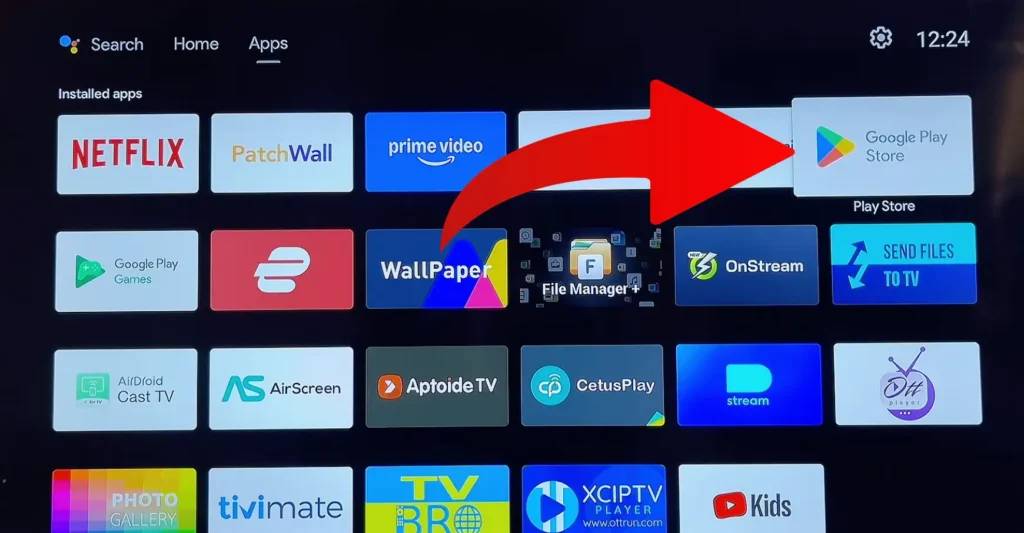
On Android TV, the Home screen normally includes an Apps area where installed applications can be opened. On Google TV, use the Apps tab or Search from the Home screen. Google says that tabs and app availability can depend on the country, language, device and developer listing, so treat the result shown on your own screen as the current availability check.
For the current Google route, see the official Android TV app installation instructions and Google’s Android TV and Google TV overview. If you are using Fire TV, it is a separate Amazon platform; use the Firestick guide instead of assuming these menus match.
Prepare the device and account details
Keep the account message or customer area open while you configure the player. Depending on the player and account, you may receive Xtream Codes fields, a complete M3U playlist URL, a portal address or a device-registration instruction. Do not mix values from different methods, remove part of a URL or copy credentials from a public example.
Android TV’s own account is separate from the IPTV account supplied by a service. The Google Account may unlock Play Store access, while the player uses the service details entered inside the player. Keep those two sign-ins distinct.
Install a compatible IPTV player
- Open Apps on Android TV, or open the Apps tab or Search on Google TV.
- Open Google Play Store and search for the player you intend to use.
- Check the publisher, supported device type, current version and region availability.
- Select Install, wait for the app to finish, then open it from the Home screen or app list.
- Read the player’s own first-run instructions before entering your account details.
If a player is not listed, do not treat a phone listing or a Fire TV instruction as proof that the Android TV version is available. Sideloading can introduce security and compatibility risks. Only consider an installation package supplied through a verified developer route, and keep Google Play Protect enabled; Google explains that Play Protect checks apps installed from outside the Play Store.
See Google’s Play Protect guidance for Android TV before considering any app outside the official store.
Choose your IPTV login method
Open the installed player and choose the account option that matches the details supplied with your subscription. One player may use different labels from another, and a working option in one app does not prove that the same method is supported elsewhere.
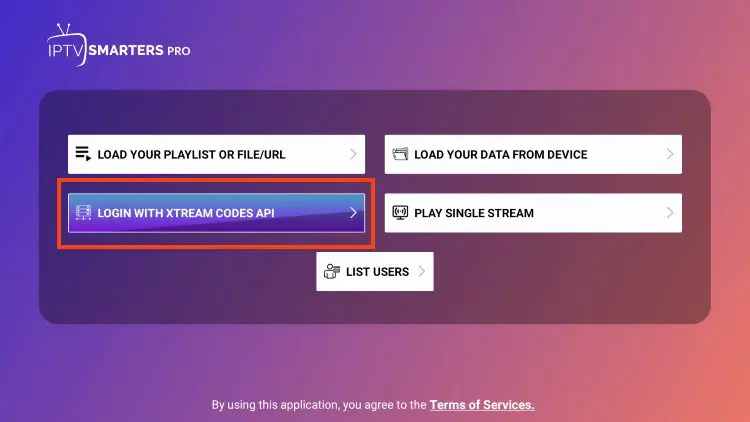
Xtream Codes API
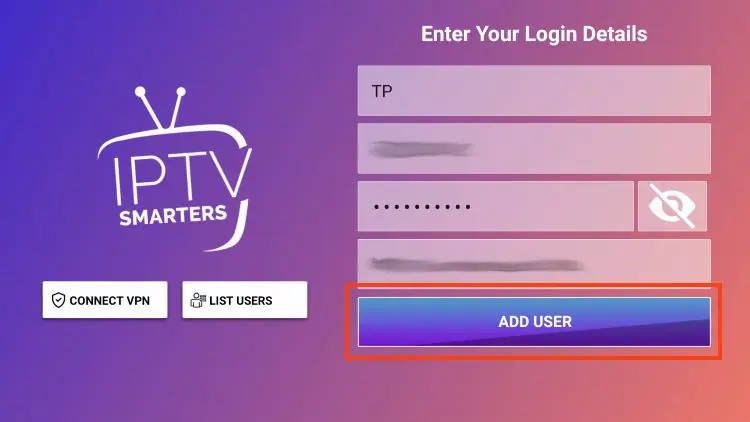
If the player offers Xtream Codes API, enter the server URL, username and password exactly as supplied. Some versions also ask for a playlist name. Use the complete server address, including a port only when the account instructions include one, then select the app’s Save, Add User or Connect control.
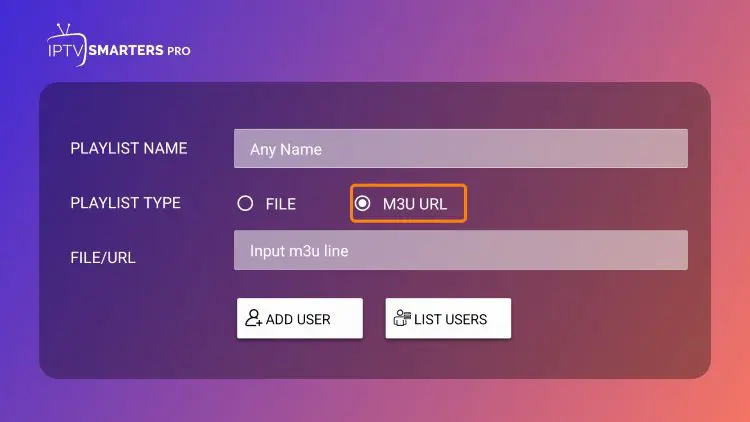
M3U playlist URL
If the player asks for an M3U playlist, paste the full URL without trimming query parameters or adding spaces. Some apps accept the link on the TV; others use a separate web portal or playlist page. Follow the current instructions for the installed player and do not assume that an M3U link also includes EPG data.
Portal or device registration
Some players or dedicated boxes use a portal address, device ID, MAC address or activation key instead of direct Xtream or M3U fields. Use this route only when the chosen player explicitly requests it and the account instructions explain what to enter. Do not send a device identifier to an unverified service or substitute a portal URL from another guide.
If the account message does not make the method clear, pause and contact UK IPTV support before repeatedly reinstalling apps.
Load channels and EPG data
After saving the account, let the player load its list before changing other settings. The result can depend on the player, account, playlist and connection. A programme guide may load automatically, require a separate XMLTV or EPG URL, or be unavailable for that particular combination.
Test live playback first
Open one live channel and wait for playback before testing the guide. If the channel list is empty, use the player’s refresh or reload option and compare the entered details with the original account message. Testing playback separately helps distinguish a login or playlist problem from an EPG display problem.
Refresh EPG data when supported
- Open the player’s Guide, EPG, XMLTV or programme-guide settings.
- Use only the separate guide URL supplied for the account if the player requests one.
- Save, refresh or reload the guide when that control is available.
- Check the device date, time and time zone if programme times look wrong.
- Remember that guide data does not prove that every programme or channel is authorised for every location.
Android TV, Google TV and Fire TV
Android TV is the platform this guide targets. Google TV uses the Android TV foundation but presents a different home screen and app-discovery experience; Google notes that its tabs and features vary by device, language and region. Fire TV is Amazon’s separate platform with its own app store and device settings, so use the dedicated Firestick instructions for a Fire TV Stick or Fire TV device.
A television can also have Google TV or Android TV built in, while a streaming box may provide the platform through HDMI. Check the exact device shown in Settings before following a guide written for another operating system.
Troubleshoot Android TV IPTV setup
The player is missing from Play Store
Check that the device is online, signed in as required, updated and set to the intended region. The developer may not have published the player for TV, the model may not meet its requirements, or the app may not be offered in the current country. Use a different supported route rather than installing an unverified package.
Login fails or the playlist is empty
Check the server URL, username, password, M3U link or portal address character by character. Confirm that the selected login method matches the account instructions, remove accidental spaces and run the player’s reload option. If the details appear correct but the list still fails, note the device model, player name and error message for support.
Buffering or a black screen
Check the network status, restart the player and router, install available system or app updates and test another channel. Ethernet may be useful where it is available, but the cause can also be the player, stream format, device or account. Record what happens before changing several settings at once.
EPG data is missing
Check whether your player expects a separate XMLTV or EPG URL, refresh the guide and verify the device time zone. If live playback works while the guide remains empty, ask whether the account and player use the same guide source. Do not assume that an empty EPG means the entire account is unavailable.
Frequently asked questions
Can I use any IPTV app on Android TV?
No. Use a player that is listed for the exact Android TV or Google TV device, region and software version, then check that its login method matches the account details supplied to you. A phone or Fire TV listing is not proof of Android TV support.
Can Google TV use the same apps?
Google TV uses the Android TV foundation, but app availability still depends on the device, region, developer listing and software version. Search the Apps area on the Google TV device itself rather than assuming that every Android TV app will appear.
Can I use the same account on multiple devices?
Only if your subscription terms permit that use and the player on each device accepts the same account method. Installing an app on two devices does not by itself confirm that simultaneous streaming is included.
Do IPTV player apps charge separately?
Some third-party players may have their own licence, activation or subscription terms. That fee is separate from an IPTV service subscription unless the seller clearly says otherwise. Check the current publisher listing before paying.
Final checks before you watch
- The exact device, Android TV or Google TV version and region have been checked.
- The player is listed through an official or verified installation route.
- The account method matches the fields shown by the player.
- At least one live channel plays before you rely on the programme guide.
- The EPG has been refreshed when the player and account support it.
- You have recorded the model, player and error message if support is needed.
This Android TV IPTV setup guide is published by UK Vision IPTV and is intended to explain device setup, not to guarantee player availability, stream performance or content compatibility on every device. Review the channel information and subscription plans before choosing a plan, and contact support if the exact model or login method is unclear.