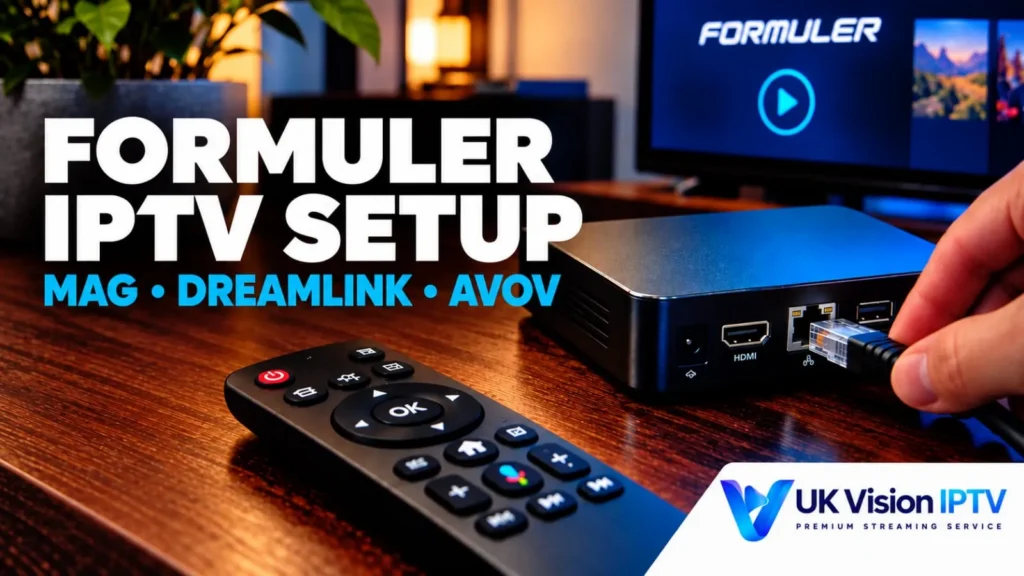
This IPTV box setup guide is for UK viewers using Formuler, MAG, Dreamlink or AVOV hardware. These boxes do not all use the same menus or activation method, so follow the section for your model and confirm the exact connection method supplied with your account. UK Vision IPTV publishes this as general setup information; it does not confirm that every portal, MAC activation route, player or feature works on every box.
Before entering any device ID, MAC address or login details, check the box model, software version, network connection and the instructions from your provider. Never post credentials or a device identifier publicly.
Before you start: identify the box and account method
Have the box, remote, power supply, HDMI cable and a stable internet connection ready. Keep the account details supplied with your subscription nearby. Depending on the hardware and player, setup may use a portal URL, a MAC or device ID, an Xtream-style login, or an M3U playlist. The available fields are controlled by the box software and the account method, not by this guide.
- Record the exact model and software version shown in the box settings.
- Use Ethernet where practical, or confirm that Wi-Fi is connected before opening the player.
- Ask support which method applies to your account before sending a MAC address or entering a URL.
How Formuler, MAG, Dreamlink and AVOV boxes differ
Formuler boxes commonly use MYTVOnline, while MAG boxes use Infomir’s portal-based interface. Dreamlink and AVOV menus can differ by model, software version and the age of the interface. Do not copy a menu path from one device to another. If the labels on your screen do not match, stop and confirm the route with the manufacturer or provider.
IPTV box setup guide: Formuler
Formuler’s MYTVOnline software may support more than one connection method, including portal or MAC-ID entry and other account formats. Use the method your provider confirms for your exact model and version.
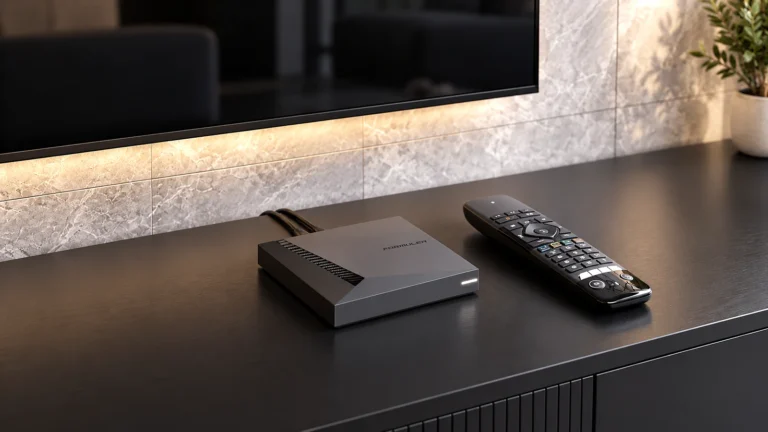
Connect the Formuler box and open MYTVOnline
Connect the box to the television by HDMI, connect power and join the internet. Open MYTVOnline and look for its content or portal management area. The name and position of the menu can change between versions.
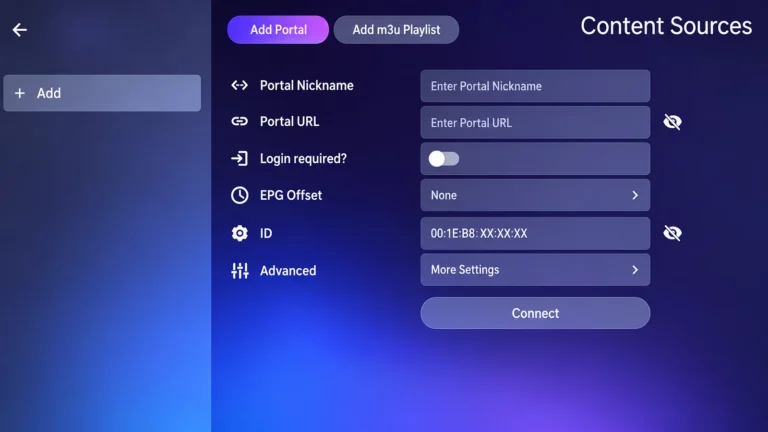
Open Content Sources and choose Add Portal
In MYTVOnline 3, open the content-source manager and choose the option to add a portal or other source. If your version uses a different label, use the equivalent content-management screen shown by Formuler for that software release.
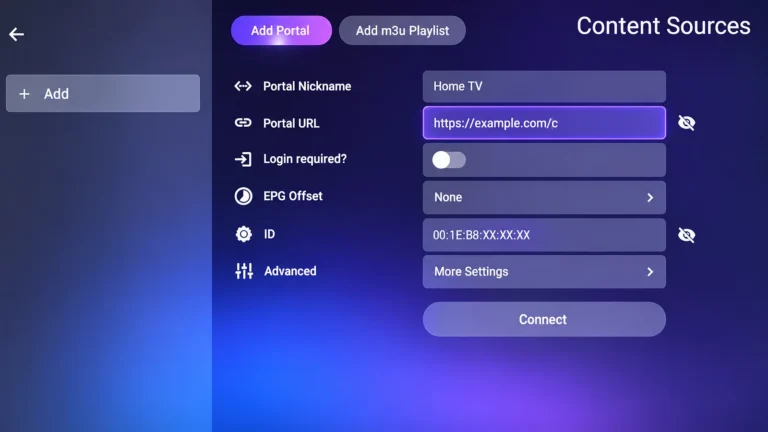
Enter the portal or account details supplied to you
Enter a clear source name and the server or portal URL exactly as supplied. Some versions also show a login-required switch or fields for a username and password. Do not guess values from an example screen, and do not reuse a URL intended for another account.
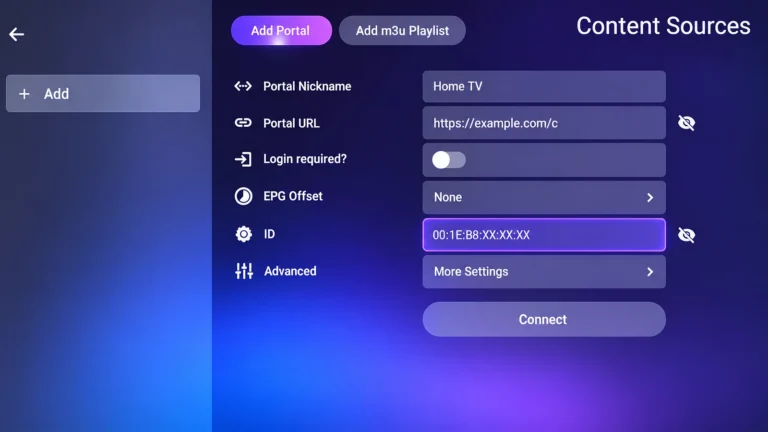
Check the MAC-ID only when the chosen method requires it
If support has asked for the box identifier, read the MAC-ID from the box screen or label and send it through the verified support route. A MAC-ID is not a replacement for a portal URL or subscription login, and you should not publish it in a screenshot.
Save the source and connect
Save the source, select it and choose Connect. Wait for the box to load before deciding that the details are incorrect. If it fails, check for typing errors and confirm the account method with support rather than changing unrelated settings.

Refresh content and review player settings
After a successful connection, use the player’s refresh or data-sync option if the list is stale. MYTVOnline also exposes playback settings that may vary by version. Change one setting at a time and keep any provider guidance in mind; an option visible in a menu is not proof that every account supports it.
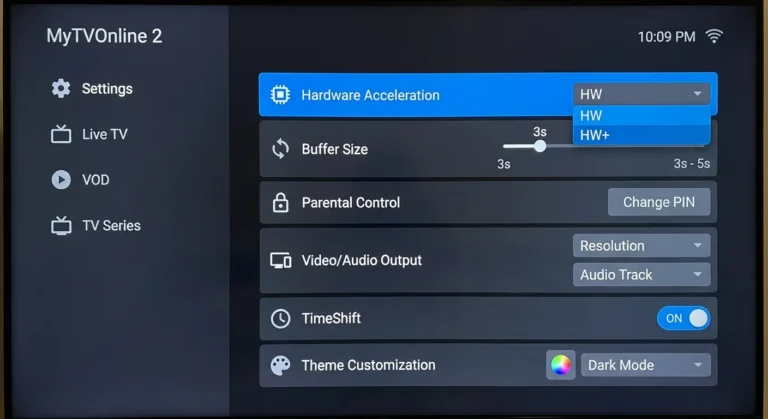
MAG box setup
MAG boxes normally use an embedded portal interface rather than an app store. Menu names vary between models and firmware, so treat the following as a route to check rather than a guarantee for every box.

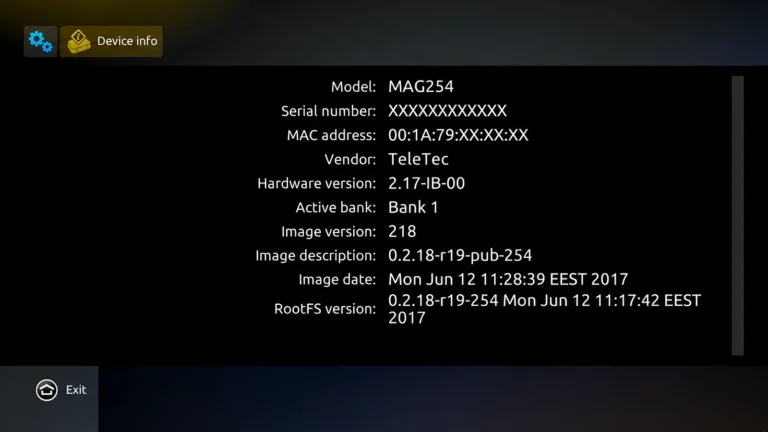
Open the MAG device information screen
Open the device information or status screen and note the model and MAC address if the approved account method requires it. Keep this identifier private and send it only through a verified support channel.
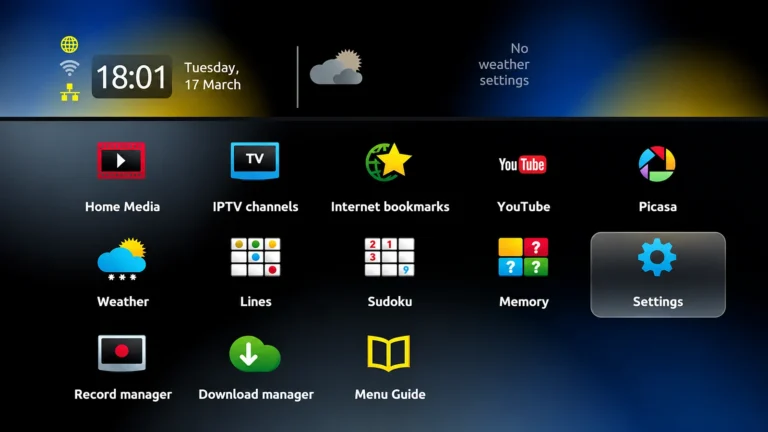
Open Settings and find the portal controls
Return to the main menu, open Settings and look for system settings or external-portal controls. Older MAG interfaces may place these options under a different heading.
Enter the portal address supplied for the account
Open the portal settings, choose an available portal slot and enter the exact portal name and URL provided for your account. Do not substitute the example address shown in a screenshot or assume that a portal method is available to your service.

Restart the portal and wait for it to load
Save the portal details and use the system’s restart-portal command if it is available. Allow the portal to reload fully. If the screen returns to the menu or remains empty, confirm the URL, network and account method with support.

Dreamlink IPTV box setup
Dreamlink models and older DOL interfaces can expose service settings in different places. The screenshots below illustrate one interface; use your model’s current menu labels and confirm any portal or account method with support.
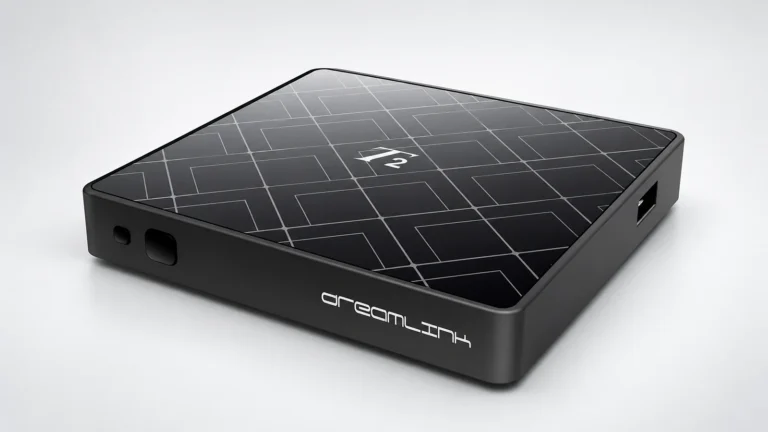
Open the online service screen
Open the device’s online or service application and look for a device-information screen. If the box uses another name, consult its manual rather than assuming it matches the example.

Choose Edit Service or the equivalent option
Select the service entry and choose Edit Service if that option appears. Older interfaces can use different wording or a different remote-control action.

Enter the service URL and any supported fields
Enter the service URL or portal value supplied for the account. Leave username or password fields blank only when the confirmed method does not require them. Do not copy example values from an image and do not assume that Dreamlink supports every login format.

Save and wait for the service to load
Save the service and wait while the box loads it. A loading screen does not confirm that activation is complete; if it stalls, check the network and ask support to confirm the account-side status.

AVOV box setup
AVOV boxes can use TVOnline or another model-specific interface. The available market, server and account screens depend on the device and firmware, so confirm the exact route before sending a MAC address or server value.

Open server settings and check the device identifier
Open the server or account settings in the installed player and note any device identifier only if the confirmed account method needs it. Keep it private and do not publish it in a support request or screenshot.
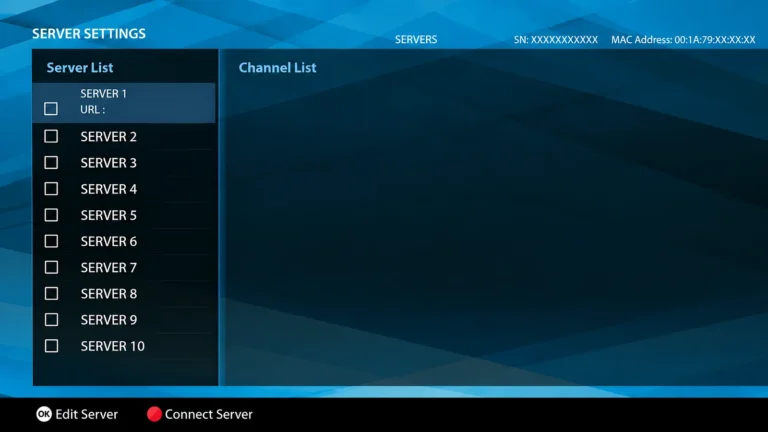
Edit the server entry
Choose the server entry and edit the nickname and server URL fields. Use the exact value supplied for your account, and do not treat the example URL on a screen as a working service address.

Save the server and test the channel list
Save the entry and wait for the player to load. If a channel list appears, test one live channel before troubleshooting the guide. The presence of a demo-looking list in an example image does not confirm the content available on your account.

Use the AVOV settings screen when the player route differs
If your AVOV model does not show TVOnline or server settings in the same place, return to the home screen and check Settings, software information and network status. Older interfaces may require a model-specific manual or support instruction.
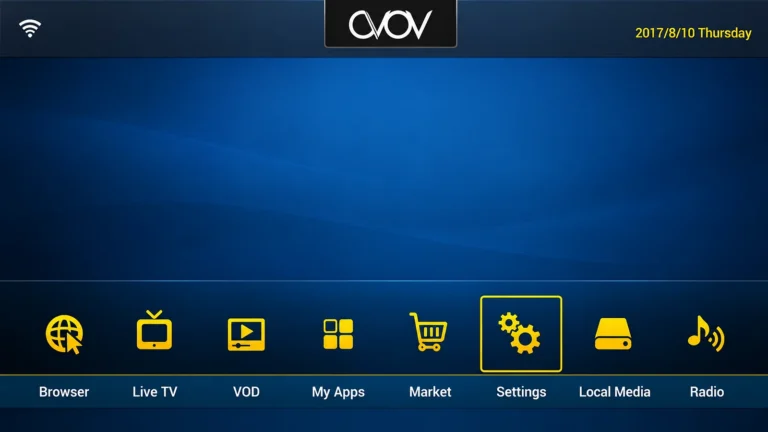
Load channels and check EPG data
Once the account or portal loads, open a channel and confirm playback before relying on the electronic programme guide. EPG data may be included with the account, loaded from a separate guide source, refreshed inside the player or unavailable for a particular combination of box, app and account. If live channels work but the guide is empty, check the player’s refresh controls and ask support whether the account includes guide data.
Troubleshoot portal, login and playback problems
- The portal does not load: check the network, URL spelling and whether the portal method is actually assigned to the account.
- The list is empty: confirm that the chosen field matches the supplied method, remove accidental spaces and refresh the player.
- Playback buffers: test the connection and more than one channel where permitted; the cause can involve the box, player, stream format or account.
- The menu does not match: stop at the nearest equivalent screen and verify the model-specific route rather than forcing an older instruction.
- EPG is missing: refresh guide data, check the box date and time, then ask whether the account and player use the same guide source.
If you cannot tell whether the issue is the box, player, account method or service, contact UK Vision IPTV support with the box model and a description of the screen you see. Do not send a real MAC address or password in a public message.
Frequently asked questions
Do all IPTV boxes use a portal URL?
No. Portal, MAC-linked, Xtream-style and M3U routes can vary by box software and account. Use only the method confirmed for your model and subscription.
Do Formuler, MAG, Dreamlink and AVOV menus work the same way?
No. Formuler, MAG, Dreamlink and AVOV products use different interfaces, and even two models from one manufacturer can show different labels. Treat screenshots as model-specific examples.
Should I send my MAC address to support?
Only if support confirms that the account method requires it and you are using a verified support channel. A MAC address is sensitive device information, so never publish it or include it with your password.
Why do channels load but the EPG stays empty?
The account may not include guide data, the player may need a refresh, or its guide source may not match the playlist. Test live playback first, refresh the EPG if the player offers that option and ask support what the account includes.
Can I use any player or portal on these boxes?
No universal compatibility claim is safe. Check the box model, firmware, player availability and the login method supplied for your account before changing software or selecting a plan.
Final checks before viewing
- The box model and software version are recorded.
- The network is connected and the chosen login method matches the supplied account details.
- At least one live channel plays before you rely on EPG data.
- You know which settings screen to revisit if the portal, list or guide needs refreshing.
For broader device information, see the IPTV compatible devices guide and UK IPTV tutorials. You can also review channel information, subscription plans and contact options. For the manufacturer routes discussed above, consult Formuler’s official portal guidance and Infomir’s official portal-loading guidance.
This IPTV box setup guide is published by UK Vision IPTV as general device setup information. App availability, login fields, portal activation, recording options and EPG support depend on the box, software version, region, player and account. Confirm any uncertain step with the manufacturer, app publisher or support team before making changes.