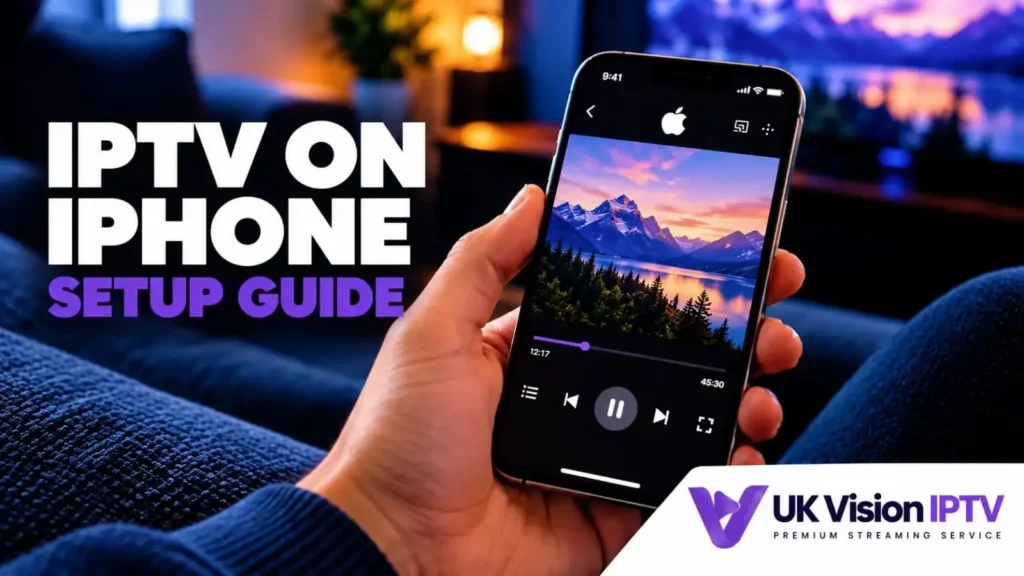
This iPhone IPTV setup guide explains how to install a compatible player from the App Store, add the account or playlist details supplied with your subscription and check playback on an iPhone. App names, login fields, EPG controls and casting options vary by iOS version, player, region and account.
Before you start: what you need
You need a compatible iPhone, a current iOS release where possible, a reliable internet connection and the account information supplied with your IPTV subscription. If you are new to IPTV, the UK Vision IPTV tutorials provide wider setup guidance, while the compatible devices guide covers other platforms.
Check your iPhone and iOS version
Open Settings > General > Software Update and check whether an update is available. The App Store listing for a player is the authority for its current iPhone and iOS requirements; do not assume that an app supported on iPad or Apple TV has identical support on every iPhone.
Prepare the account details
Keep the username, password, server address, playlist URL or other login details supplied with your subscription nearby. Never copy another customer’s credentials from a screenshot, and do not publish your own password or full playlist URL. Your player may ask for Xtream-style fields, an M3U URL, a portal address or another method.
Choose a compatible iPhone IPTV player
Choose a player that is currently available for your iPhone and supports the login method supplied with your account. UK Vision IPTV does not require one universal app for every iPhone: availability and features depend on the app publisher, iOS version, region and account.
Review the App Store listing
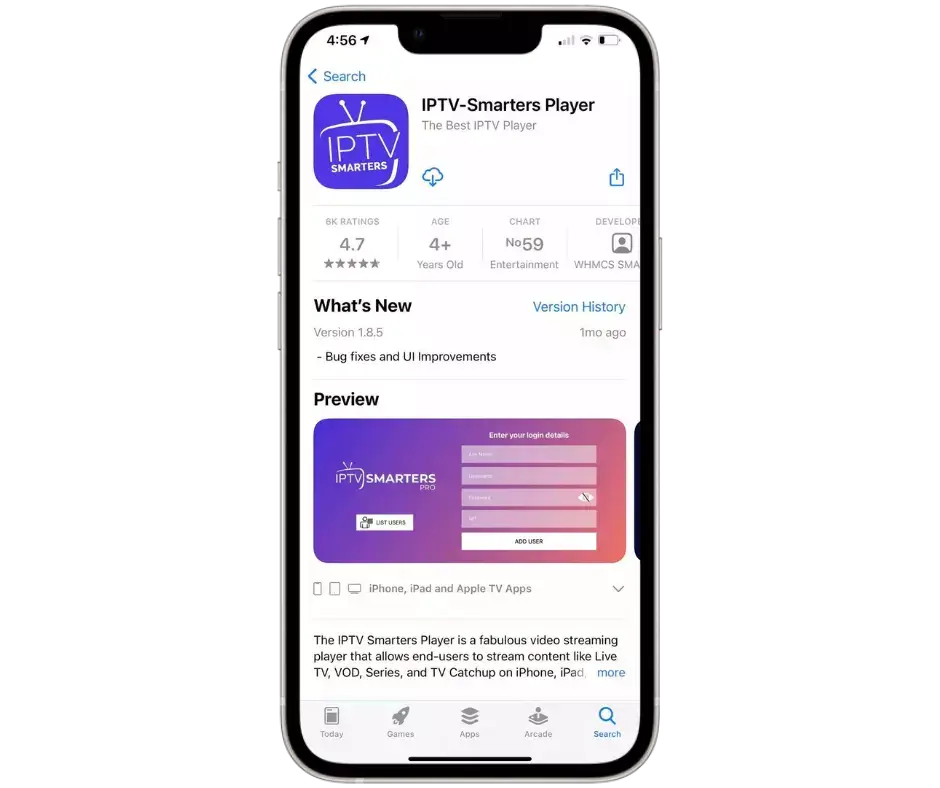
Use the live App Store listing to check the developer, supported devices, iOS requirement, in-app purchases and recent update information before installing. Apple explains how to download apps from the App Store in its official support guide. The screenshot below is an example of a player listing, not a guarantee that the same app or interface will remain available.
Confirm the login format
Before choosing a player, compare its input fields with the information supplied by your provider. If the player only accepts an M3U URL and your account uses a different method, ask support for the correct format rather than guessing or reusing a URL from another app.
Install the player from the App Store
Download from the App Store
- Open the App Store on the iPhone.
- Search for the player you have checked, then confirm the developer and current compatibility details.
- Select Get or the displayed purchase button and complete Apple’s normal download steps.
Open the player for the first time
Open the app and review its privacy, network and notification prompts. Only grant permissions that make sense for the feature you want to use. If the app offers a trial or paid upgrade, that is separate from any IPTV subscription and should be reviewed in the App Store listing.
Add your IPTV account or playlist
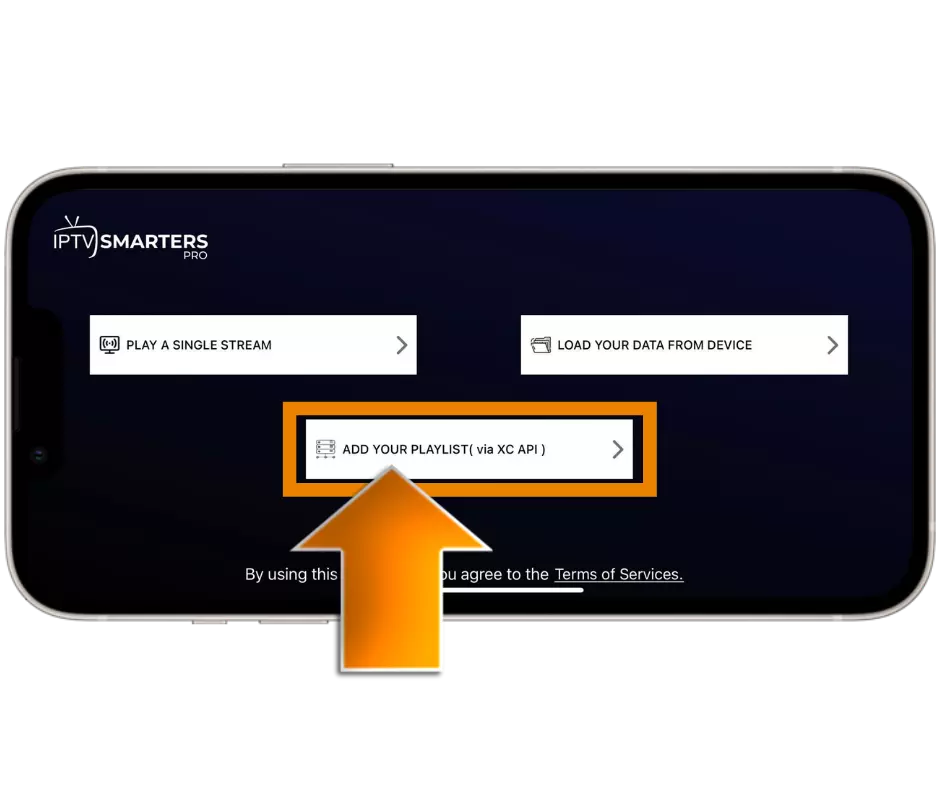
Use the option named something like Add playlist, Add user or Log in. Labels differ between players. Enter only the details supplied for your own subscription and follow the app’s validation message if it rejects a field.
Use Xtream-style fields when offered
Some players show separate fields for a server address, username and password. Use that option only when the account details supplied by your provider are intended for those fields. The exact labels and server format can vary, so check the provider instructions if the app asks for a port, HTTPS address or a different server value.
Use an M3U playlist URL
If your provider supplies an M3U playlist, paste the complete URL into the player’s playlist or URL field. Keep the URL private, check that it has not been shortened or wrapped onto a second line, and save it using the app’s own confirmation control.

Wait for the playlist to finish
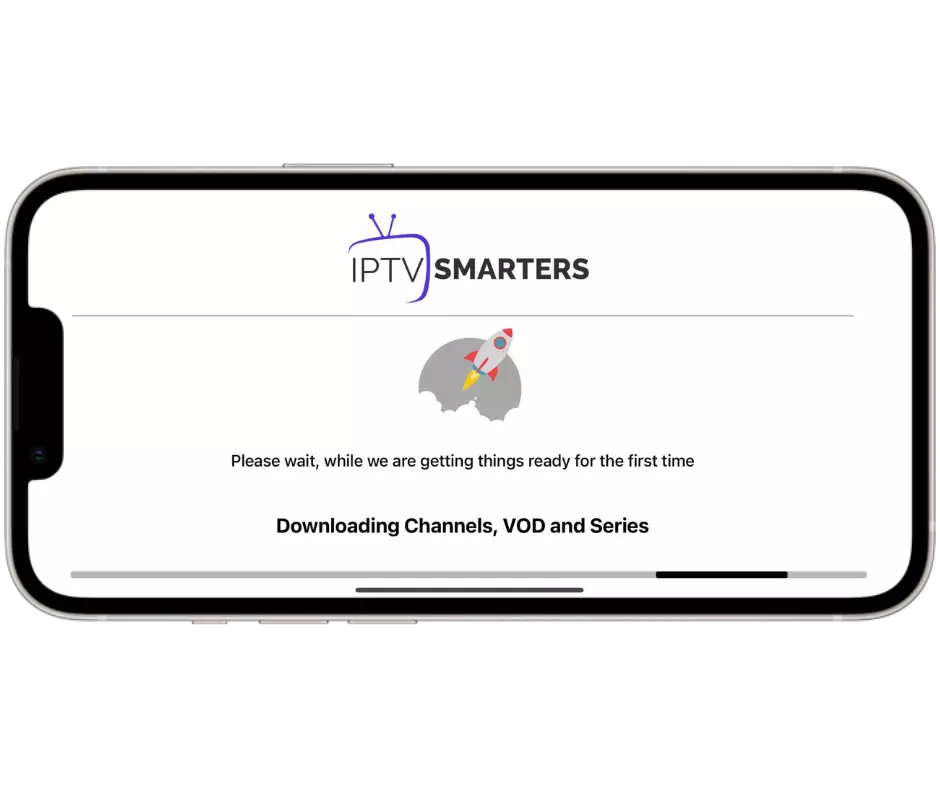
Allow the player time to validate the details and import the list. Keep the app open while it is loading, and do not repeatedly submit the same URL if the service is still processing the request.
Load channels and EPG data
Refresh the sources
After the playlist has loaded, open the channel or live-TV area and refresh the sources if the player provides that control. Check a small selection of channels first, then return to the playlist settings if groups or entries are missing.
Add EPG data when supported
An electronic programme guide (EPG) may load automatically or require a separate XMLTV or guide URL. Add guide data only when it is supplied for your account and supported by the chosen player. An empty EPG can be caused by the guide URL, time-zone mapping, account data or the app itself; it does not prove that every channel is unavailable.
Improve playback on iPhone
Test the connection
Try the same channel on a stable Wi-Fi connection before changing player settings. If you use mobile data, check your data allowance and coverage. A slow or inconsistent connection can affect playback, but the provider and player should be checked before drawing conclusions from one test.
Use the controls available in your player
Use only controls exposed by your installed app. Favourites, subtitles, audio tracks, playback engines and picture-in-picture behaviour are not universal. Apple documents Picture in Picture in its official iPhone guide; the player must also support it.
AirPlay or mirror to a larger screen
Use AirPlay with a compatible screen
If the app exposes an AirPlay control, connect the iPhone and the receiving TV or Mac to the same network, open Control Centre and select the available destination. Appleâs AirPlay support guidance explains the standard requirements. AirPlay visibility and playback can still depend on the app, receiving device and content.
Check compatibility before relying on it
Test a short stream before planning to watch on a larger screen. Some players offer their own cast or mirror controls, while others may not allow a particular stream to be sent to a TV. If AirPlay is not offered, check the player’s current documentation instead of installing an unrelated app.
Troubleshoot iPhone IPTV setup
Channels do not load
Recheck the account details, server address and playlist URL supplied with your subscription. Remove accidental spaces, confirm the subscription is active and try the player’s refresh control. If the same details fail only in one app, the issue may be app-specific.
The EPG is empty
Confirm whether the account includes guide data and whether the player accepts the supplied format. Refresh the playlist, check the iPhone date and time and review any time-zone option offered by the app. Ask support for the correct guide URL when the account instructions are unclear.
Playback buffers or stops
Test another channel, move closer to the router or compare Wi-Fi with mobile data where practical. Pause large downloads and update the player from its current App Store listing. If one channel fails while others work, record the time and channel name for support rather than repeatedly changing account details.
Frequently asked questions
Which iPhone models support IPTV apps?
There is no single answer for every app. Check the current App Store listing for the player you choose and compare its iOS requirement with the iPhone’s software version. Older models may be limited by the app’s minimum iOS version or performance.
Can I use mobile data?
Some players can play over mobile data, subject to the network, data plan, account and player. Check iPhone mobile-data permissions for the app and monitor usage before relying on it away from Wi-Fi.
Can I watch IPTV offline?
Live IPTV normally requires an active connection to retrieve streams. Offline viewing, if offered by a particular app, is a separate app feature and should not be assumed for a live playlist.
Does every player support EPG or Picture in Picture?
No. EPG and Picture in Picture support depend on the app, the iOS version, the account data and the playback method. Check the app’s current documentation and listing before choosing it for a specific feature.
How can I watch IPTV on a TV?
Use AirPlay, an app-provided cast option or a compatible wired method when the iPhone, player and receiving device support it. Start with Apple’s AirPlay requirements and check the player documentation for any restrictions.
Summary
For an iPhone IPTV setup, choose a current App Store player, match its login fields to the account details supplied with your subscription and add EPG data only when the player and account support it. Test playback and any AirPlay option on the specific devices you plan to use. For plan information, visit the IPTV subscription plans; for other platforms, see the compatible devices guide or contact support.