
This UK Vision IPTV guide explains IPTV on PS5 and Xbox through four methods across the two consoles: a web-player route and a Plex route for PS5, plus MyIPTV Player and Edge web-player routes for Xbox. Console menus, app listings and player features can change by model, region and software version, so treat the screenshots as a visual aid and follow the current screen on your own console.
Use only the server address, username, password, M3U link or EPG link supplied with your own subscription. UK Vision IPTV compatibility with a particular third-party app or console route should be confirmed with support before you rely on it. For plan information, see IPTV subscription plans; for general platform guidance, see compatible devices and the IPTV setup tutorials.
Before you start
Have the console connected to the internet, update its system software, and keep your account details nearby. A console route may use a web player rather than a dedicated IPTV app. If a menu item or app is missing, do not install an unverified replacement: check the console store, your region and the player developer information first.
- PS5 or Xbox connected to a TV and logged into the relevant console account.
- A valid subscription with the connection details supplied by the provider.
- A player that actually appears for your console, account and region.
- An EPG link only if your provider supplies one and the chosen player accepts it.
PS5 route 1: web player through the PS5 browser
This is a browser workaround rather than a dedicated IPTV app installation. It has been used in the source workflow, but PlayStation can change account-linking and browser behaviour. If the route no longer opens on your PS5, stop and ask support for a current alternative.
PS5 web-player step 1
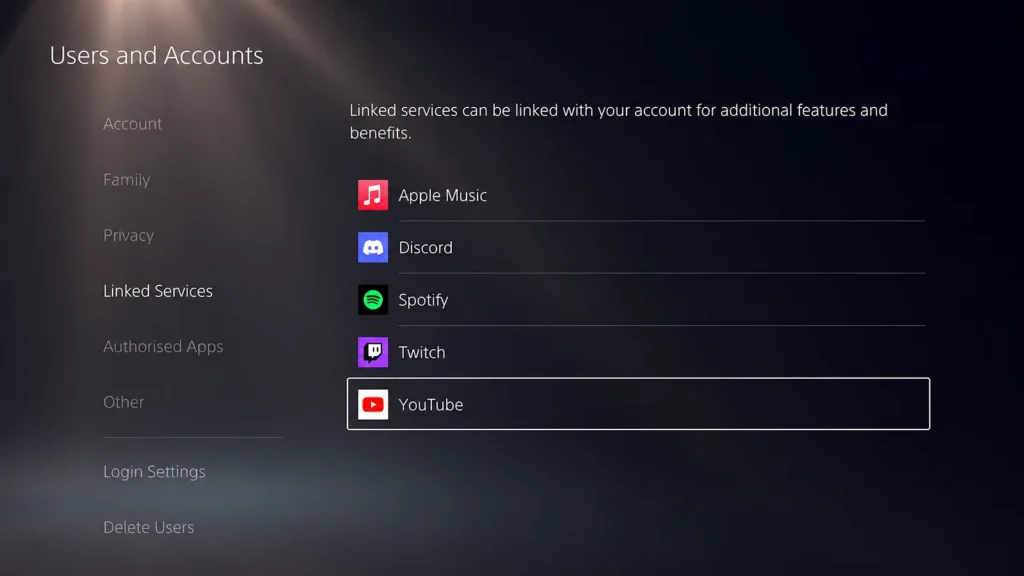
On current PS5 system software, open Settings > Users and Accounts > Link with Other Services > YouTube. The source screenshot uses the older “Linked Services” label; menu wording can vary by system version. For the current menu wording, see PlayStation’s PS5 YouTube support guidance.
PS5 web-player step 2
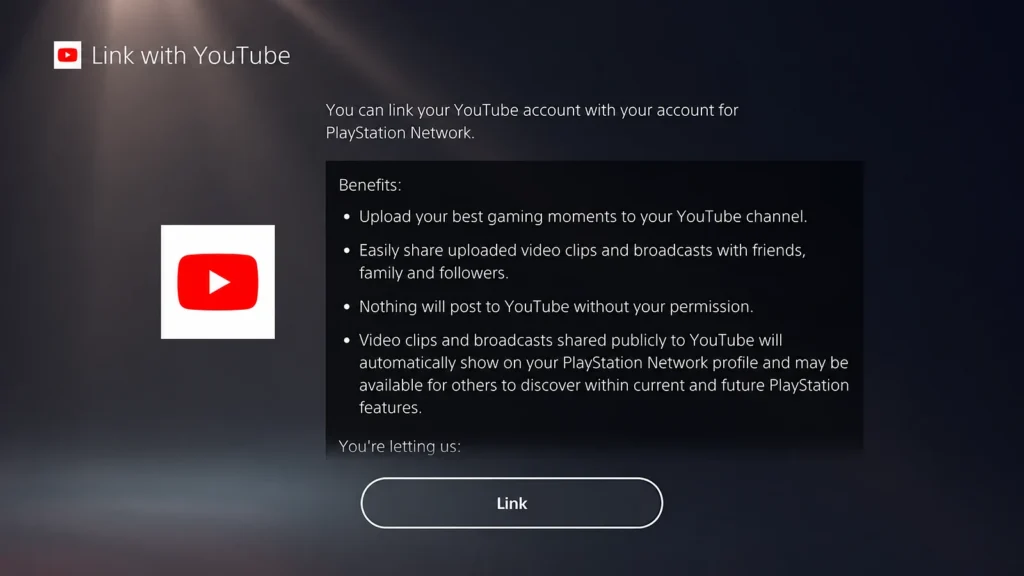
Select Link to open the account-linking screen.
PS5 web-player step 3
Choose Use Browser instead of scanning the QR code. A Google sign-in page should open.

PS5 web-player step 4
Do not sign in to Google. Select Terms at the bottom of the page, then select the Google link at the top of the Terms page. This is an unofficial browser path and may change.

PS5 web-player step 5
On the Google search page, search for the web player you intend to use and open its website. Use an HTTPS address and check the domain before entering anything.

PS5 web-player step 6
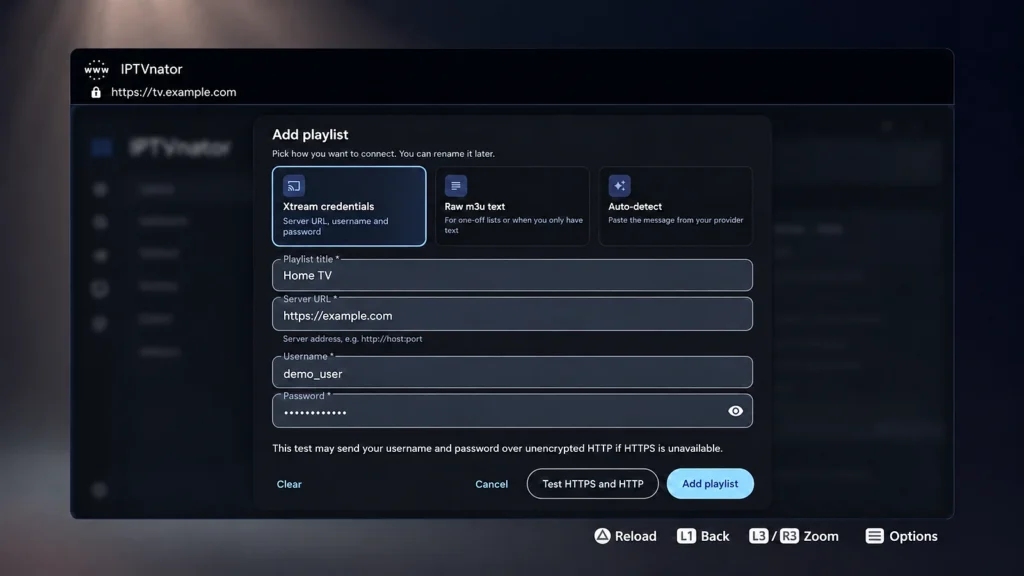
Choose Xtream Codes or M3U if the player offers both, enter the details supplied with your account, and select Add playlist. The PS5 browser may not keep bookmarks, so you may need to repeat the route next time.
PS5 route 2: Plex with a local media server
Plex is a different route: the PS5 is the client, while Plex Media Server and the playlist bridge run on a computer. It is more involved than a web player and is not a claim that UK Vision IPTV supplies or supports Plex, Threadfin or Plex Pass. Use it only if you are comfortable maintaining the computer and checking the current Plex requirements. Review Plex’s Live TV & DVR requirements before configuring it, and consult Plex’s XMLTV guide guidance when guide data is supplied.
PS5 Plex step 1
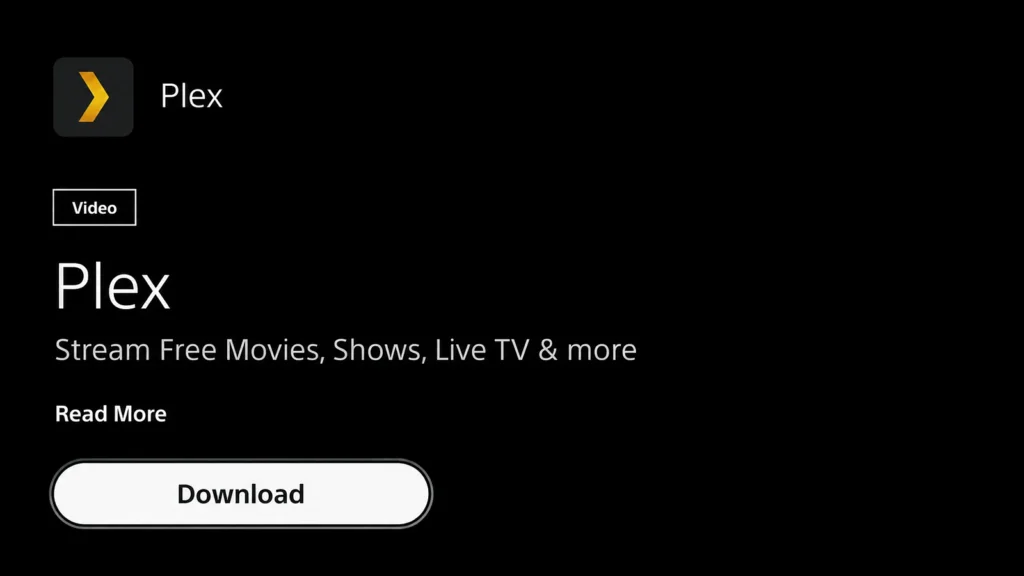
Install Plex on the PS5 from the PlayStation Store.
PS5 Plex step 2
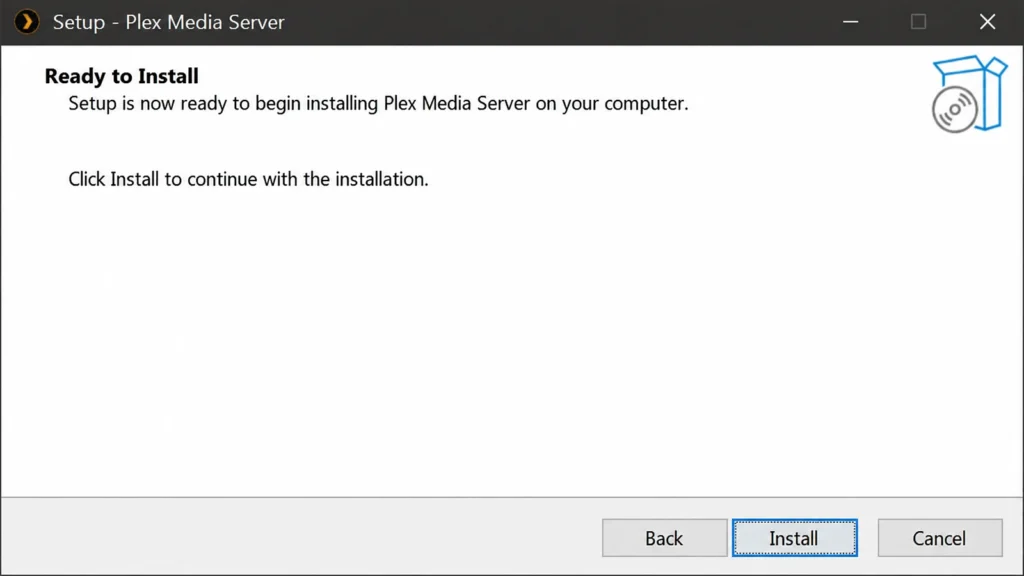
On a computer that stays available, install Plex Media Server and sign in with the same Plex account. The computer must remain available to run the server and deliver the stream and guide data to the PS5.
PS5 Plex step 3
Plex does not read an M3U link directly in this workflow. On the same computer, configure a compatible playlist bridge such as Threadfin with the M3U and EPG (XMLTV) links, then in Plex open Settings > Live TV & DVR > Set up Plex DVR and add the bridge as the tuner.
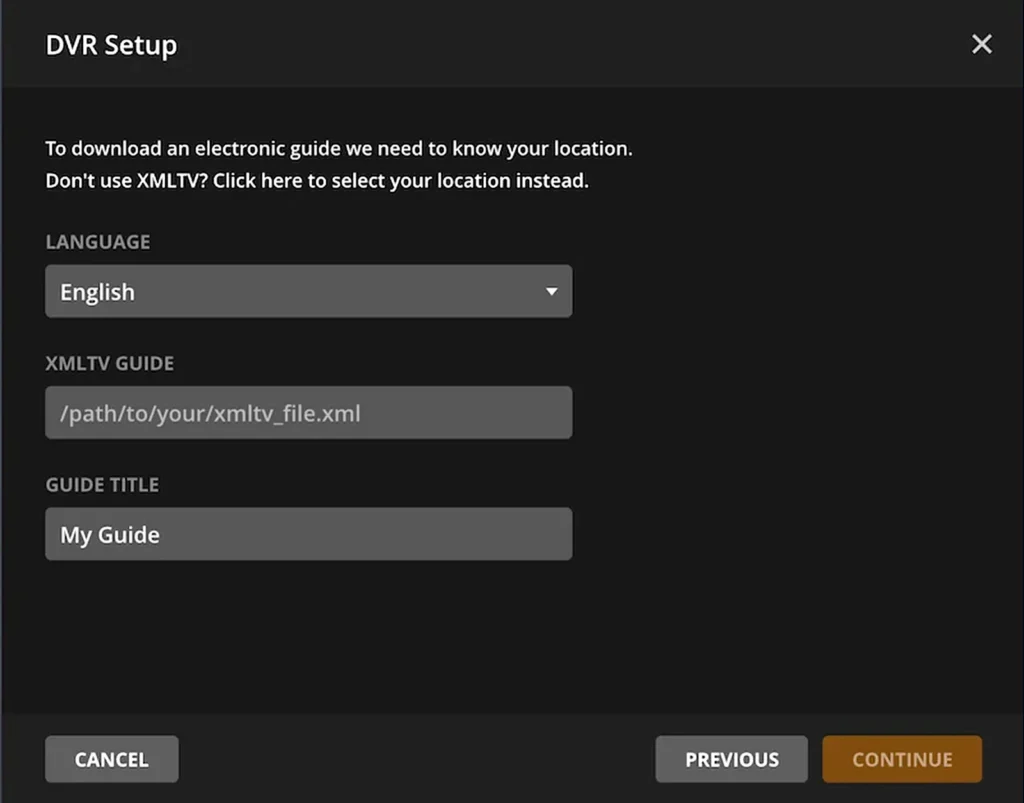
PS5 Plex step 4
Let Plex scan and map the channels. Review the mappings rather than assuming every entry is correct.
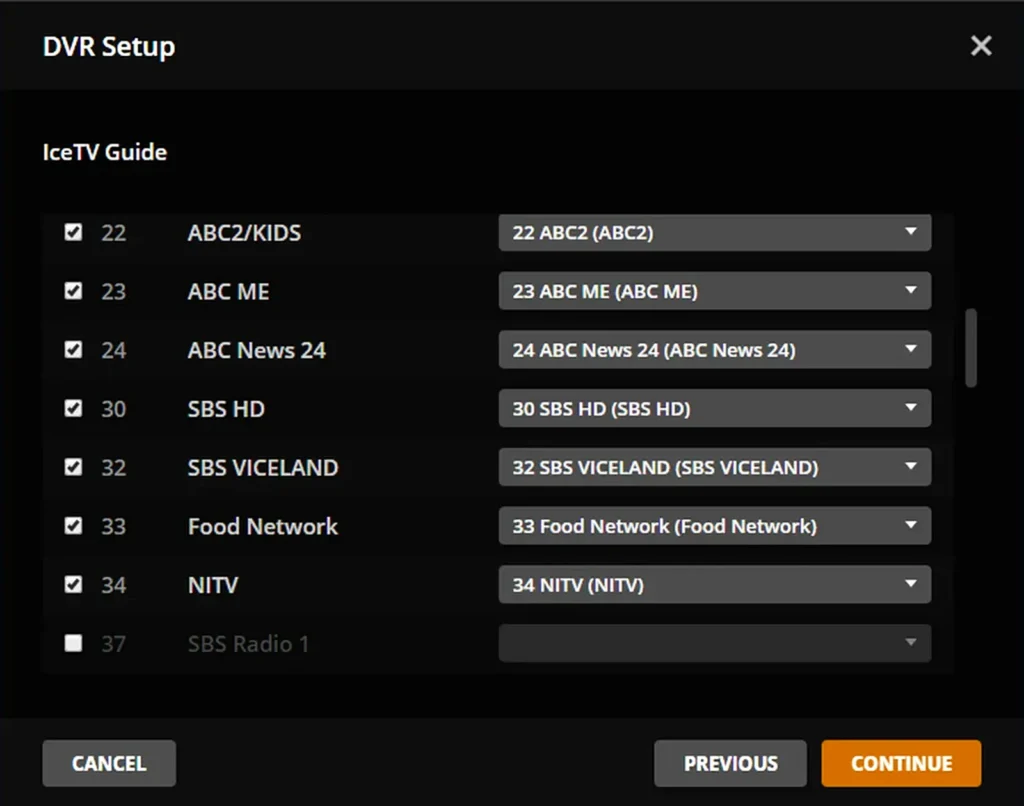
PS5 Plex step 5
Open Plex on the PS5 with the same account and select Live TV. The guide appears only if the server, tuner/bridge and guide data are working. Plex Live TV/DVR requirements and Plex Pass rules can change, so check Plex support before troubleshooting the provider.
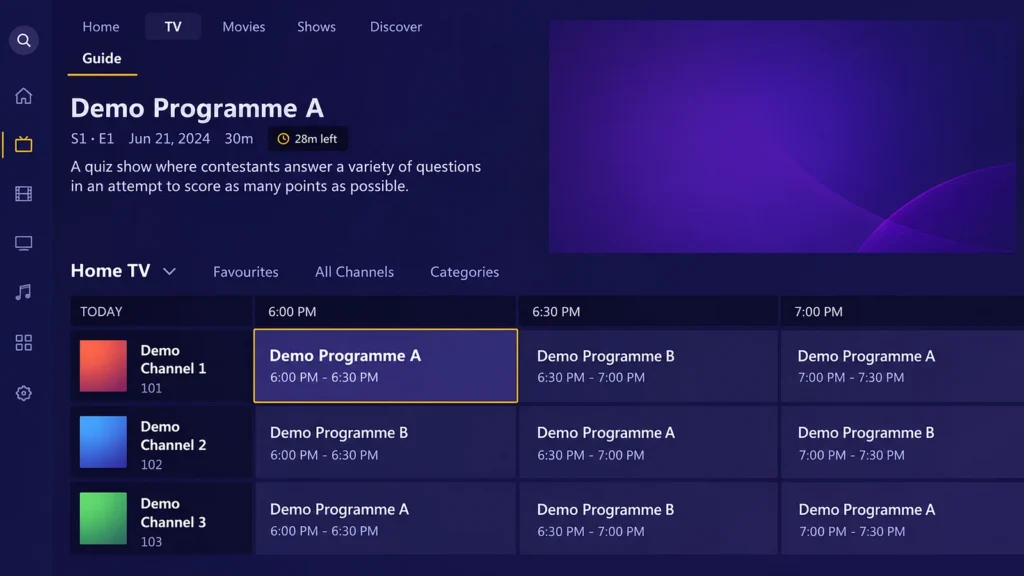
Xbox route 1: MyIPTV Player
If MyIPTV Player is listed in the Xbox Store for your console and region, the source workflow uses the app by Vbfnet Apps. Store availability, upgrades and supported Xbox generations can change. Check the live Microsoft Store listing for MyIPTV Player and Microsoft’s trusted-app guidance before you begin. Do not assume that an app being available on Windows means it is also available on Xbox.
Xbox MyIPTV Player step 1
Press the Xbox button, open Store and search for MyIPTV Player. Check that the publisher shown in the listing is Vbfnet Apps before installing.

Xbox MyIPTV Player step 2
Select Get or Install, open the app, and go to Settings.
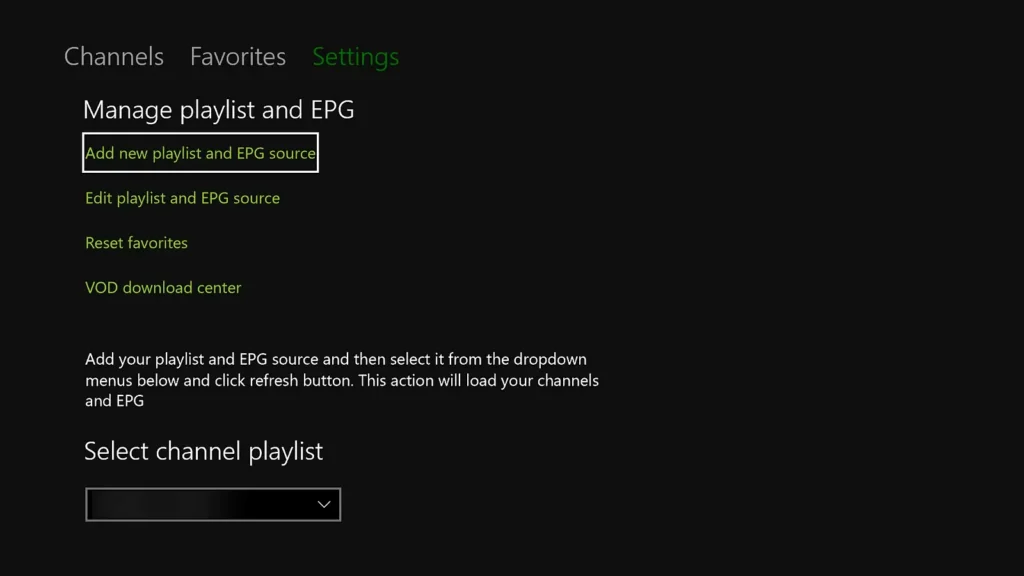
Xbox MyIPTV Player step 3
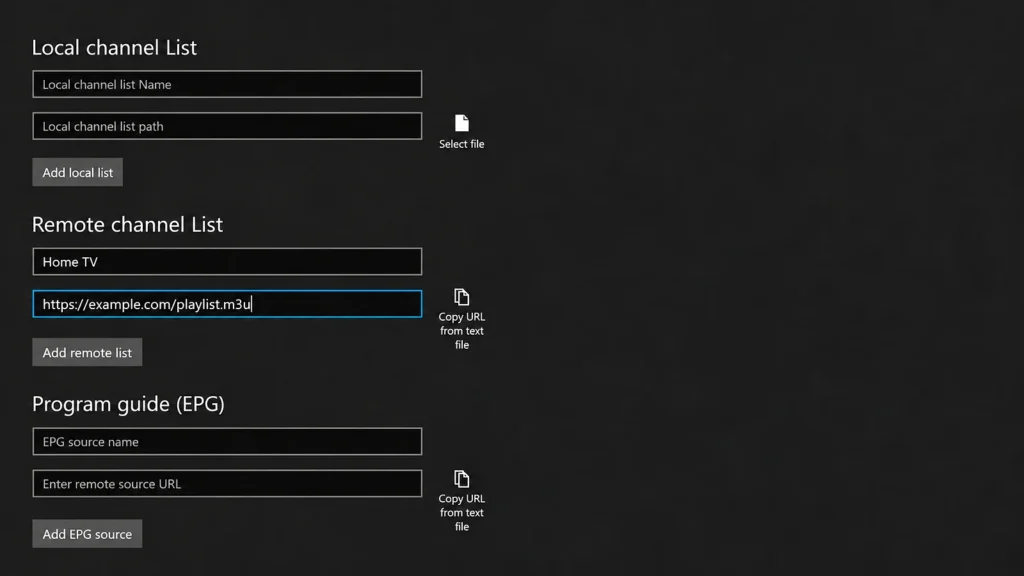
Choose Add new playlist and EPG source. Under Remote channel list, enter a name, paste the M3U link supplied with your account, and select Add remote list.
Xbox MyIPTV Player step 4
Under Program guide (EPG), enter a name, paste the XMLTV/EPG link supplied with your account if available, and select Add EPG source. If no EPG link was supplied, leave this step out.

Xbox MyIPTV Player step 5
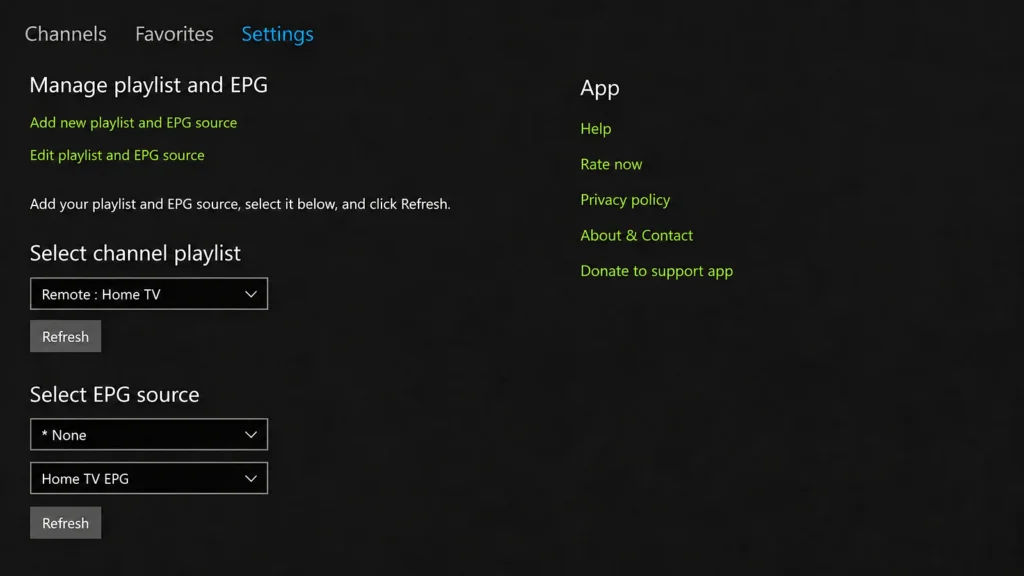
Back in Settings, select the playlist and select Refresh, then select the EPG source and refresh it too. Open Channels and check whether the guide loads.
Xbox route 2: Edge web player
If a compatible web player is the practical option on your Xbox, Microsoft Edge provides the browser route. The web player itself is not supplied by Xbox or by this guide, so verify its address with the provider and use HTTPS where available.
Xbox Edge step 1
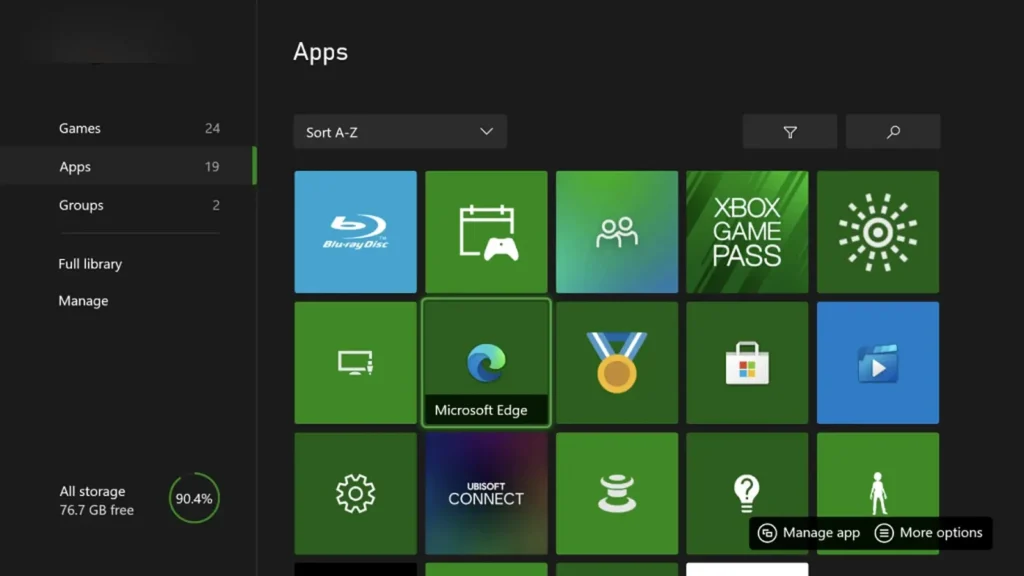
Open My games & apps and launch Microsoft Edge. Install it from the Store only if it is not already available on your console.
Xbox Edge step 2
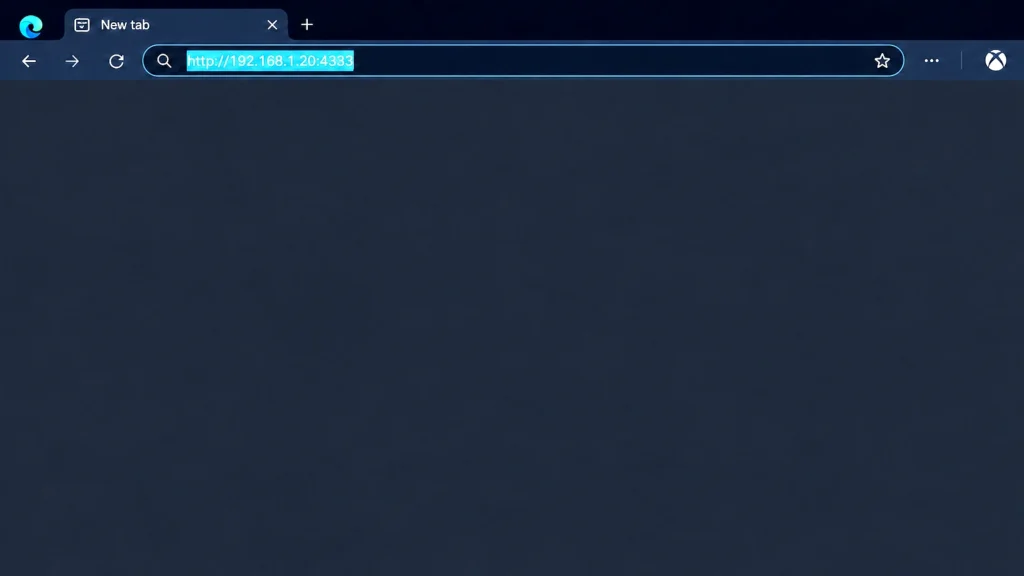
Type the address of the web player you intend to use in the address bar. Do not paste credentials into a site until you have checked the address.
Xbox Edge step 3
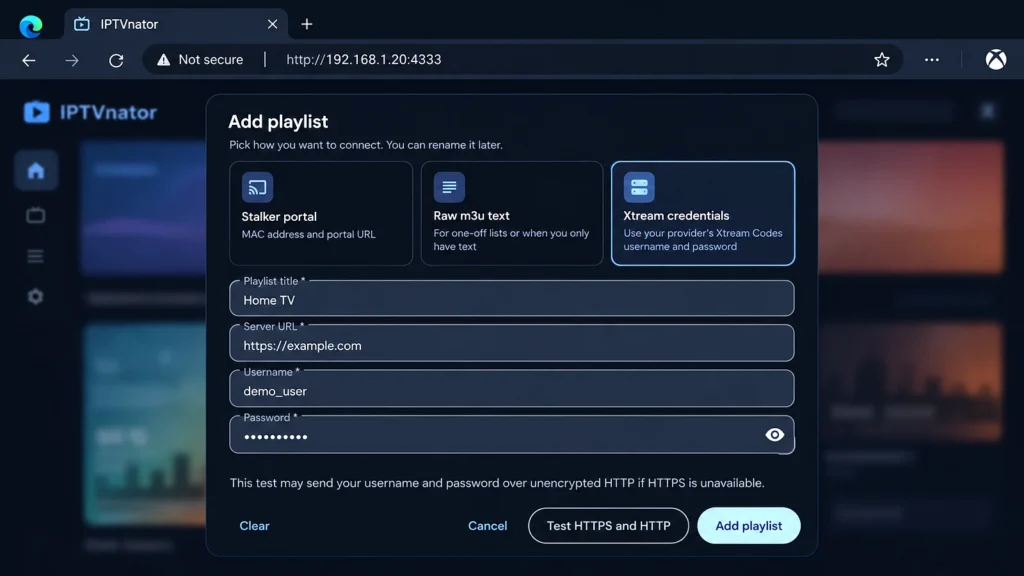
Select Add playlist, choose Xtream Codes or M3U, enter a playlist name, then enter the server URL, username and password supplied with your account, and select Add playlist.
Xbox Edge step 4
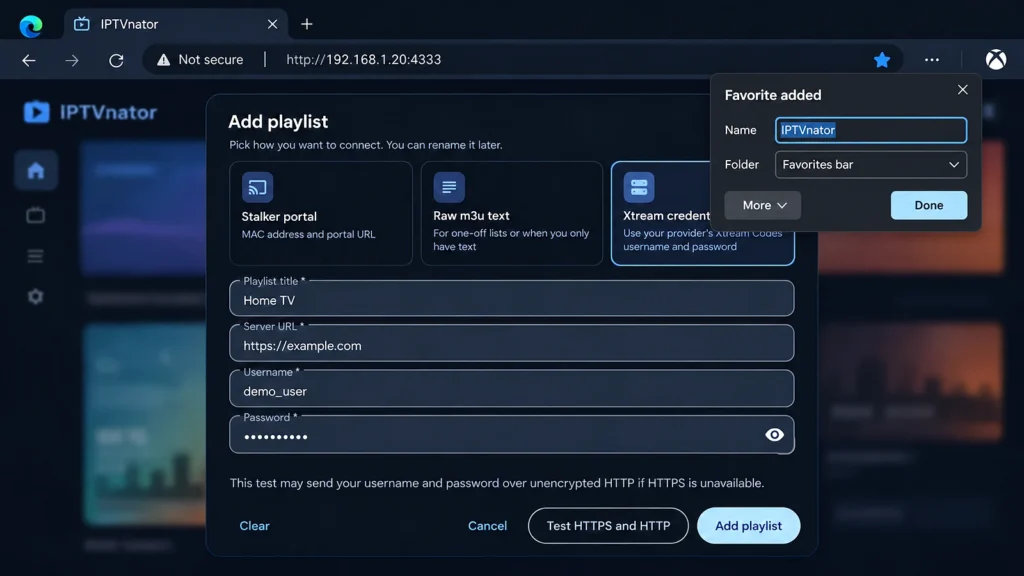
Select the star to add the page to Edge favourites, name it and select Done. This makes the route easier to reopen next time.
EPG and troubleshooting
An electronic programme guide is not automatic on every console route. It depends on the player, the account details and whether an EPG/XMLTV link is supplied. If channels load without guide data, first check that the EPG address is correct and that the player supports the format; do not treat a missing guide as proof that the subscription is invalid.
- If the app or Store listing is missing, check the console model, region, account and current publisher listing.
- If login fails, re-enter the server address and credentials exactly as supplied, without adding spaces.
- If the playlist loads but playback fails, update the console and player, restart the console and router, then test one channel.
- If the web route stops working, contact support before trying an unofficial download or a different portal.
- For account or service questions, use the UK Vision IPTV support page.
For the current platform list and setup alternatives, review the compatible devices page. For plan details, see subscription plans. Use any service only for content you are entitled to watch and check the relevant rights in your region.
FAQs
Can I install a dedicated IPTV app directly on PS5?
The source route uses a PS5 browser workaround and a separate Plex workflow rather than promising a dedicated IPTV app. Availability and browser behaviour can change, so confirm the current route with support and the console menus.
Does MyIPTV Player work on every Xbox?
No guarantee should be made across every Xbox model, account or region. Check the live Xbox Store listing and the publisher before installing; features and upgrades may change.
Can I use Xtream Codes or M3U on a console?
Only where the chosen web player or app provides that input method. Use the server, username, password or M3U details supplied with your account, and keep the EPG link separate if the player asks for one.
Why is the EPG empty?
The player may not support the supplied format, the EPG link may be missing or incorrect, or the guide data may not cover the channels. Check the source details and player documentation first.
Is Plex a UK Vision IPTV app?
No. Plex and any playlist bridge are third-party software. This guide describes a possible technical route, not a guarantee of compatibility or a statement that UK Vision IPTV provides those tools.