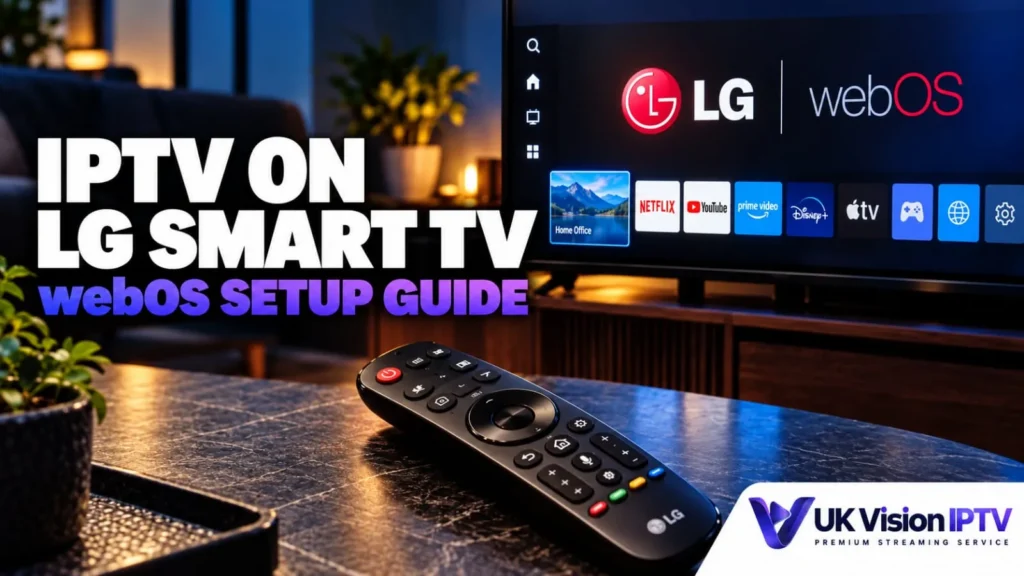
This LG Smart TV IPTV setup guide for viewers in the UK explains how to connect an LG television to the internet, find a compatible player in the LG Content Store and enter the account or playlist method supplied with a subscription. It keeps webOS, model and regional app availability in view instead of assuming one setup works on every TV.
UK Vision IPTV publishes this guide as general setup information. The player is only the software interface; it does not provide channels by itself. Before choosing a plan, check the exact LG model and webOS version, the app’s current UK availability and the login method supplied for your account.
Before you start: check your LG TV
LG televisions use webOS, but menu names and available apps can vary by model, software version and region. LG’s UK webOS guide describes the Home screen and Apps or LG Content Store route to find and install supported applications, while LG UK’s app-installation guidance explains that only apps supported for the TV appear. Only apps made available for the exact TV and region should be treated as installable.
Check the model, webOS version and region
- Note the TV model and current webOS or software version.
- Confirm the TV’s region and the account used for LG services.
- Check the LG Content Store before selecting a player.
Prepare the account details supplied for your subscription
Keep the details supplied with your subscription to hand, but do not paste them into a public page or share them with anyone who does not need them. Depending on the player, setup may use a server URL with a username and password, a full M3U playlist URL, a portal address or a device-ID linking process. The chosen app determines which fields are available.
Confirm internet access and user agreements
Connect the TV by Wi-Fi or Ethernet and confirm that other apps can reach the internet. If the LG Content Store asks you to accept user agreements or sign in, complete those steps before searching for a player.
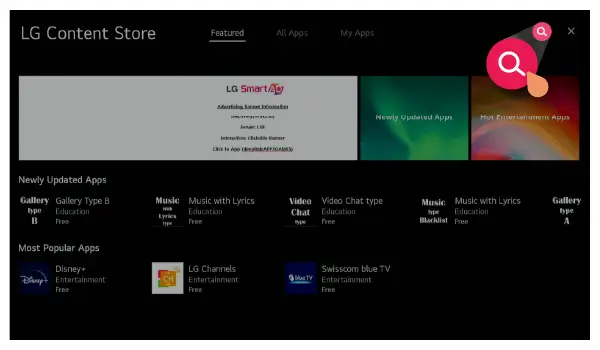
LG Smart TV IPTV setup
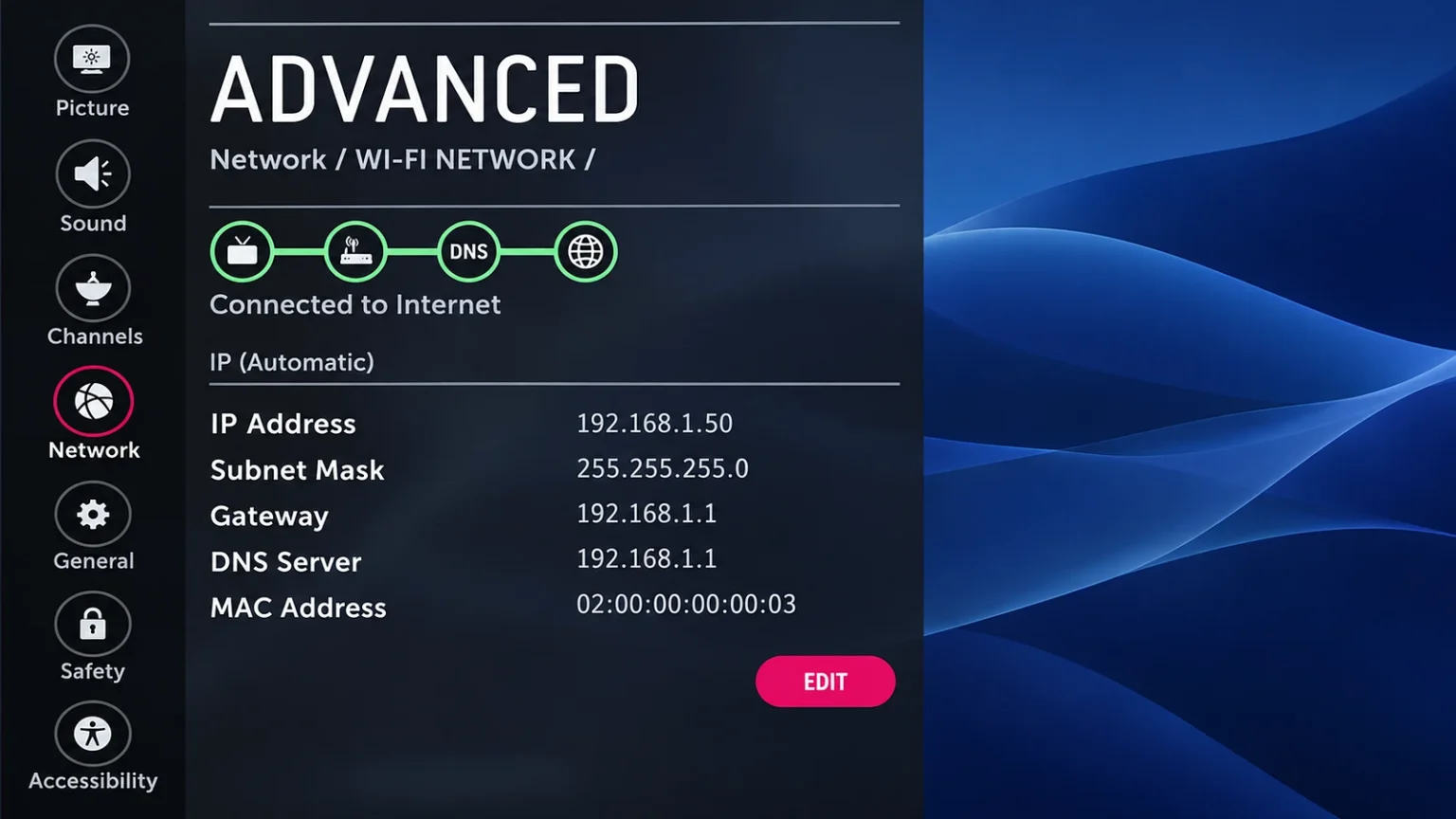
Connect the TV to the internet
Open the Home screen and use Settings to reach the network controls. On some models the path is Settings → All Settings → General or Network; the exact labels can differ. Choose Wi-Fi or a wired connection, complete the connection and then test another internet-enabled app.
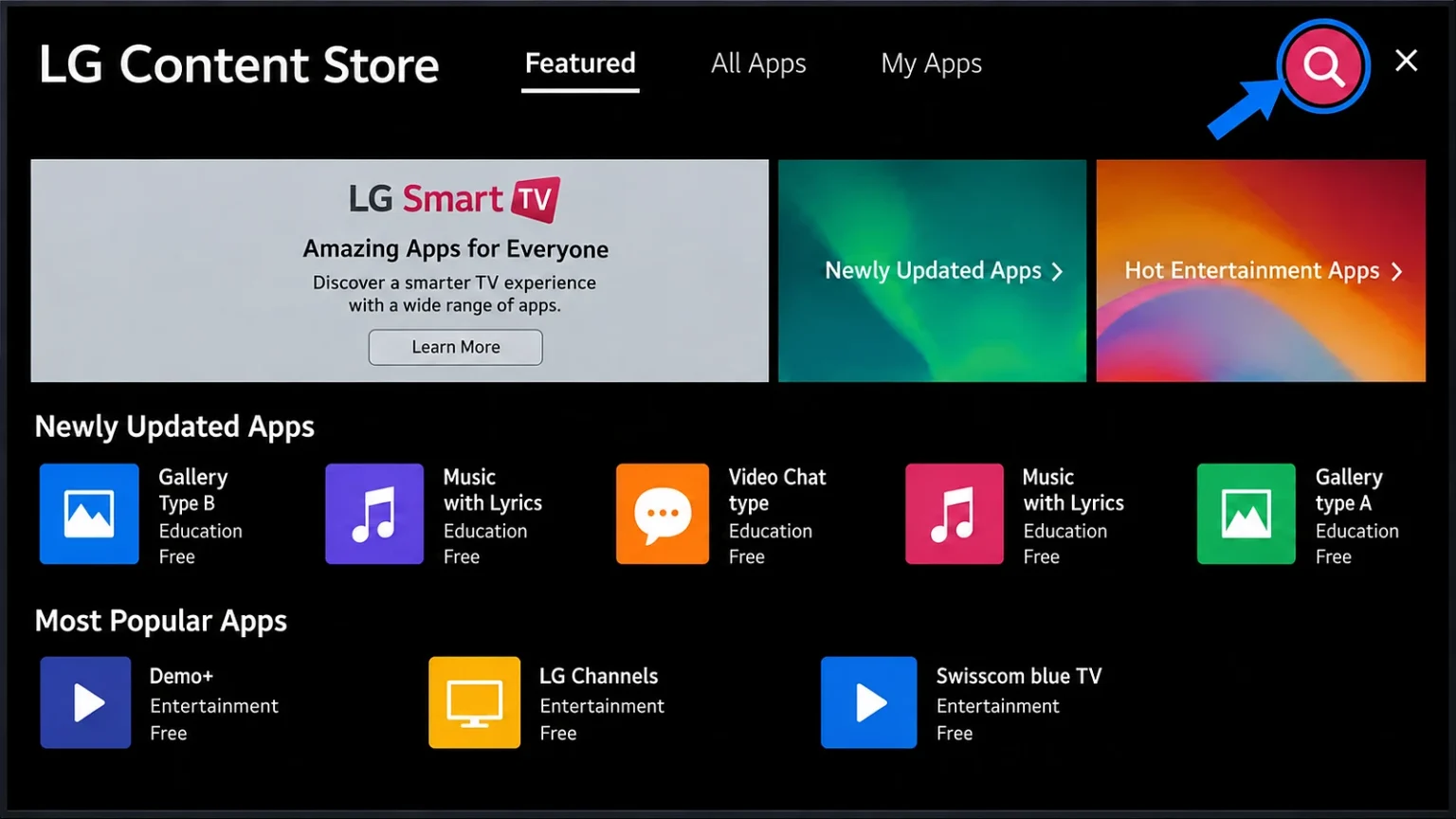
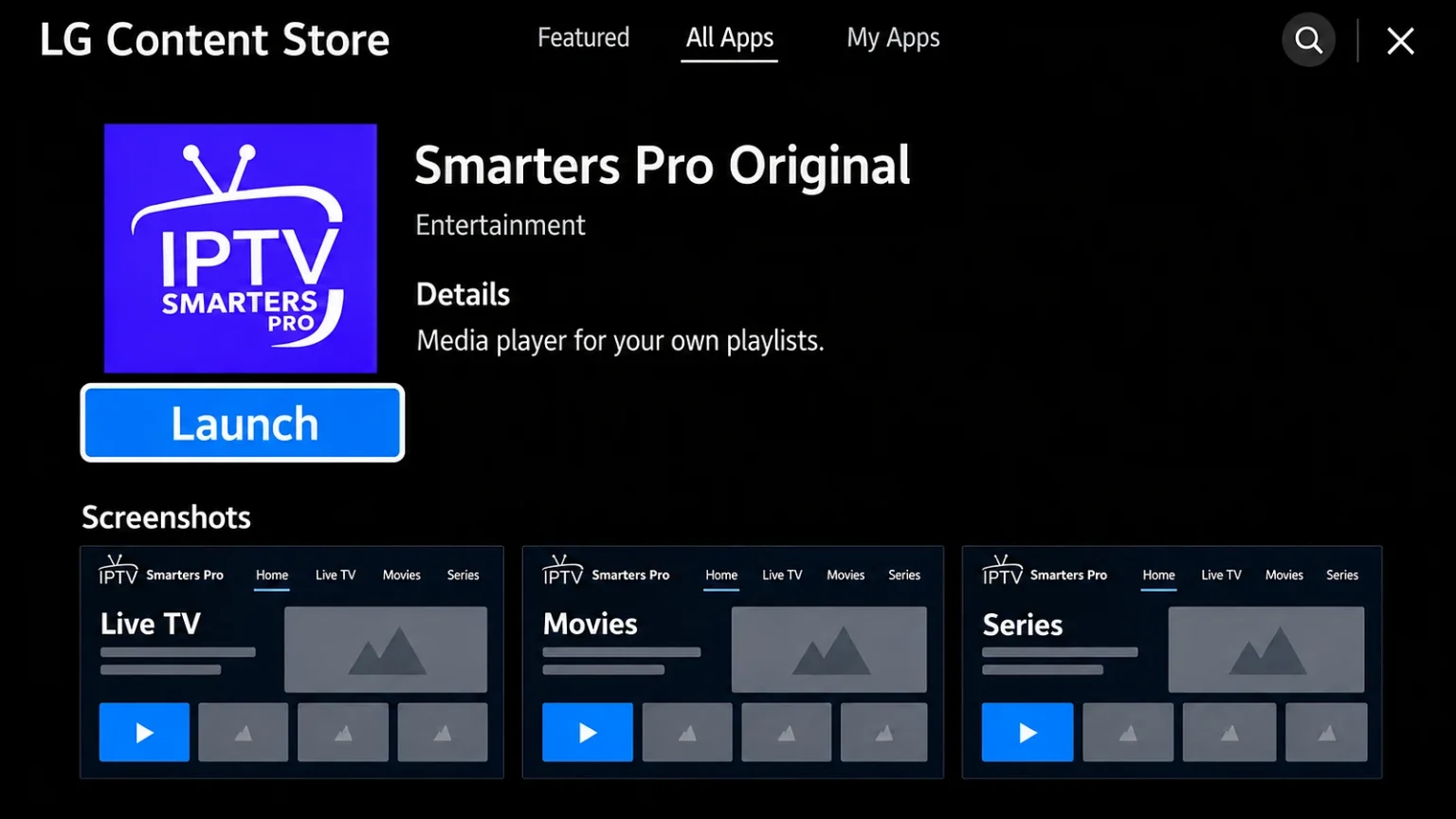
Open LG Content Store and check player availability
From Home, open Apps or LG Content Store, choose search, enter the player name and open the result. If the app does not appear, it may not support that webOS version, TV model or region. Do not assume that an app available on another television or phone can be installed on your LG TV.
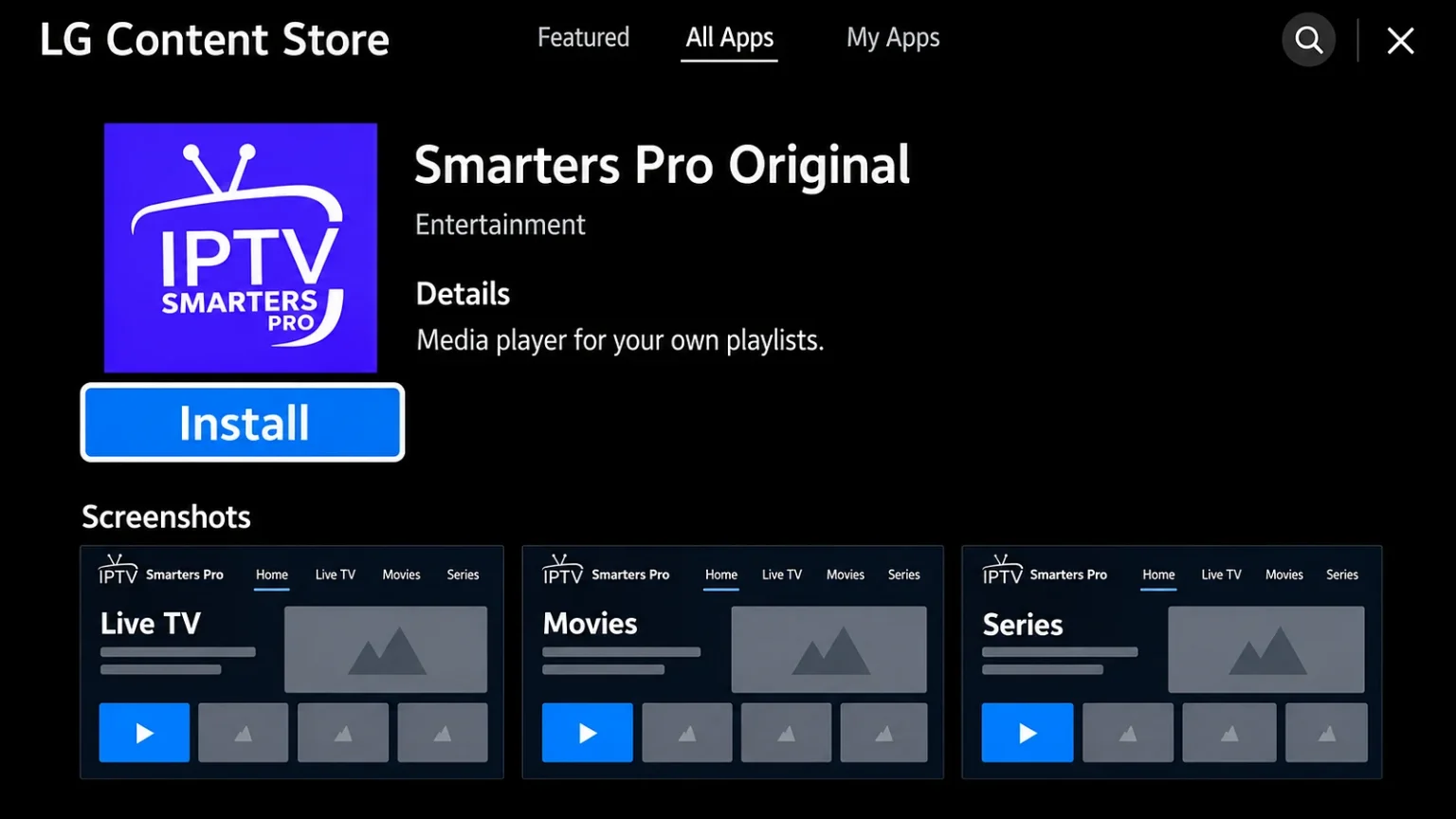
Install a compatible IPTV player
Select Install only after checking the app publisher’s listing and the exact TV requirements. Once installed, the app normally appears on the Home screen. UK Vision IPTV does not claim that every named player is available or compatible on every LG television, so confirm the app and login method before choosing a longer plan.
Choose the login method your player supports
Open the installed player and follow its own account screen. The labels below are common examples, not a promise that every LG app offers every method.
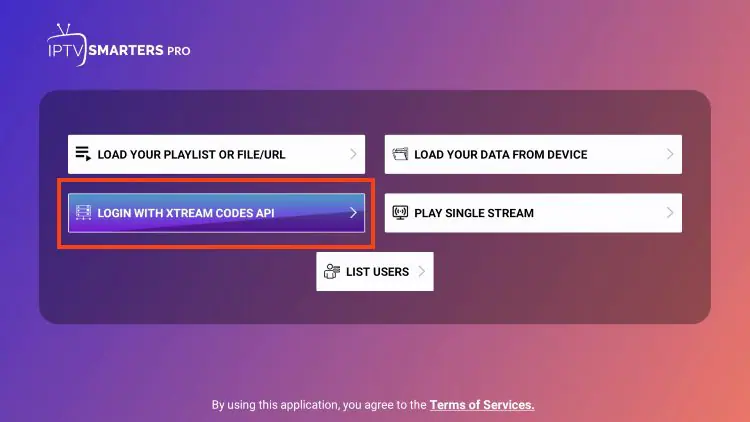
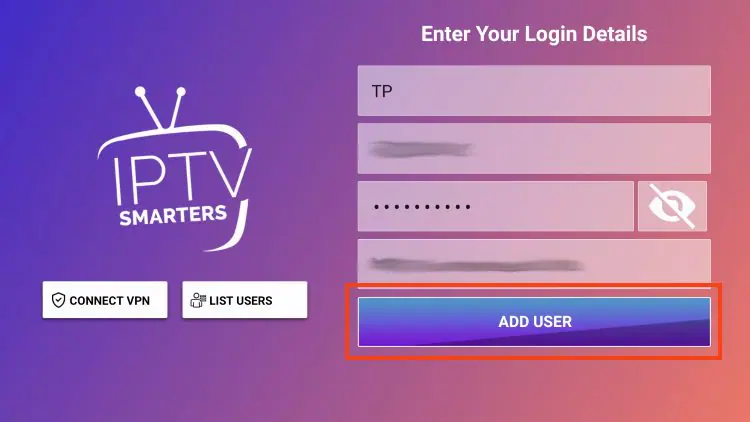
Direct login with Xtream Codes or similar fields
Some players provide fields for a playlist name, server URL, username and password, or an option labelled Xtream Codes API. Enter the values exactly as supplied for your account. A working field in one app does not prove that the same method is supported by another app.
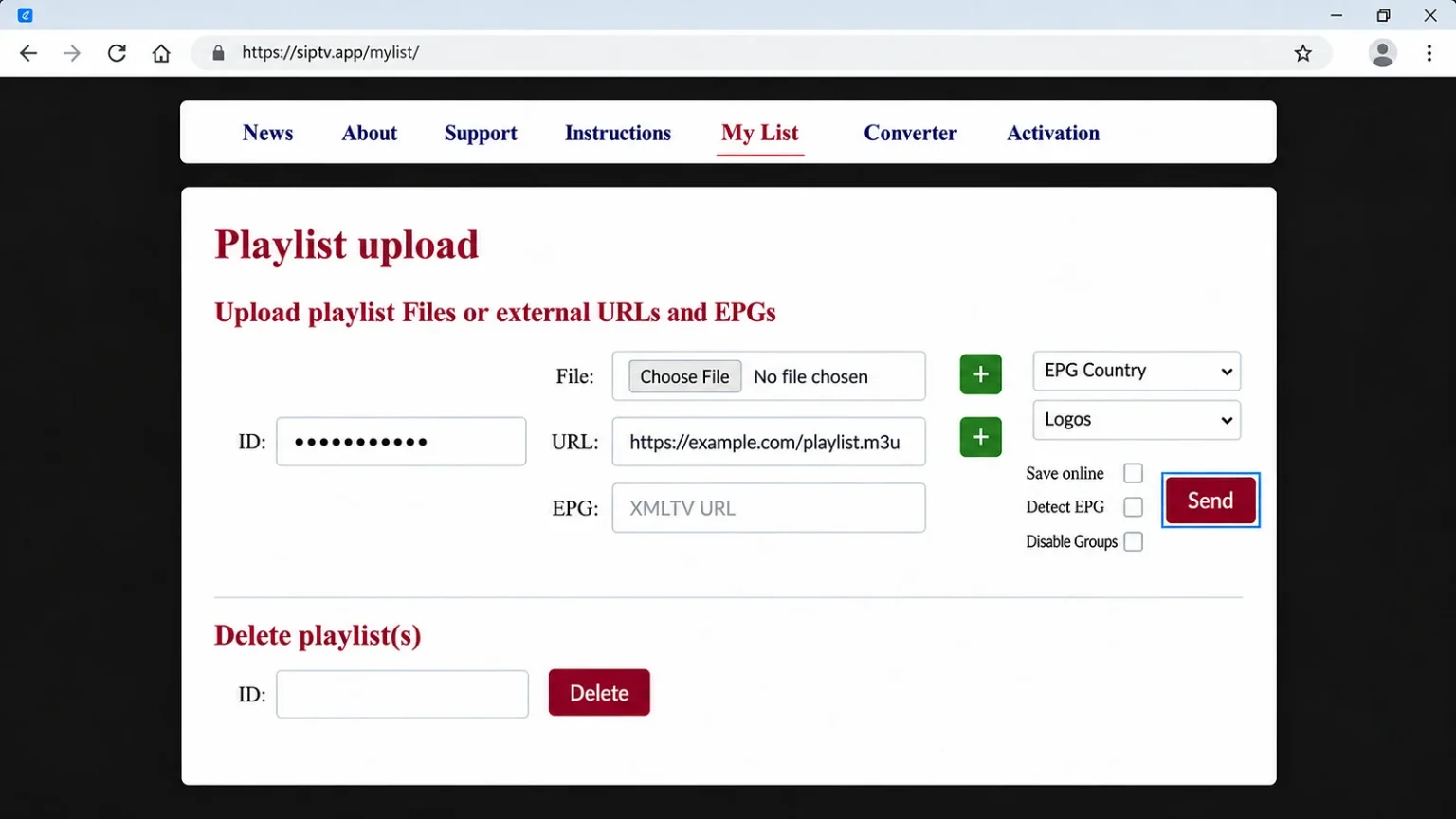
Load an M3U playlist URL
If the player asks for an M3U URL, paste the complete URL supplied for your subscription and check that it has not been truncated. Some apps accept a URL only through a separate web portal or playlist page, so follow the app publisher’s instructions rather than guessing the field.
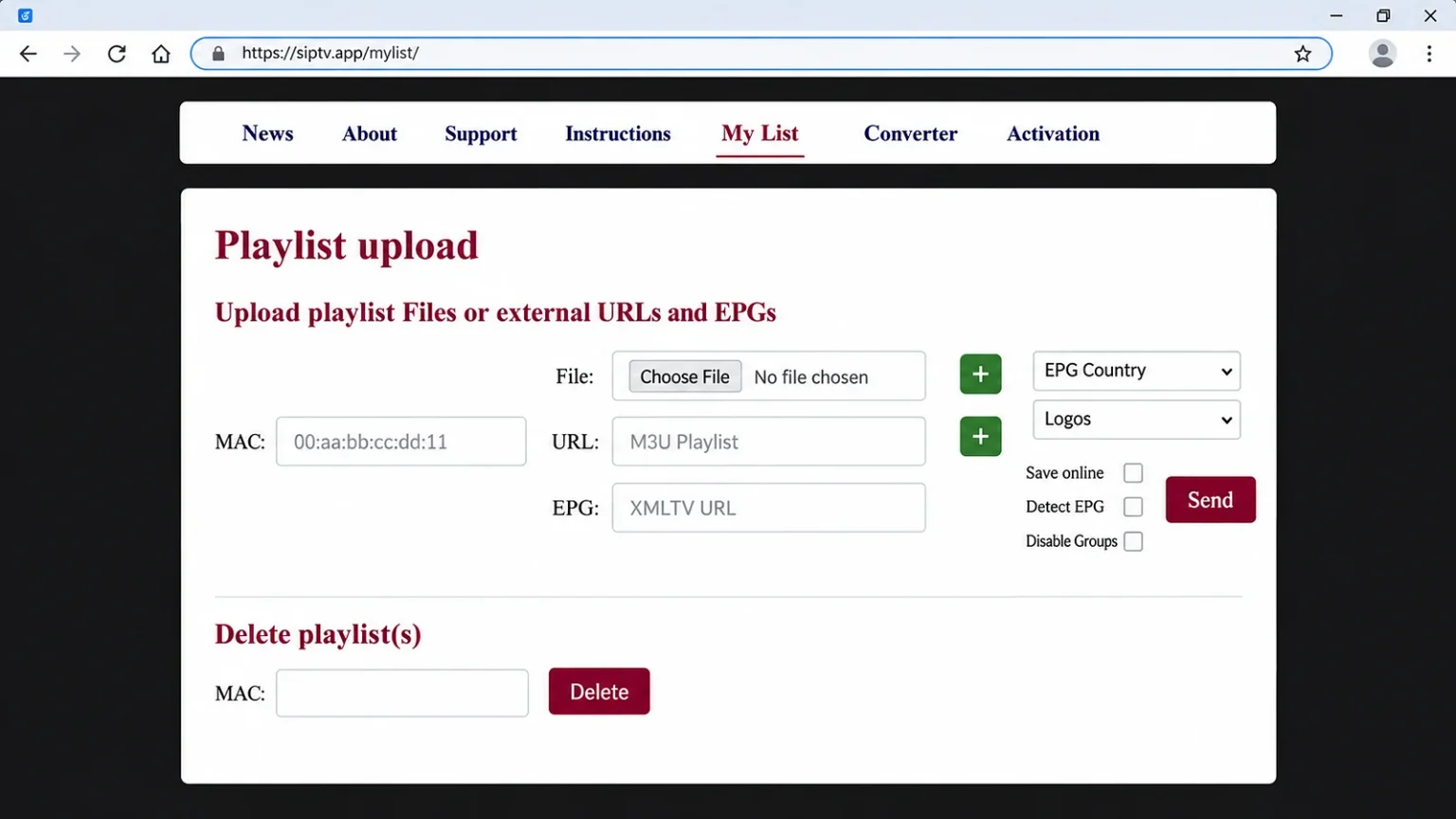
Use device-ID or MAC linking when required
Some players display a device ID or MAC address and ask you to link the TV through the app’s own website. Use this route only when the app explicitly requires it, and check which account details or playlist URL the publisher requests. Do not send a device ID to an unverified service or enter someone else’s credentials.
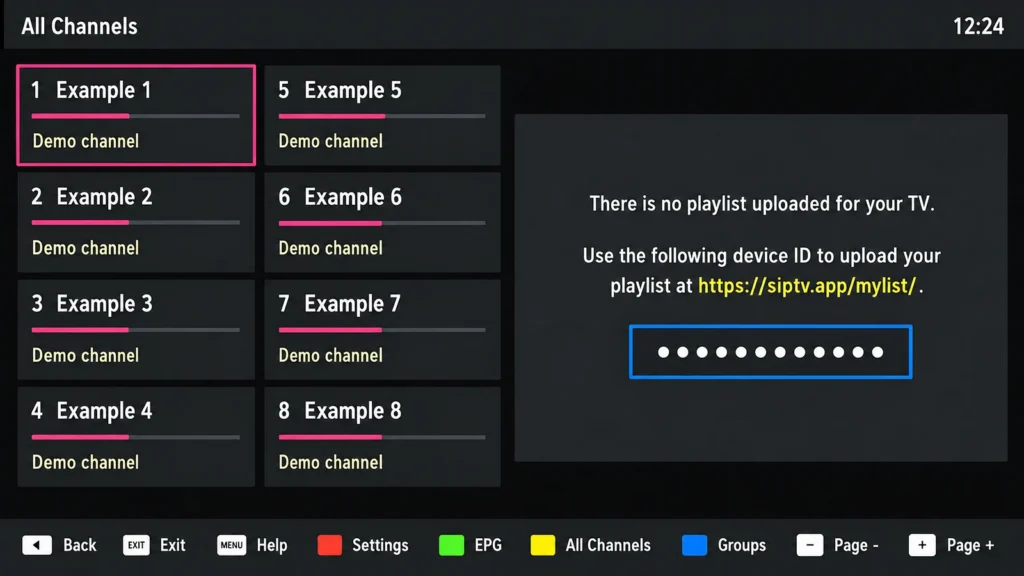
Load channels and check the electronic programme guide
Test live playback before relying on the guide
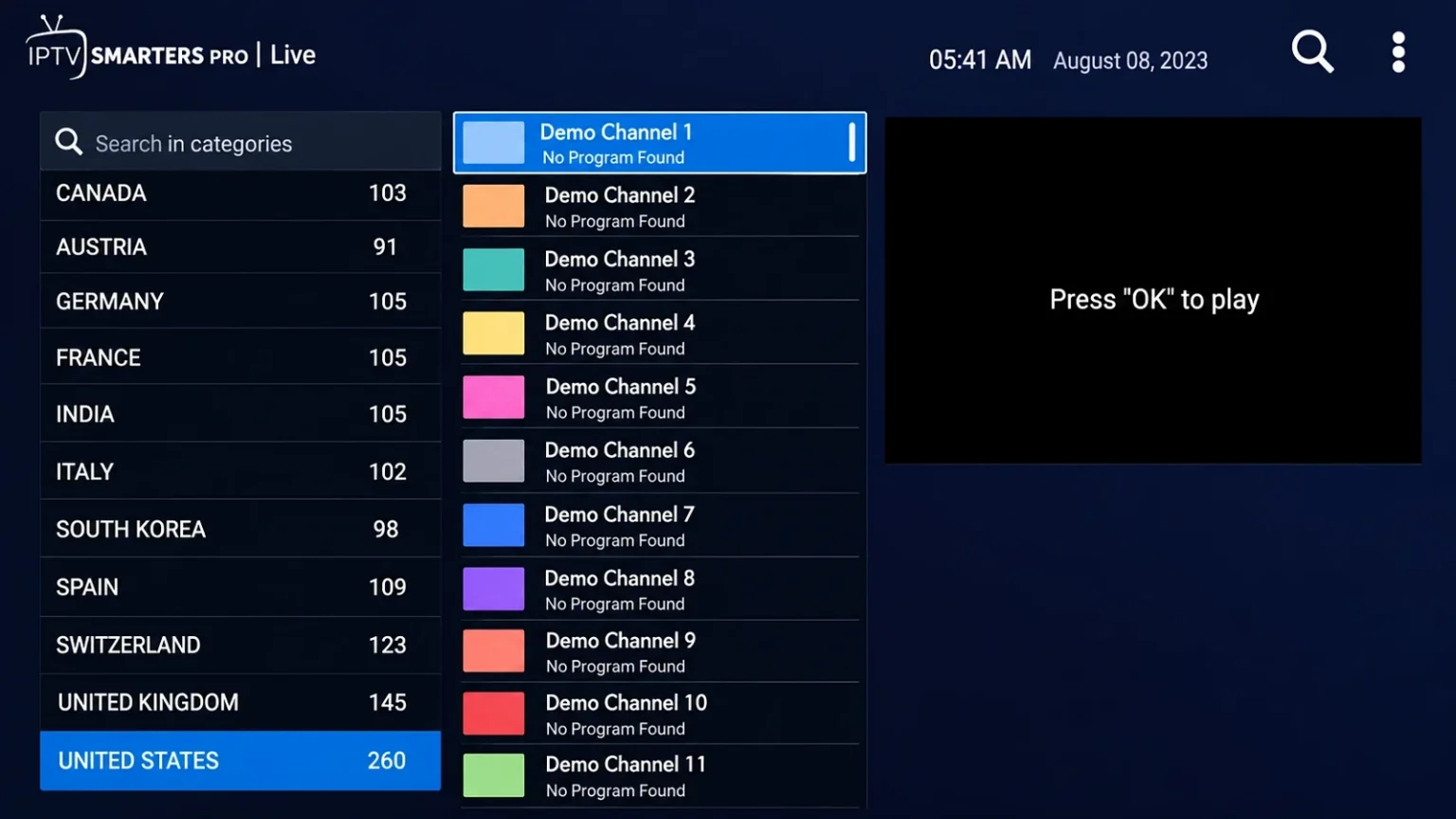
After the playlist loads, open a channel and wait for playback to begin before testing the guide. This separates an account or playlist problem from an EPG display problem. If a channel list is empty, check the app’s refresh or reload option and compare the account details with the original message.
Refresh the EPG when programme data is missing
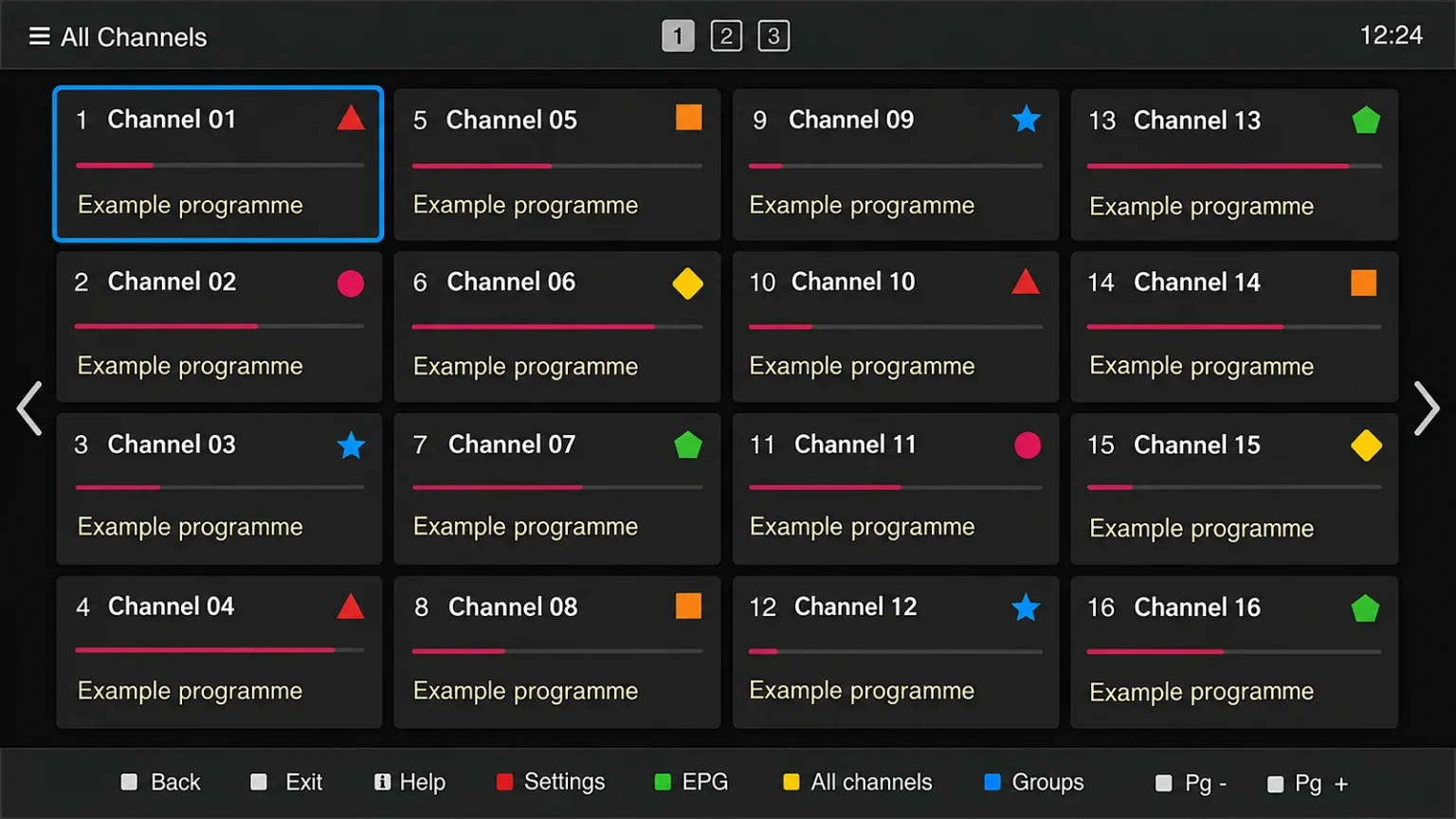
EPG data may be included automatically, loaded from a separate XMLTV or EPG URL, or unavailable for a particular account or app. Open the player’s Guide or EPG menu, refresh its data if that option exists and check the TV’s date and time. If the guide remains empty while live channels work, ask support whether the account and player use the same guide source.
Troubleshoot LG IPTV setup
The player is missing from LG Content Store
Check that the TV is online, user agreements are accepted and the model and region are correct. Review the app publisher’s supported-TV information. If the app still does not appear, treat it as unavailable for that TV rather than attempting an unsupported installation.
The login fails or the list stays empty
Confirm that the server URL, username, password, playlist URL or portal address matches the method requested by the app. Remove accidental spaces, save again and use the app’s reload option. If the details are correct but the account still fails, contact the provider or app support instead of repeatedly changing unrelated TV settings.
Playback buffers or shows a black screen
Restart the player and TV, verify the network connection and check for a software update using the TV’s support settings. Test more than one channel if the account permits it. Playback can also depend on the app, stream format, TV model and account, so the cause should be confirmed rather than attributed to one universal setting.
Frequently asked questions
Can any LG Smart TV run IPTV?
No universal compatibility claim is safe. Availability depends on the TV model, webOS version, region and the player listed in the LG Content Store. Check the exact television before selecting an app or plan.
Do I need an external streaming device?
Not necessarily. A compatible player may be enough on a supported LG TV, but an external device may be useful when the required app is unavailable. It does not automatically guarantee that the same account or player will work on every device.
Can I use Xtream Codes or M3U on an LG TV?
Only when the chosen player supports that method. Follow the app’s current instructions and the account details supplied with your subscription; the TV itself does not make every login format available.
Why is the EPG missing?
The account may not include guide data, the app may need a refresh or the guide source may not match the playlist. Test live playback first, refresh the guide and contact support if the app-specific checks do not resolve it.
Do IPTV player apps charge separately?
Some player apps may have their own licence or subscription. Check the app publisher’s current terms and keep any player fee separate from the IPTV service subscription.
Final checks before you watch
- The TV is connected and the installed app is listed for the exact model and region.
- The account method matches the player’s fields and the playlist loads.
- At least one live channel plays before you rely on the EPG.
- You know where to refresh guide data and where to request support.
This LG Smart TV IPTV setup guide is published by UK Vision IPTV and is intended to explain LG device setup, not to guarantee app availability or service compatibility on every television. For wider device guidance, see the compatible devices guide and UK IPTV setup tutorials. Review channel information and subscription plans before choosing a longer plan, and contact support if the model or login method is unclear.